 MAPI
MAPIHow to Create a Fillable PDF Form
A fillable PDF lets people type information directly into a document instead of printing it first. You can create one from an existing PDF, a Word document, a spreadsheet, or a scanned paper form. This guide uses Adobe Acrobat because its Prepare a form tool can detect many fields automatically and lets you add text boxes, checkboxes, radio buttons, lists, date fields, and signature fields. The exact buttons may look slightly different between Acrobat versions, but the workflow is the same.
Open the PDF in Adobe Acrobat, choose All tools > Prepare a form, and let Acrobat detect possible fields. Add or correct the fields you need, give each one a clear name, set required options where appropriate, then preview, test, and save the finished PDF.
Things you'll need
- Adobe Acrobat with the Prepare a form tool
- An existing PDF, Word file, spreadsheet, scan, or blank PDF
- The questions and fields you want people to complete
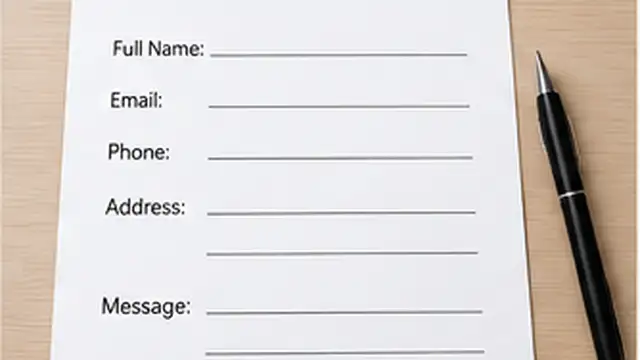
Prepare the source document
Start with a clean document that already contains the labels, instructions, and spaces where people should enter information. You can use an existing PDF or convert a Word file, spreadsheet, or scanned paper form to PDF first. Keep labels close to their matching fields so the finished form is easy to understand.
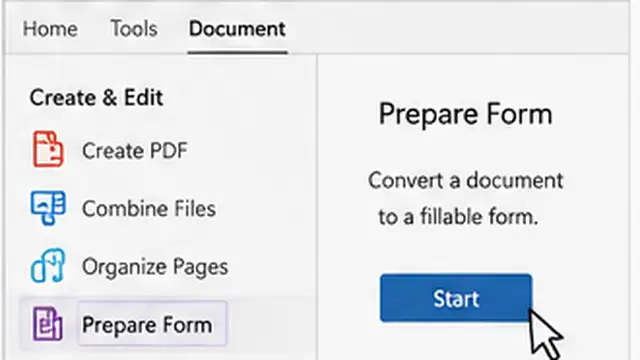
Open Prepare a form in Acrobat
Open the document in Adobe Acrobat. Select All tools, then choose Prepare a form. Start the form setup and allow Acrobat to scan the document for likely fields. It can often recognize lines, boxes, and other areas that should become fillable, but you should still review every detected field.
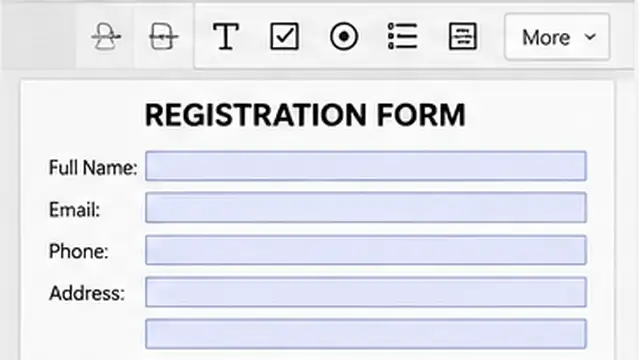
Add and position the form fields
Delete any incorrect fields Acrobat created, then add the missing ones. Use text fields for names and written answers, checkboxes for independent choices, radio buttons when only one option should be selected, and list or dropdown fields for predefined choices. Drag and resize each field so it sits neatly beside its label.
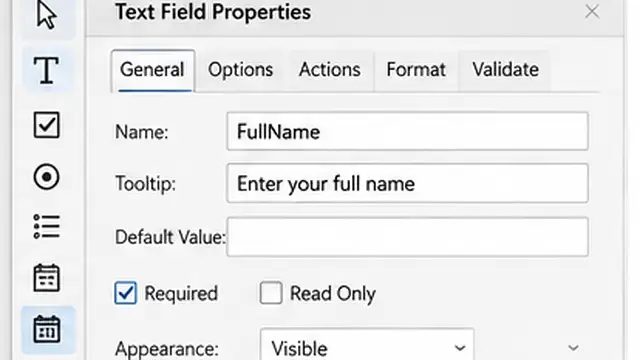
Set clear field properties
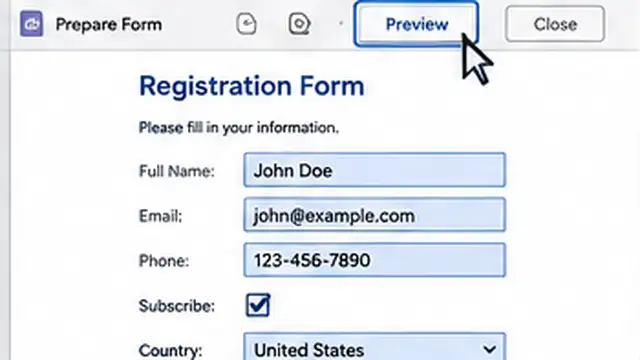
Open the properties for each important field and give it a descriptive internal name. Add a useful tooltip when the field may need extra explanation, and mark fields as required only when users must complete them. For longer answers, enable a multi-line text field. You can also set number, date, or calculation formats when the form needs them.
Check accessibility and field order
Make sure the form can be completed in a logical order with the Tab key. Add meaningful tooltips for fields so screen-reader users can understand what information is requested. If accessibility matters for your audience, use Acrobat's accessibility tools to check tags, form-field descriptions, and reading order before publishing the document.
Preview, test, and save the form
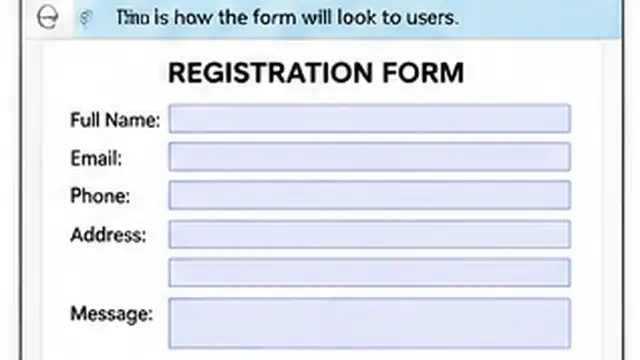
Use Preview to test the form the way a recipient will use it. Type into every text box, select each checkbox or radio button, test dropdowns, and confirm that required fields behave correctly. Save the finished PDF as a new file so you keep an editable working copy. Open the saved version once more and test a few fields before sending it to other people.
Tips & common mistakes
Tips for best results
- Use short, clear labels so people immediately understand what belongs in each field.
- Give every form field a unique internal name unless you intentionally want repeated fields to share the same value.
- Keep field sizes large enough for the information people are expected to enter.
- Use radio buttons for one-choice questions and checkboxes when users may select more than one answer.
- Test the final PDF in a common PDF viewer before distributing it, especially if the form contains calculations, signatures, or advanced actions.
Common mistakes
- Trusting automatic field detection without checking it: Acrobat can miss fields or create fields in the wrong places.
- Giving several unrelated fields the same name: Fields with the same underlying name can share entered data unexpectedly.
- Making every field required: Too many mandatory fields can make a form frustrating or impossible to complete.
- Ignoring keyboard navigation: A confusing tab order makes long forms slower to complete and less accessible.
- Sending the form without testing the saved PDF: A field can look correct in edit mode but behave differently for the person filling it out.
Frequently asked questions
Can Acrobat create fillable fields automatically?
Yes. The Prepare a form tool can detect likely fields in an existing PDF, Word document, or scanned form. You should review the results and correct any missing or incorrect fields.
What types of fields can I add to a fillable PDF?
Common options include text fields, checkboxes, radio buttons, dropdown lists, list boxes, date fields, buttons, and signature fields.
Can a fillable PDF include required fields?
Yes. Open the field properties and mark a field as required when the user must complete it before the form is considered complete.
Can I make a fillable PDF from a scanned paper form?
Yes. Convert or scan the paper form to PDF, then use Prepare a form. Acrobat can attempt to recognize the form areas, but scanned documents often need more manual correction.
How do I make a fillable PDF easier to use with a screen reader?
Use meaningful field names and tooltips, keep a logical tab order, and check the document with Acrobat's accessibility tools. Proper PDF tags and reading order also help.
Written by Mapiance Editorial Team
The Mapiance Editorial Team researches, writes, reviews, and maintains practical guides and explainers for MAPIANCE.
Published Aug 23, 2026 · Updated Sep 27, 2026