 MAPI
MAPIHow to Fix Google Drive Storage Full Even After Deleting Files
Deleting files from Google Drive does not always reduce the storage number immediately. Files moved to Trash still count, and your Google storage is shared across Drive, Gmail, Google Photos, and some backups. Large cleanups can also take time to appear in the storage meter. Work through the storage account in order so you can see what is still using space instead of deleting random files.
Empty Google Drive Trash first because deleted files still count until they are permanently removed. Then check Google One storage for space used by Gmail, Google Photos, backups, and Drive, and allow up to 48–72 hours for the storage total to update after deleting many files.
Things you'll need
- The Google account that shows the storage warning
- A web browser or Google Drive, Gmail, and Google Photos apps
- Access to Google One storage manager
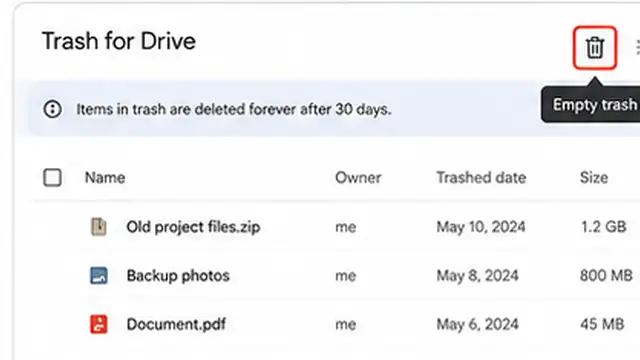
Empty Google Drive Trash
Open Google Drive Trash and permanently delete the files you no longer need. Moving a file to Trash is not enough because items in Drive Trash still count toward your Google storage until they are permanently removed. Double-check the files before emptying Trash because permanent deletion may not be reversible.
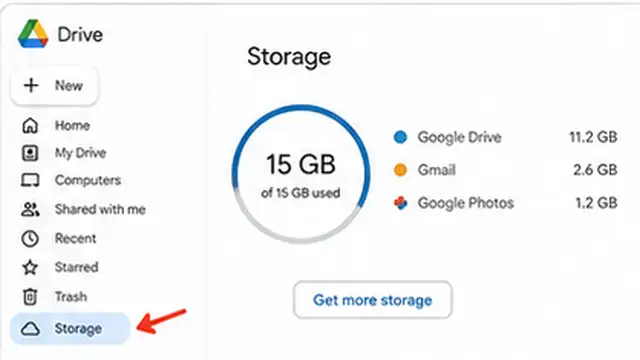
Check the Google One storage breakdown
Open Google One storage manager and look at how much space each service is using. Your storage is shared across Google Drive, Gmail, Google Photos, and some backups, so deleting Drive files may make little difference if another service is using most of the quota. Use the usage details to identify the largest category before deleting anything else.
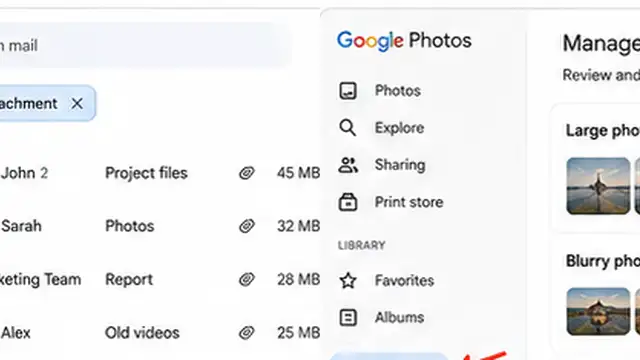
Empty Gmail and Photos trash if needed
If Gmail or Google Photos is using a large part of the account, clean those services too. Permanently empty Gmail Trash and Spam after checking them, and review Google Photos Trash before removing unwanted photos or videos permanently. Items left in these trash folders can continue to use storage until they are permanently deleted.
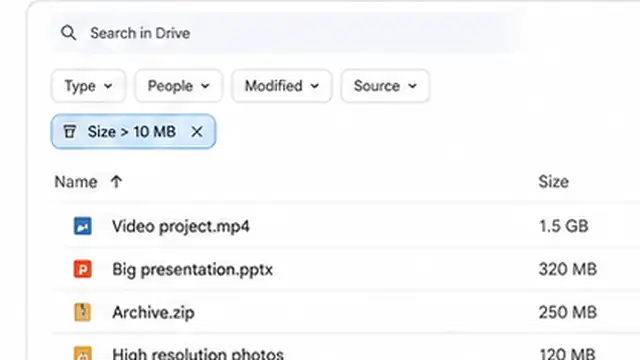
Remove the largest storage items
Use the storage manager or Drive storage view to find the biggest files first. Large videos, archives, old backups, and emails with large attachments can free much more space than deleting hundreds of small documents. In Drive, the storage view can list files by size so you can focus on items that actually affect the quota.
Check backups and less visible storage
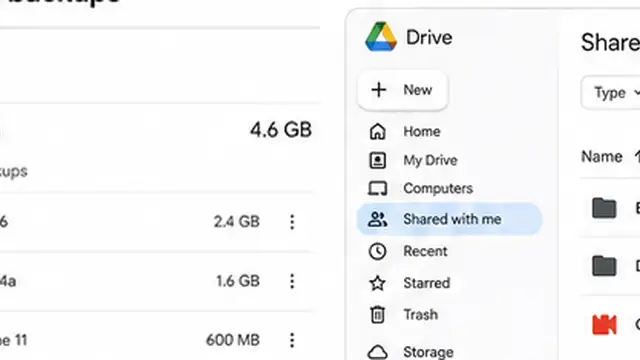
If the storage total is still higher than expected, review backups and other data shown in Google One. Some backups can use Google storage even though they do not appear as normal files in My Drive. Also remember that files in Shared with me normally use the owner's storage, but copies you create or files you own inside shared folders use your own quota.
Wait for the storage total to refresh
After permanently deleting files and clearing trash, check the storage meter again later. Small changes may appear quickly, but Google says deleting a large number of files can take up to 48–72 hours to be reflected accurately. Avoid repeating large deletions just because the number has not changed immediately. If the account still shows the wrong total after that period, reopen Google One storage manager and review the remaining categories again.
Tips & common mistakes
Tips for best results
- Start with the Google One storage breakdown instead of guessing which service is full.
- Delete a few very large items before spending time removing many tiny files.
- Review Trash before emptying it permanently, especially when the cleanup includes shared work or important photos.
- A file in Shared with me normally does not use your quota unless you own it or created your own copy.
- If you use Drive for desktop, do not use the local folder size as the final measure of cloud storage; check the Google storage manager instead.
Common mistakes
- Deleting files but leaving them in Drive Trash: They still count against the storage limit until permanently removed.
- Cleaning only Google Drive: Gmail, Google Photos, and some backups can be the real reason the shared Google quota is full.
- Expecting the meter to change instantly after a large cleanup: Storage calculations can take up to 48–72 hours to update.
- Deleting files from Shared with me to free your quota: Files owned by someone else normally do not use your storage.
- Removing many small files while ignoring large videos, backups, or email attachments: The storage total may barely change.
Frequently asked questions
Why is Google Drive still full after I deleted files?
The files may still be in Drive Trash, another Google service may be using the storage, or the account may still be updating after a large deletion.
Does Google Drive Trash count toward storage?
Yes. Files in Drive Trash continue to count toward your Google storage until they are permanently deleted.
How long does Google storage take to update after deleting files?
Small changes may appear quickly, but Google says a large number of deletions can take up to 48–72 hours to be reflected accurately.
Do Gmail and Google Photos use the same storage as Drive?
Yes. Google account storage is shared across Drive, Gmail, Google Photos, and some backups.
Do files in Shared with me use my Google Drive storage?
Normally no. They count against the owner's storage. However, a copy you create or a file you own in a shared folder uses your own storage.
Written by Mapiance Editorial Team
The Mapiance Editorial Team researches, writes, reviews, and maintains practical guides and explainers for MAPIANCE.
Published Aug 25, 2026 · Updated Oct 1, 2026