 MAPI
MAPIHow to Fix a Router That Has Wi-Fi but No Internet
Wi-Fi and internet access are not the same thing. A router can keep broadcasting a strong Wi-Fi signal even when its connection to the modem, fiber ONT, or internet provider has failed. The fastest way to fix the problem is to confirm whether every device is affected, then work outward from the router's internet connection instead of changing Wi-Fi passwords or wireless settings that are already working.
First test the same Wi-Fi network on another phone or computer. If no device has internet, check the cable between the modem or ONT and the router, then restart the modem or ONT first and the router second. If the connection still fails, check for an ISP outage and review the router's Internet or WAN status before considering a factory reset.
Things you'll need
- The Wi-Fi router
- The modem or fiber ONT if separate
- A known-good Ethernet cable if available
- A second phone, tablet, or computer for testing
- Router login details if you need to check Internet or WAN status
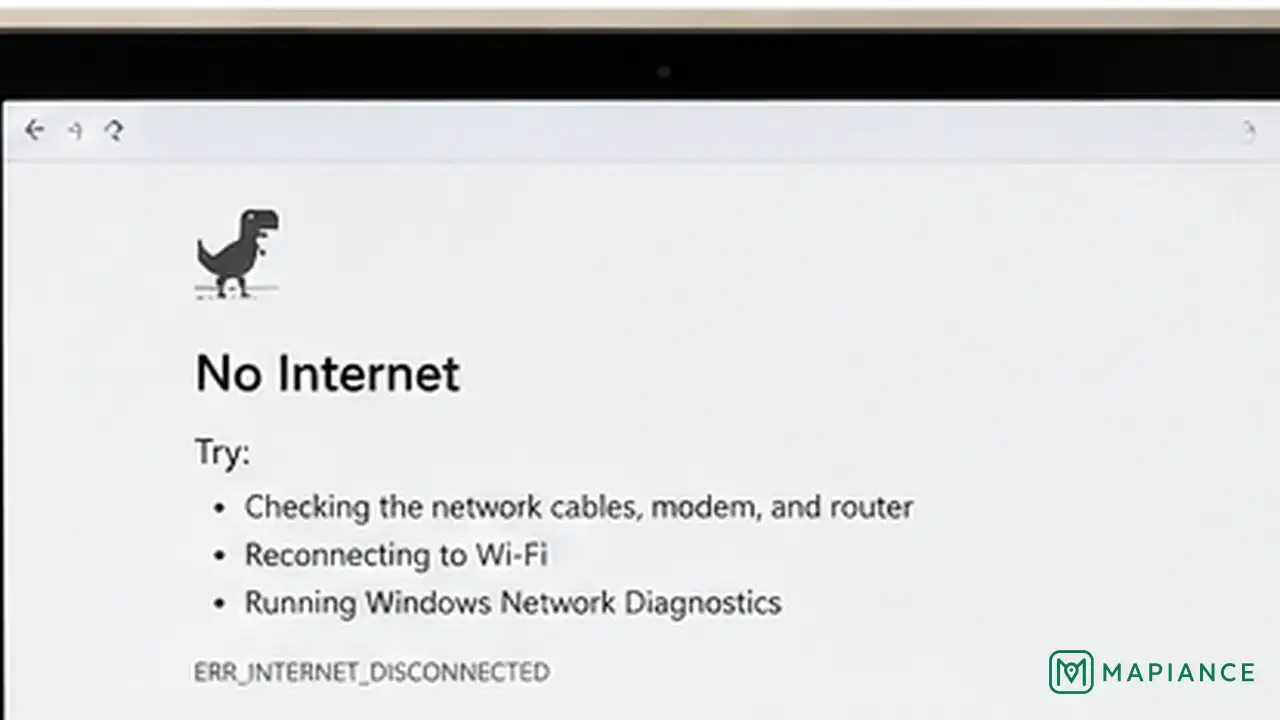
Test the Wi-Fi on another device
Connect a second phone, tablet, or computer to the same Wi-Fi network. If that device also has no internet, the problem is probably with the router, modem or ONT, or internet service rather than one device. If other devices work normally, troubleshoot the affected device instead of changing the router.
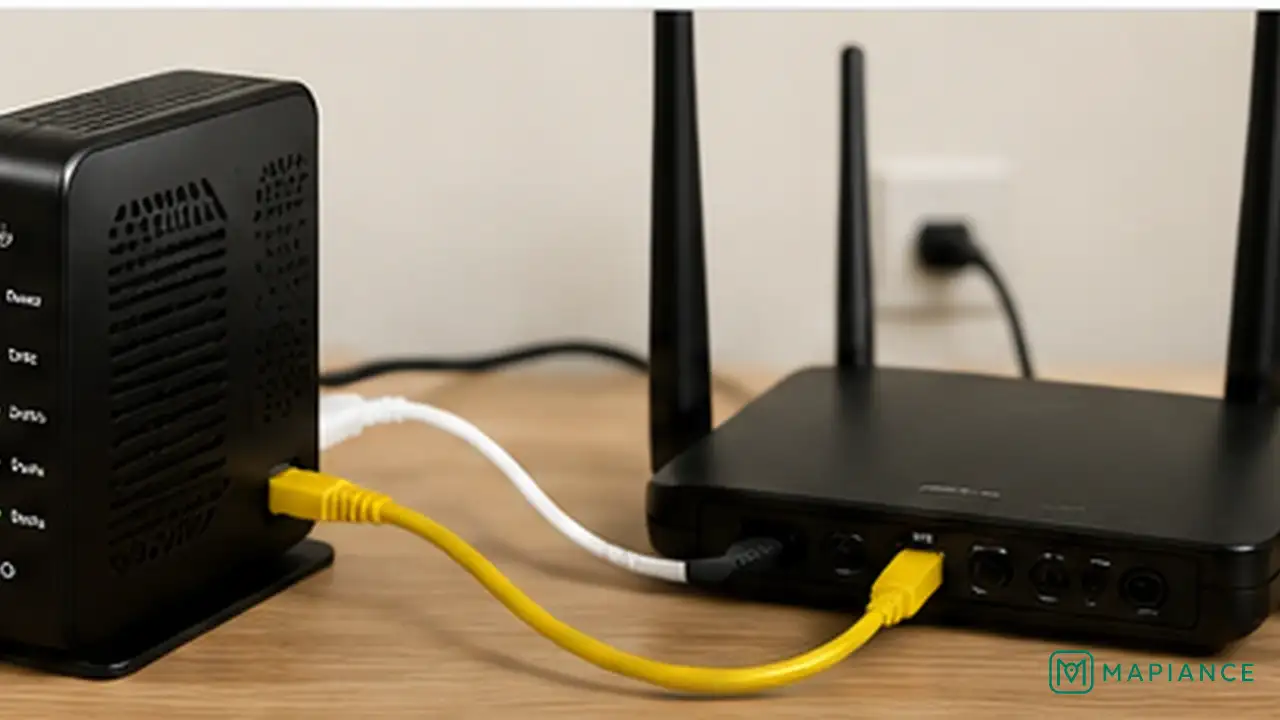
Check the modem or ONT and WAN cable
Make sure the Ethernet cable from the modem or fiber ONT is firmly connected to the router's Internet or WAN port, not a normal LAN port. Check the modem or ONT for an obvious loss-of-service or alarm light. If the cable looks damaged or does not click firmly into place, try a known-good Ethernet cable.
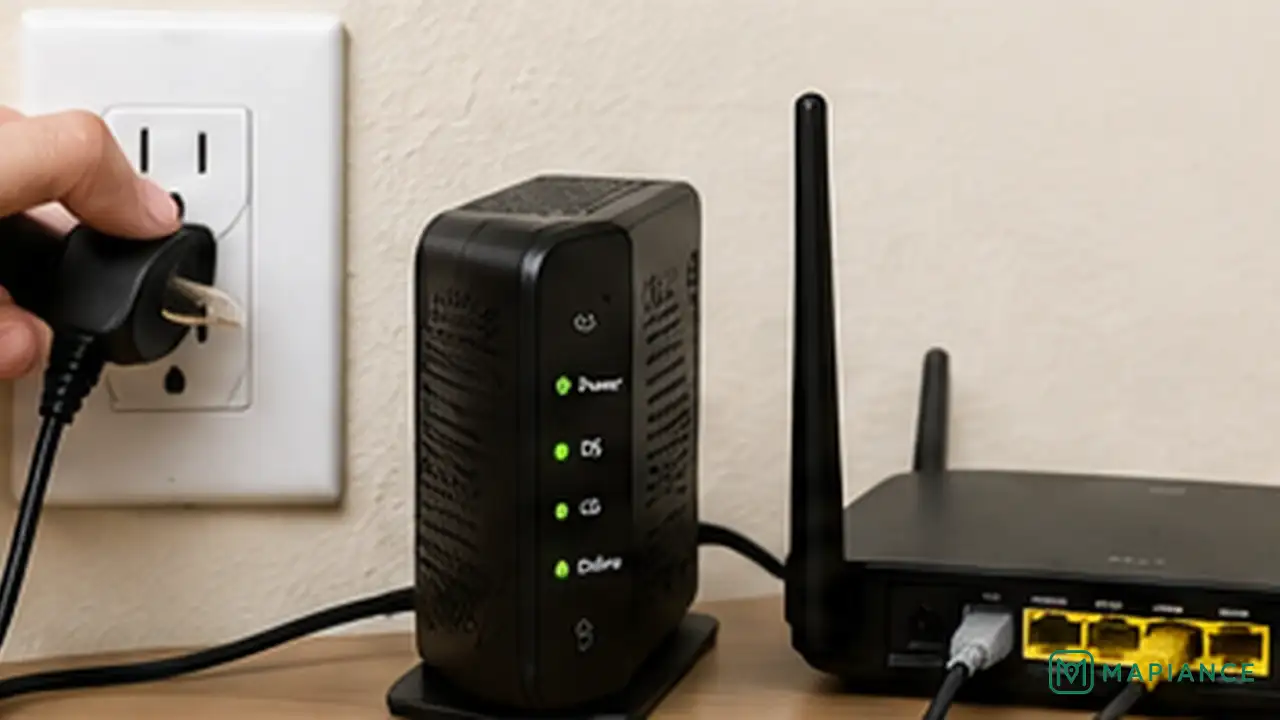
Restart the modem and router in order
Unplug power from the router, then unplug the modem or ONT if your provider allows it. Wait about 30 seconds. Power the modem or ONT back on first and wait until its normal connection lights settle. Then power the router back on and wait a few minutes before testing the internet again. If you use one combined modem-router unit, restart that single device.
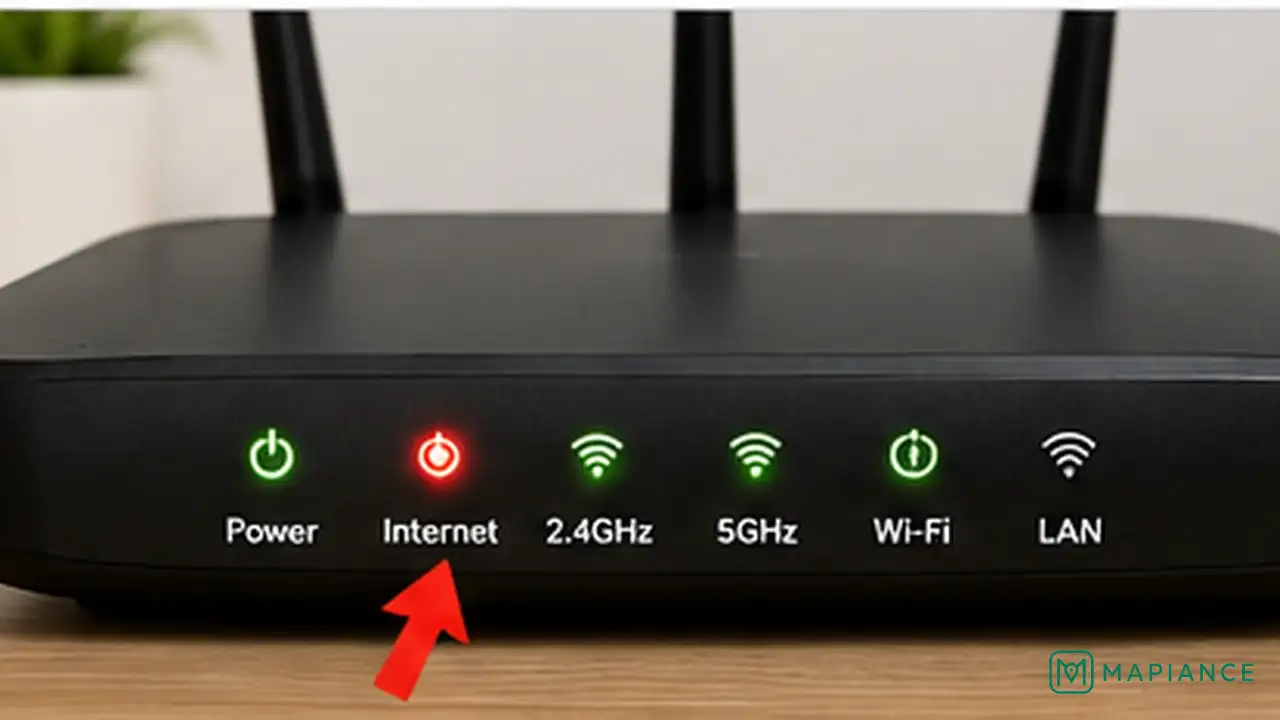
Check for an ISP outage
If every device still has Wi-Fi but no internet, check your internet provider's outage page or service app using mobile data. Also confirm that your account is active if service was recently changed or suspended. If the modem or ONT cannot establish service, the router cannot provide internet even though its Wi-Fi network still appears normally.
Check the router Internet or WAN status
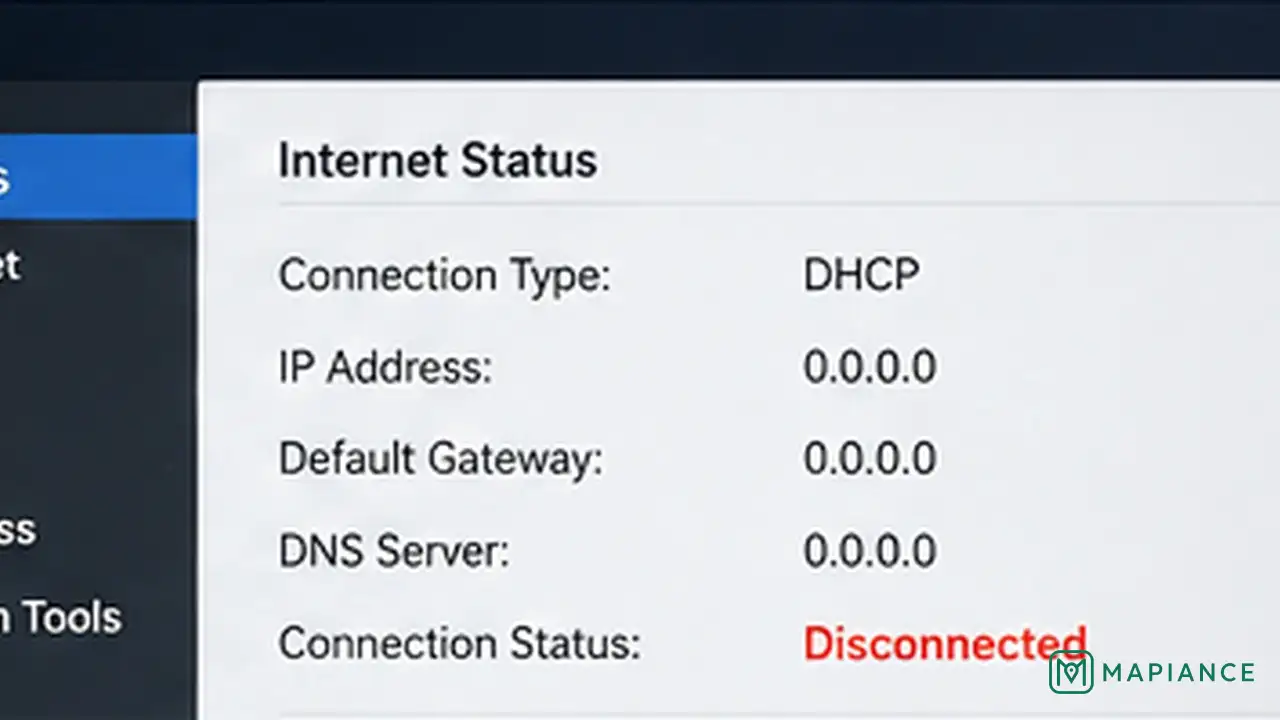
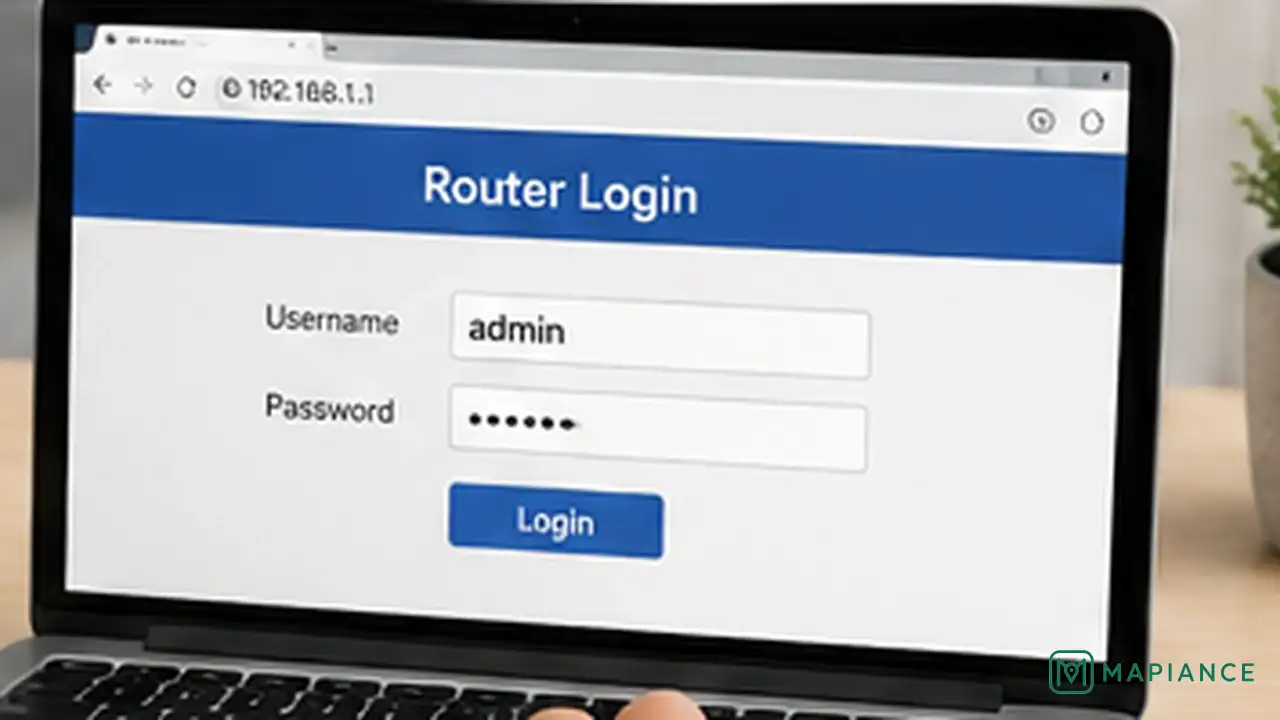
Open the router's app or administration page and look for Internet, WAN, or connection status. If the WAN address is missing or the status shows disconnected, use the router's reconnect or renew option if available. Keep the connection type set to the value required by your ISP, which is commonly automatic or DHCP for many home connections. Do not change advanced WAN, VLAN, PPPoE, or DNS settings unless you know the values your provider requires.
Update or reset the router only as a last step
If the modem or ONT has service and the WAN cable is good but the router still will not connect, install a router firmware update if one is available through the manufacturer's normal update process. If the problem continues, save any important settings and consider a factory reset only as a last resort. A factory reset removes the Wi-Fi name, password, ISP settings, port forwarding, parental controls, and other custom configuration, so the router must be set up again afterward.
Tips & common mistakes
Tips for best results
- If possible, test a computer with an Ethernet cable connected to a LAN port on the router. This helps separate a general internet problem from a Wi-Fi-only problem.
- If your modem and router are separate, wait for the modem or ONT to reconnect fully before powering the router back on.
- Do not factory-reset the router before recording important ISP and Wi-Fi settings.
- If your ISP supplied the router, its support team may be able to test the line and router remotely.
- A strong Wi-Fi signal only confirms the local wireless connection to the router; it does not prove that the router has internet service.
Common mistakes
- Changing the Wi-Fi password when every device already connects successfully: The wireless network is working, so the fault may be on the internet side of the router.
- Plugging the modem into a normal LAN port: A separate modem or ONT normally connects to the router's dedicated Internet or WAN port.
- Restarting the router but not the modem or ONT: The upstream device may still have a failed ISP connection.
- Changing advanced WAN or DNS settings at random: Incorrect values can create a new connection problem.
- Factory-resetting too early: The reset erases configuration and can make recovery harder if ISP-specific settings are required.
Frequently asked questions
Why do I have full Wi-Fi bars but no internet?
The Wi-Fi bars show the connection between your device and router. The router can still lose its separate connection to the modem, fiber ONT, or ISP.
Should I restart the modem or router first?
For separate devices, power both off, then bring the modem or ONT back online first. After its connection is stable, power the router back on.
How do I know whether the ISP is the problem?
If multiple devices have no internet and the modem or ONT shows a service problem, check the provider's outage page using mobile data or contact the ISP. A confirmed outage must usually be fixed by the provider.
Can a bad Ethernet cable cause Wi-Fi with no internet?
Yes. If the cable between the modem or ONT and router fails, the router can still broadcast Wi-Fi while losing its internet connection.
Should I factory-reset my router when there is no internet?
Only after simpler checks fail and you know how to set the router up again. A factory reset erases Wi-Fi and internet configuration, including any provider-specific settings.
Written by Mapiance Editorial Team
The Mapiance Editorial Team researches, writes, reviews, and maintains practical guides and explainers for MAPIANCE.
Published Aug 26, 2026 · Updated Oct 2, 2026