 MAPI
MAPIHow to Fill Out and Sign a PDF Form
Many PDF forms already contain fields you can click or tap, while others are simply flat pages that need an Add Text or markup tool. The safest workflow is to save your own copy first, complete the form, review it carefully, sign only when everything is correct, and verify the saved PDF before sending it. If the form specifically requires a certificate-based digital signature, follow the instructions from the organization that issued the form instead of using a simple drawn or typed signature.
Open the PDF in a trusted PDF reader or editor, complete the available form fields, and use the app’s text tool if the PDF is not fillable. Review every entry before adding your signature, then save a new copy and reopen it to make sure the form and signature were preserved.
Things you'll need
- The PDF form
- A trusted PDF reader, editor, or browser with form tools
- The information needed to complete the form
- A secure place to save the finished PDF
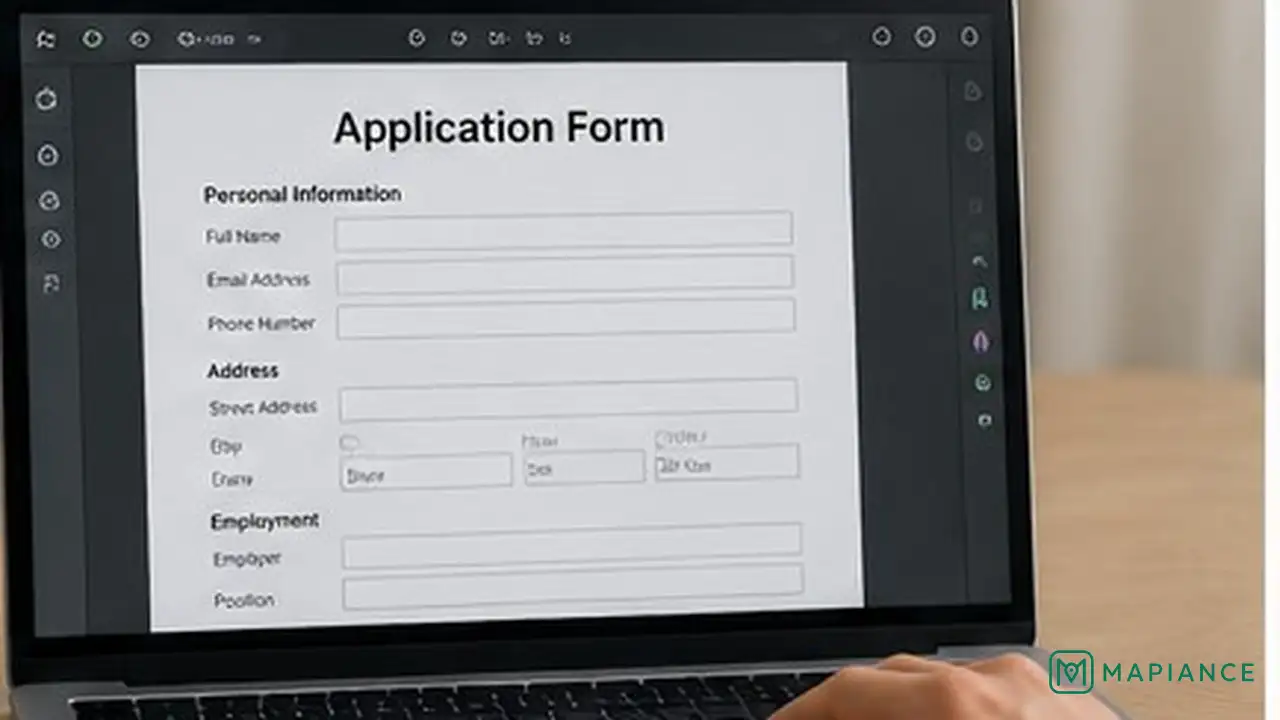
Save a Copy and Open the PDF
Download the PDF to your device and save a copy before editing it. Open that copy in a trusted PDF reader, editor, or browser that supports forms. Keeping the original unchanged gives you a clean version to return to if you make a mistake or the completed file becomes corrupted.
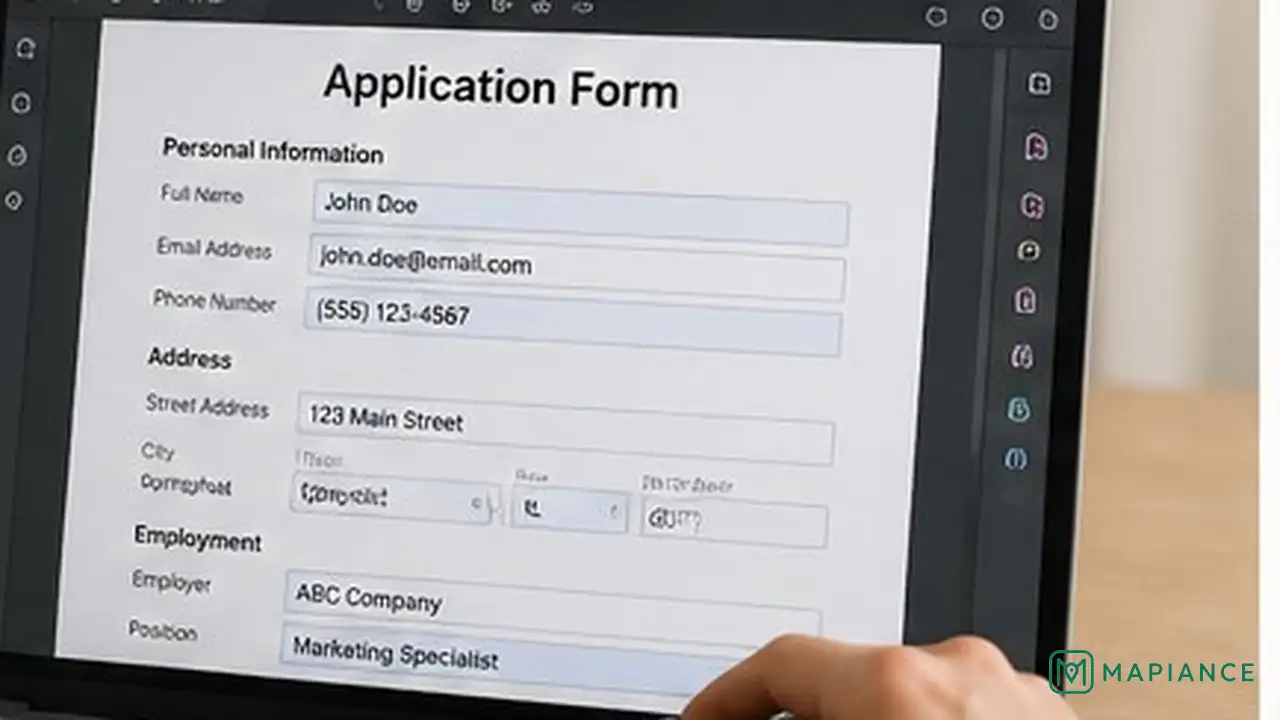
Fill In the Form Fields
Click or tap the first field and enter the requested information. Move through text boxes, checkboxes, radio buttons, and drop-down menus carefully. Use the Tab key on a computer if it moves through the fields in a sensible order. Do not leave required fields blank unless the form instructions say they are optional.
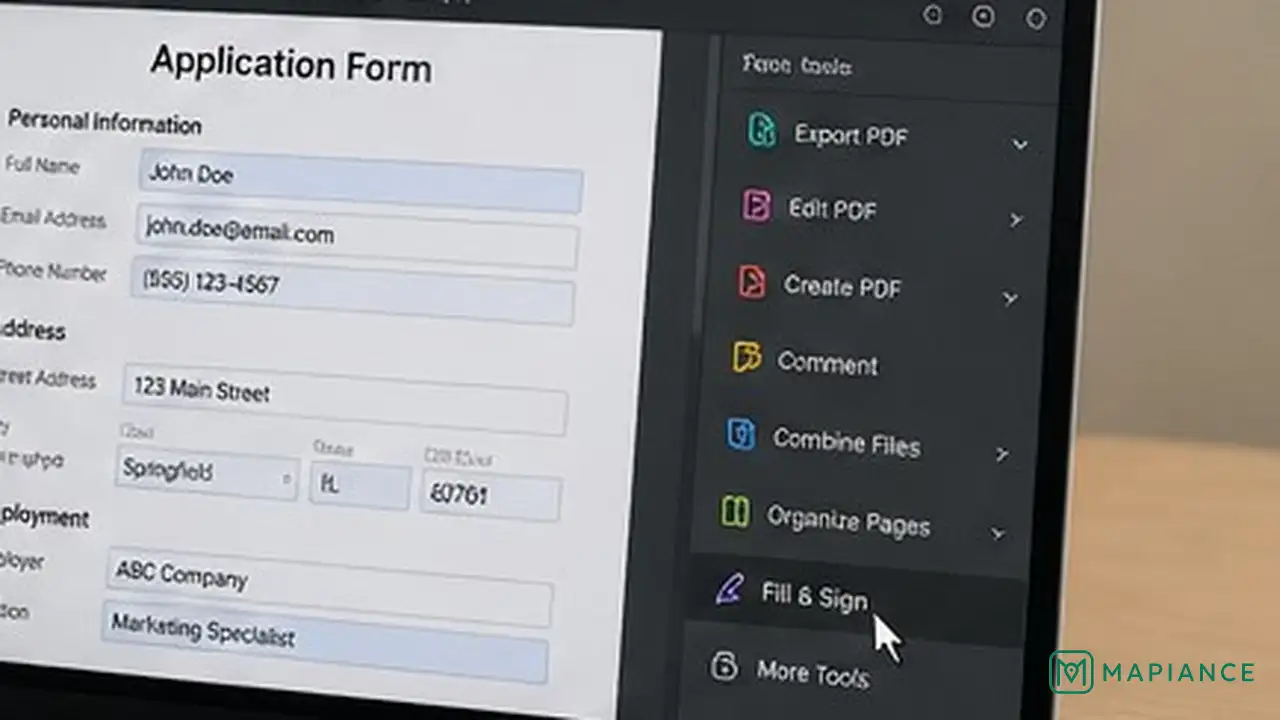
Add Text if the PDF Is Not Fillable
If clicking the blank areas does nothing, use the PDF app’s Add Text, Fill, or markup tool. Place a text box over each blank line and adjust the text size so it fits naturally inside the form. Use check marks or other annotation tools only where the form clearly asks for them. Keep every entry inside the intended area so the document remains easy to read.
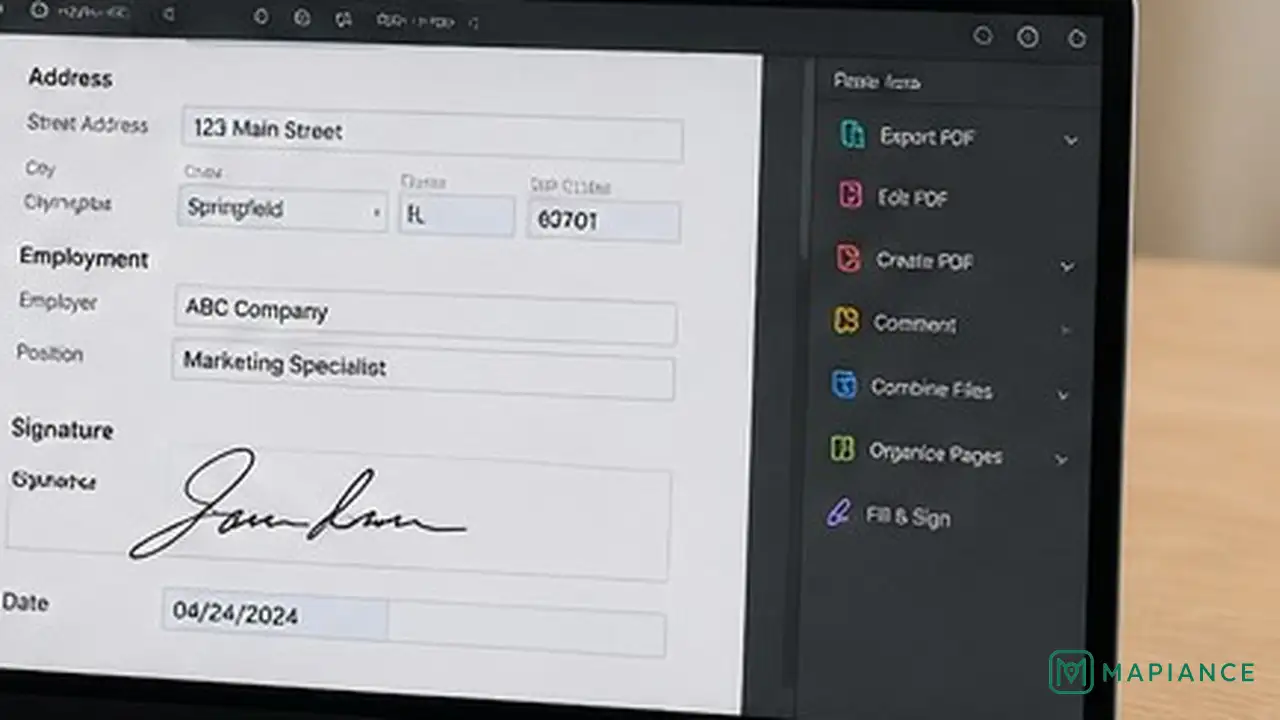
Review the Form Before Signing
Read through the form from beginning to end before adding a signature. Check names, dates, identification numbers, selections, totals, and any required declarations. Make sure no text is cut off and that every check mark appears in the correct place. Some forms become harder to edit after they are signed, so correct mistakes now.
Add Your Signature or Initials
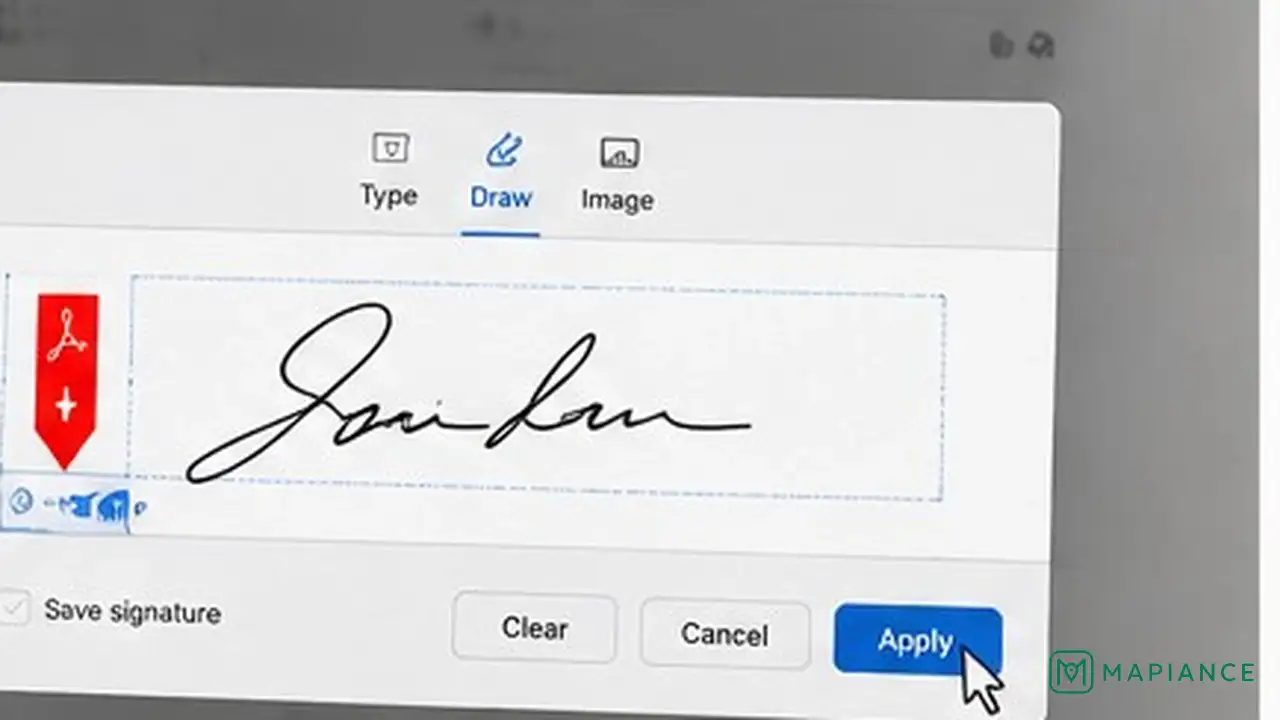
Open the PDF app’s Sign, Fill and Sign, or signature tool and choose the signature field. Depending on the app, you may be able to draw your signature, type it in a signature style, or insert a saved signature image. Place and resize it so it sits inside the signature line without covering nearby text. If the form specifically asks for a certificate-based digital signature, use the required certificate method instead.
Save a New Final Copy
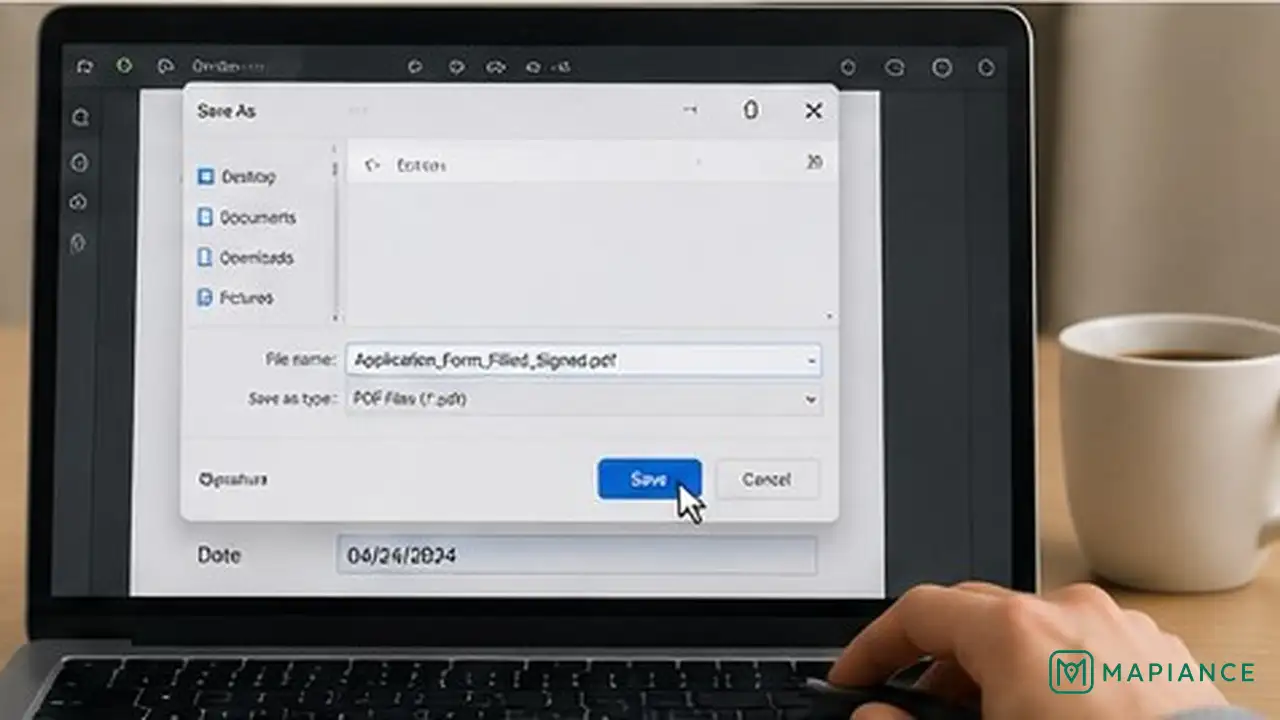
Use Save As, Save a Copy, or the app’s equivalent command to create a final PDF with a clear file name. Avoid overwriting your original blank copy unless you are sure you will not need it again. If the app offers to flatten the document, use that option only when the recipient requires a non-editable copy because flattening can make later corrections difficult.
Reopen and Verify the Finished PDF
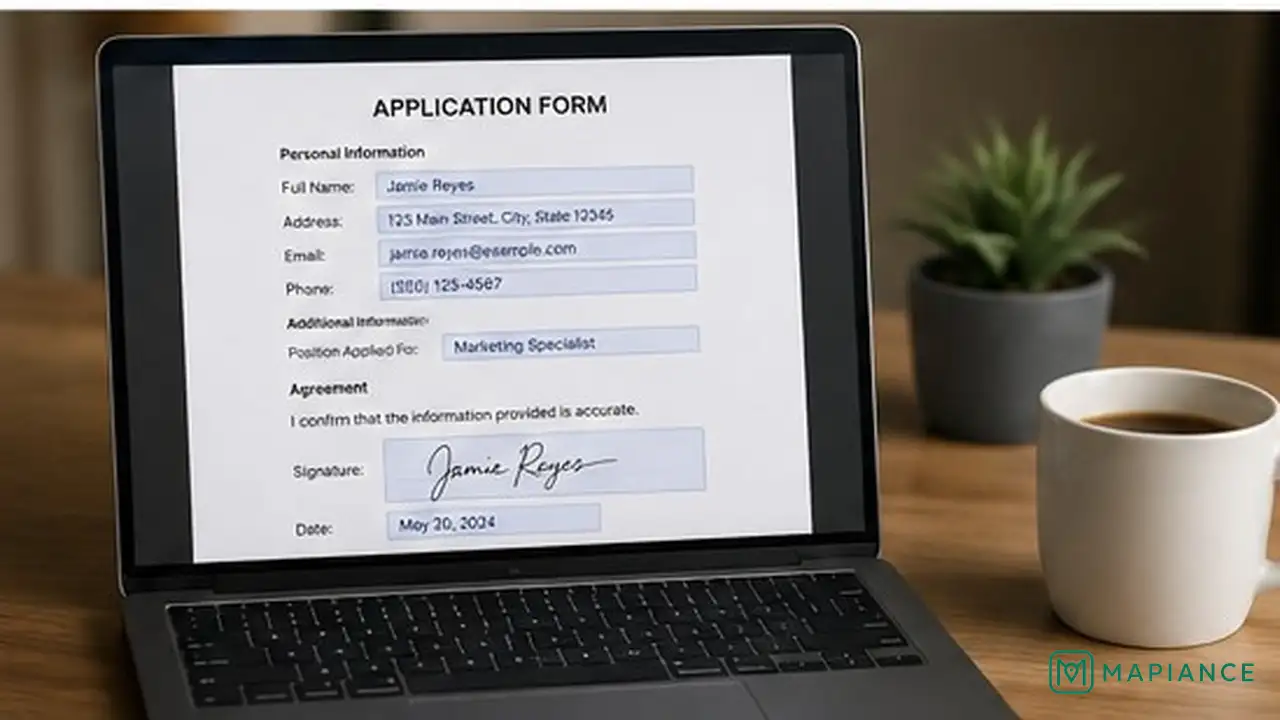
Close the PDF, reopen the final saved file, and check several pages. Confirm that your entries, check marks, dates, and signature are still visible and correctly positioned. If the document will be emailed or uploaded to a portal, use the final verified copy rather than the file that is still open in the editor.
Tips & common mistakes
Tips for best results
- Use a separate final file name such as the form name plus 'completed' so you do not confuse it with the blank original.
- Zoom in before placing a signature or check mark so it sits cleanly inside the intended area.
- If the form contains sensitive personal information, save and send it only through a trusted device and secure service.
- When a form has many pages, save periodically while filling it out so a browser or app crash does not erase your work.
- If a field limits the number of characters, shorten the entry only if the form instructions allow it instead of forcing text outside the box.
Common mistakes
- Signing before reviewing the form can make corrections harder if the PDF locks or flattens signed fields.
- Typing directly over a flat PDF without aligning the text boxes can make the final form difficult to read.
- Overwriting the only blank copy removes your easy way to start again if the completed file is wrong.
- Sending the PDF without reopening it first can hide problems such as missing entries or a signature that was not saved.
- Using a simple drawn signature when the form specifically requires a certificate-based digital signature may cause the document to be rejected.
Frequently asked questions
Why can I not type into a PDF form?
The PDF may not contain interactive form fields. Use an Add Text, Fill, or markup tool to place text over the blank areas, or ask the sender for a fillable version.
Can I sign a PDF without printing it?
Yes. Many PDF readers, editors, browsers, and mobile devices let you add an electronic signature directly to the document.
Is a typed or drawn PDF signature the same as a digital signature?
No. A typed, drawn, or image-based signature is an electronic signature. A certificate-based digital signature uses a digital certificate to verify the signer and detect document changes.
Why did my PDF entries disappear after I saved it?
The browser or app may not have saved the form data correctly. Reopen the file immediately after saving, and try a dedicated PDF reader or Save a Copy if the entries are missing.
Should I flatten a PDF after signing it?
Only when the recipient requires a non-editable copy or your workflow specifically calls for it. Flattening can make later corrections difficult or impossible.
Can I fill and sign a PDF on a phone?
Yes, if your phone's PDF app or document tool supports form filling, text annotations, and signatures. The exact controls depend on the app and operating system.
Written by Mapiance Editorial Team
The Mapiance Editorial Team researches, writes, reviews, and maintains practical guides and explainers for MAPIANCE.
Published Aug 31, 2026 · Updated Sep 30, 2026