 MAPI
MAPIHow to Fix a Laptop That Won’t Turn On
A laptop that appears completely dead can have a simple power problem, a drained battery, a faulty charger, or a system that is actually turning on without showing an image. Start by checking for signs of life before opening the laptop or replacing parts. Stop troubleshooting and disconnect power if you notice battery swelling, a burning smell, liquid damage, smoke, or unusual heat.
Disconnect accessories, confirm the charger and outlet work, then unplug power and hold the laptop power button for about 20 to 30 seconds before reconnecting the charger. If lights or fans come on but the screen stays black, treat it as a display problem rather than a total power failure.
Things you'll need
- The laptop and its compatible charger
- A known-working wall outlet
- A known-good compatible charger if available
- External monitor or TV and video cable if the laptop shows signs of power
Check for signs of power
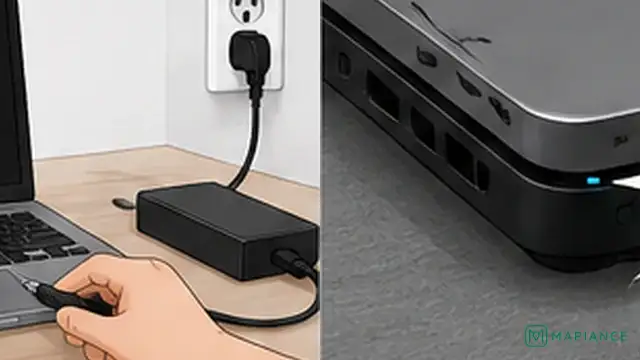
Press the power button once and watch closely for charging lights, keyboard backlight, fan noise, drive activity, or startup sounds. If absolutely nothing happens, focus on the charger and power supply first. If lights or fans appear but the screen stays black, skip ahead to the display check because the laptop may already be turning on.
Check the charger and outlet
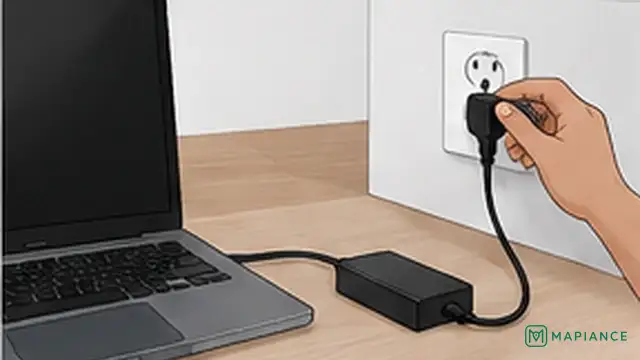
Plug the charger directly into a known-working wall outlet instead of a power strip. Check that the connector is fully inserted into the laptop and inspect the cable and plug for obvious damage. If the laptop charges through USB-C, use a port that supports charging and a charger with enough power for the laptop. When possible, test with another compatible charger that is known to work.

Disconnect accessories and reset power
Unplug USB devices, memory cards, docks, external drives, and other accessories. Disconnect the charger, then hold the laptop power button for about 20 to 30 seconds. Reconnect only the charger and try to start the laptop again. This can clear a temporary power-state problem without changing your files.
Test the battery and AC power
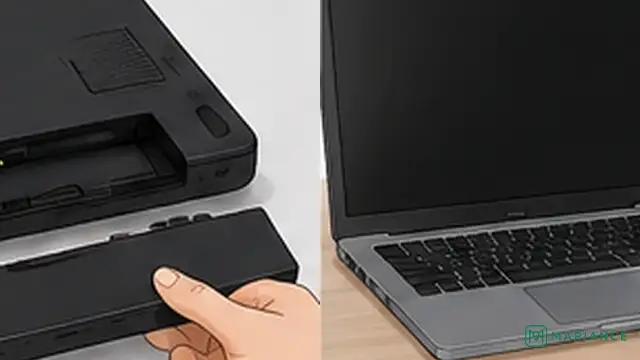
If your laptop has a removable battery, turn the laptop off, disconnect the charger, remove the battery, then reconnect the charger and try starting on AC power alone. If it starts, the battery may be the problem. For laptops with built-in batteries, do not open the case just for this test; use only a manufacturer-approved battery reset or emergency reset method for your exact model.
Check whether the screen is the real problem
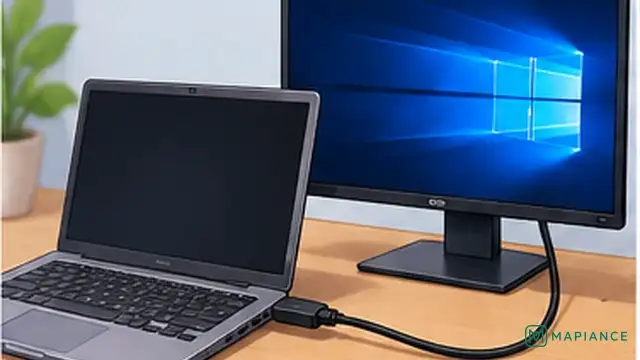
If the laptop shows lights, fan noise, or startup sounds, increase the screen brightness and look for a faint image. Then connect an external monitor or TV if the laptop has a compatible video output. If the external display works, the laptop is powering on and the problem is more likely the built-in screen, display cable, or backlight.

Stop if the laptop still has no power
If there are still no lights, sounds, or fan activity after testing a known-good compatible charger, the fault may be inside the laptop. A damaged charging port, battery, power board, motherboard, or other component may need professional diagnosis. Do not keep applying power if the laptop is swollen, smells burnt, became wet, smokes, or becomes unusually hot.
Tips & common mistakes
Tips for best results
- Leave a deeply discharged laptop connected to a known-good charger for 20 to 30 minutes before trying to start it again.
- For USB-C laptops, not every USB-C port necessarily accepts charging, and low-power phone chargers may be insufficient.
- Test with the laptop charger directly instead of through a dock during diagnosis.
- If the laptop starts only when the charger is connected, the battery may be discharged, disconnected, or failing.
- Write down any blinking light pattern or beep sequence because the manufacturer may use it as a hardware diagnostic code.
Common mistakes
- Repeatedly pressing the power button: This does not fix a missing power source and can make troubleshooting confusing.
- Using any USB-C charger that fits: A charger can have the correct connector but still provide too little power for the laptop.
- Assuming a black screen means the laptop is completely off: Fans, lights, or startup sounds can show that the real problem is the display.
- Opening a laptop with a built-in battery without a model-specific reason: This can damage connectors, create safety risks, or affect warranty coverage.
- Continuing to charge a swollen, wet, smoking, or unusually hot laptop: Disconnect power and seek professional service instead.
Frequently asked questions
Why is my laptop completely dead with no lights?
The laptop may not be receiving power. Check the outlet, charger, charging port, and battery first. If a known-good compatible charger produces no signs of life, an internal power fault is more likely.
Can a dead battery stop a laptop from turning on?
Yes. Some laptops will not start from a deeply discharged or failed battery until they receive stable charger power. A removable-battery model can sometimes be tested on AC power without the battery.
Why does my laptop turn on but the screen stay black?
If lights, fans, or startup sounds are present, the laptop may be running without a working display. Test brightness and an external monitor to separate a screen problem from a power problem.
How long should I hold the power button for a reset?
With the charger disconnected, about 20 to 30 seconds is a common general power-reset test. Some manufacturers specify a different procedure for certain models.
When should I stop troubleshooting the laptop myself?
Stop if you see battery swelling, smoke, liquid damage, a burning smell, or unusual heat. Also consider professional repair if a known-good charger produces no signs of power.
Written by Mapiance Editorial Team
The Mapiance Editorial Team researches, writes, reviews, and maintains practical guides and explainers for MAPIANCE.
Published Aug 24, 2026 · Updated Sep 8, 2026