 MAPI
MAPIHow to Fix a PDF That Won’t Open
A PDF can fail to open because the download is incomplete, the file is corrupted, the PDF reader is outdated, or the document uses features that one app cannot handle. Start with simple checks that do not change the original file, then move to replacement or recovery only if the problem affects that one document.
Make a copy of the PDF and check that it is not empty. Try another trusted PDF reader or web browser. If the file came from email, cloud storage, or a website, download it again. Update your PDF app and restart the device. If only one PDF still fails, restore a backup or export a fresh PDF from the original source file.
Things you'll need
- The PDF file
- A trusted PDF reader or modern web browser
- Internet connection if the file can be downloaded again
- A backup or original source file if available
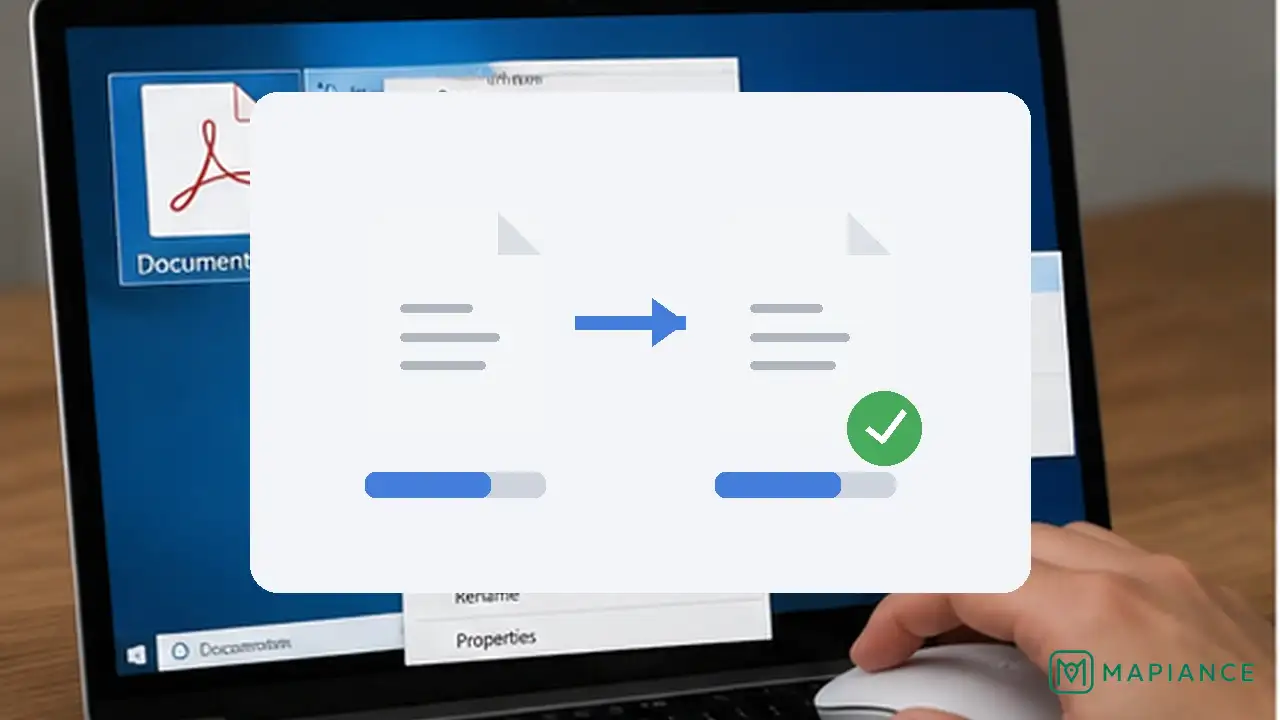
Make a copy and check the file size
Duplicate the PDF before troubleshooting so the original stays unchanged. Check the file size in your file manager. If the PDF is zero bytes or much smaller than expected, the download or transfer may have failed and the file usually needs to be downloaded or copied again.
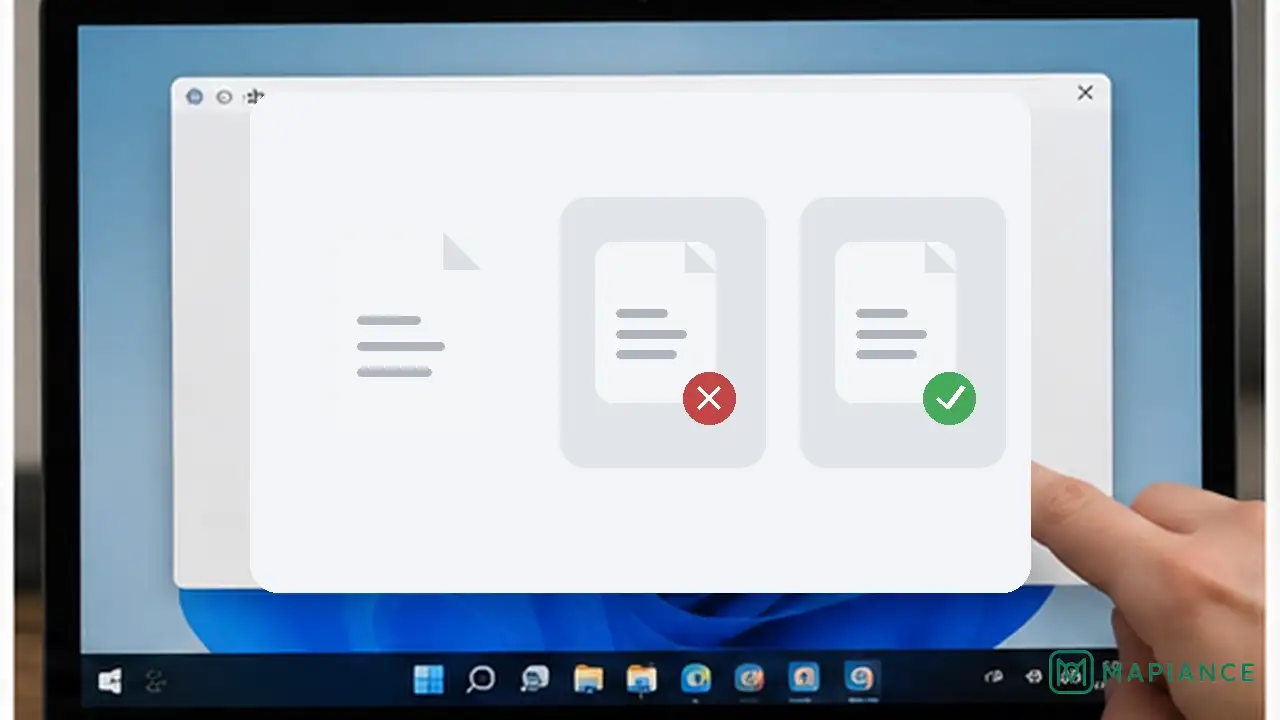
Try another PDF reader or browser
Open the file with a different trusted PDF app or a modern web browser. If it opens there, the document itself may be fine and the original reader may be the problem. Keep using the working app temporarily, then update or repair the reader that failed.
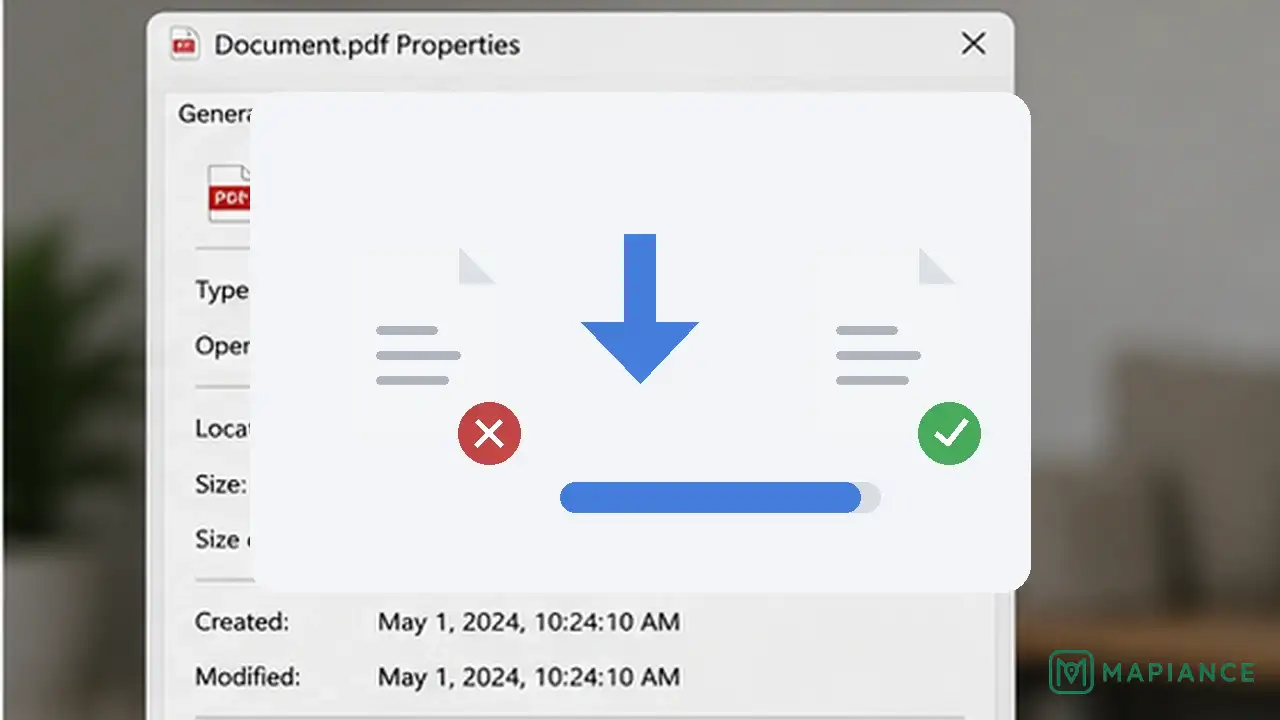
Download or copy the PDF again
If the PDF came from email, cloud storage, a website, USB storage, or another device, get a fresh copy from the original source. Wait for the download or transfer to finish completely before opening it. Save the new copy with a different name so you can compare it with the damaged one.
Update the PDF app and restart the device
Install any available update for the PDF reader and restart the computer, tablet, or phone. Then try the file again. An outdated or unstable app can fail on PDFs that use newer features, fonts, forms, or security settings.
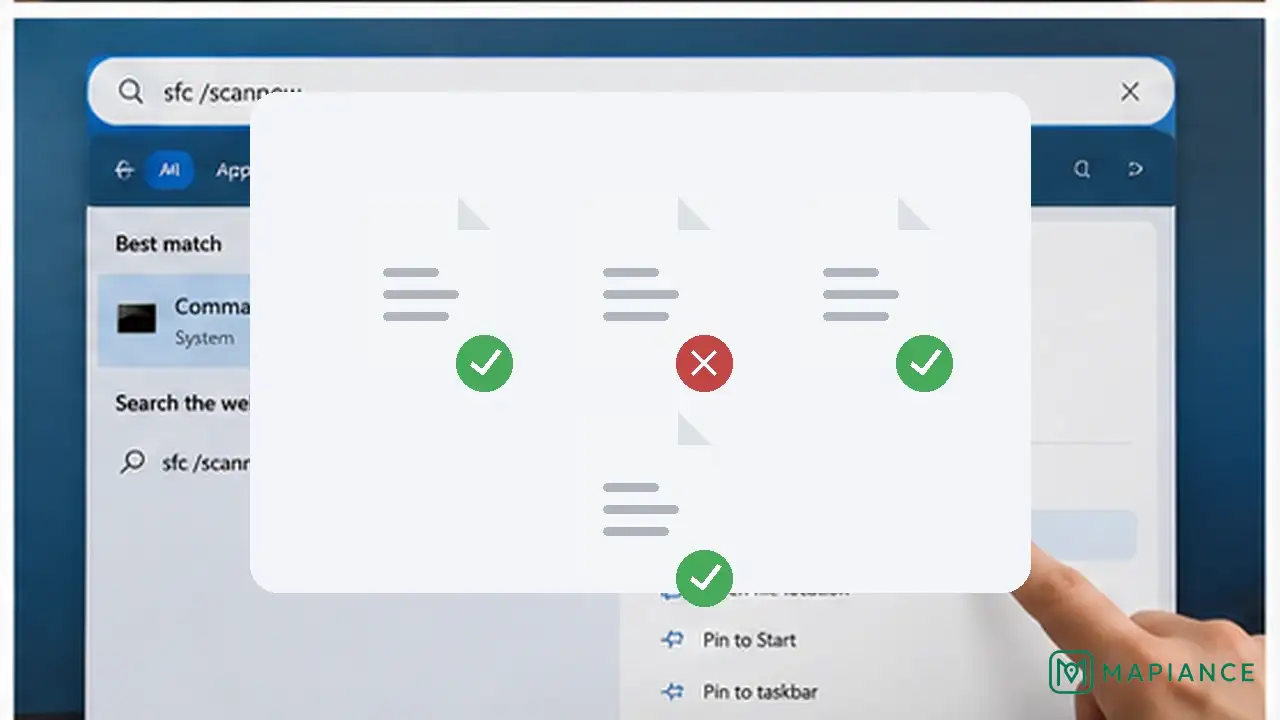
Check whether only one PDF is affected
Open two or three other known-good PDFs. If they work normally and only one file fails, the problem is probably inside that document. If no PDFs open, focus on the PDF reader, operating system, storage, or device instead of trying to repair a single file.
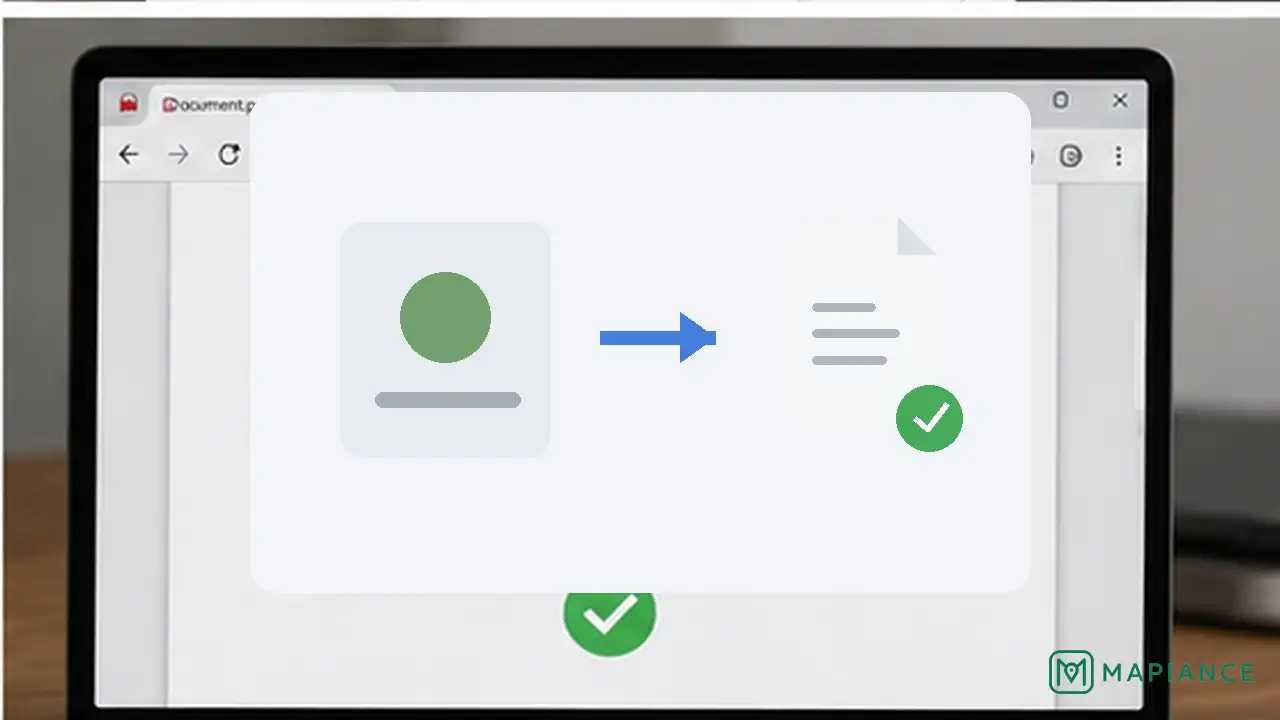
Recover a clean version if the PDF is corrupted
If only one PDF still fails after a fresh download and another reader, look for an earlier backup or version. If you have the original Word, spreadsheet, image, or design file, export a new PDF from that source. If someone else created the document, ask them to send a fresh export. Avoid uploading confidential PDFs to unknown online repair sites.
Tips & common mistakes
Tips for best results
- Keep the original damaged PDF until you confirm that the replacement copy contains everything you need.
- If a PDF opens in a browser but not in your normal reader, save a local copy and update the reader before changing the file itself.
- Large PDFs can take longer to download than they appear to, so confirm that the transfer has finished before opening them.
- For work or legal documents, use backups or the original source file instead of experimenting with unknown repair tools.
- If a PDF came from a scanner, try scanning the document again if the original paper copy is still available.
Common mistakes
- Editing or overwriting the only copy of the damaged PDF: Keep the original untouched while troubleshooting.
- Assuming every PDF failure means file corruption: The reader or device may be the real problem.
- Opening a partially downloaded file repeatedly: Wait for the transfer to finish or download it again.
- Uploading private PDFs to an unknown online repair service: Sensitive content may be exposed.
- Renaming a damaged file extension and expecting that to repair it: Changing the filename does not rebuild corrupted PDF data.
Frequently asked questions
Why does my PDF say it is damaged or cannot be opened?
The file may be incomplete, corrupted, or incompatible with the PDF reader you are using. Try another reader and download a fresh copy before assuming the document is permanently damaged.
Can a browser open a PDF that a PDF reader cannot?
Yes. Different apps use different PDF engines, so a browser may open a document that fails in another reader.
What does a zero-byte PDF mean?
It means the file contains no data. The PDF needs to be downloaded, copied, or exported again from its source.
Can I repair a corrupted PDF?
Sometimes, but recovery is not guaranteed. A fresh download, backup, earlier version, or new export from the original source file is usually safer and more reliable.
Why do all PDFs fail to open on my device?
If several known-good PDFs fail, the issue is more likely the PDF app, operating system, storage, or device rather than the individual documents.
Written by Mapiance Editorial Team
The Mapiance Editorial Team researches, writes, reviews, and maintains practical guides and explainers for MAPIANCE.
Published Aug 28, 2026 · Updated Sep 21, 2026