 MAPI
MAPIHow to Fix Android Notifications That Aren’t Working
Android notifications can disappear, arrive late, or show silently because several settings control them at the same time. An app can be allowed to notify but still have one notification category disabled, a system Mode can filter alerts, or battery and data-saving features can delay background activity. Settings names also vary by phone manufacturer and Android version, so follow the closest matching option on your device.
Start with Settings > Notifications > App notifications and make sure the affected app is allowed to send notifications. Check its notification categories and make sure important alerts are not set to Silent. Turn off Do Not Disturb, Bedtime, Driving, Focus, or other Modes that may filter alerts. If notifications are still delayed, check Battery Saver, app battery restrictions, Data Saver, and background data, then restart the phone and update both Android and the affected app.
Things you'll need
- Android phone
- Internet connection
- Access to the affected app
- Google Play Store for app updates
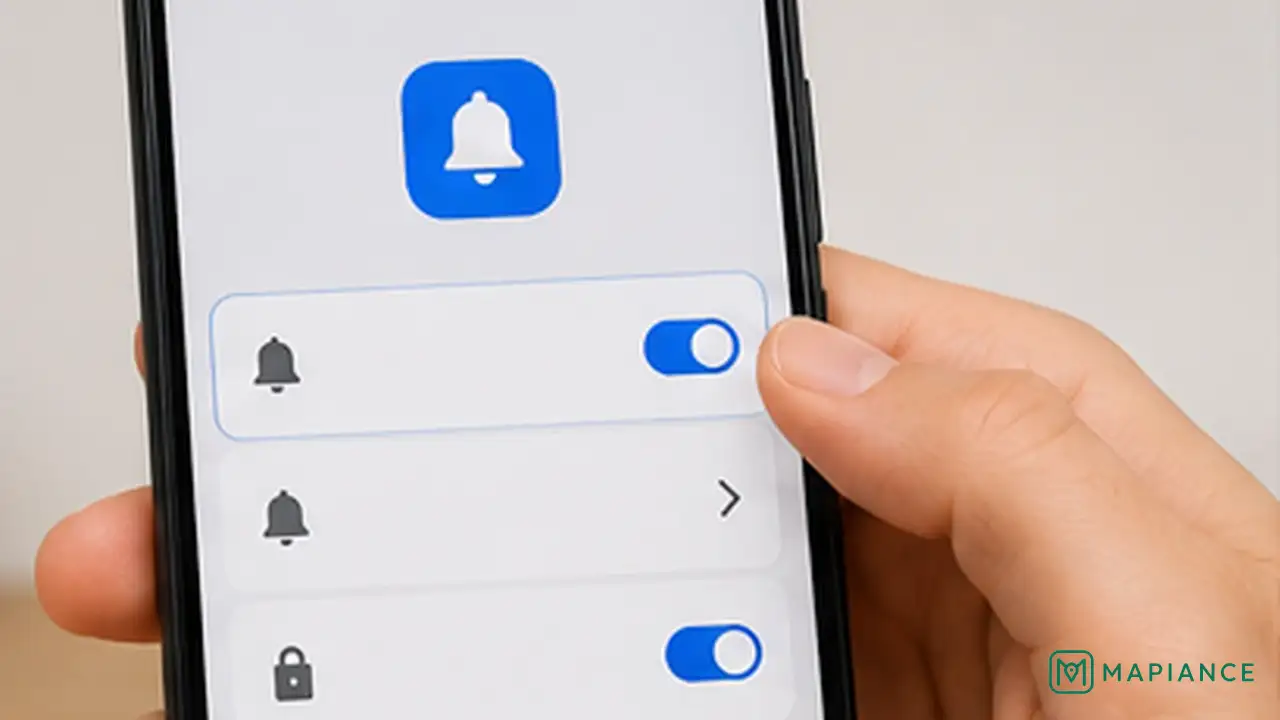
Turn notifications on for the affected app
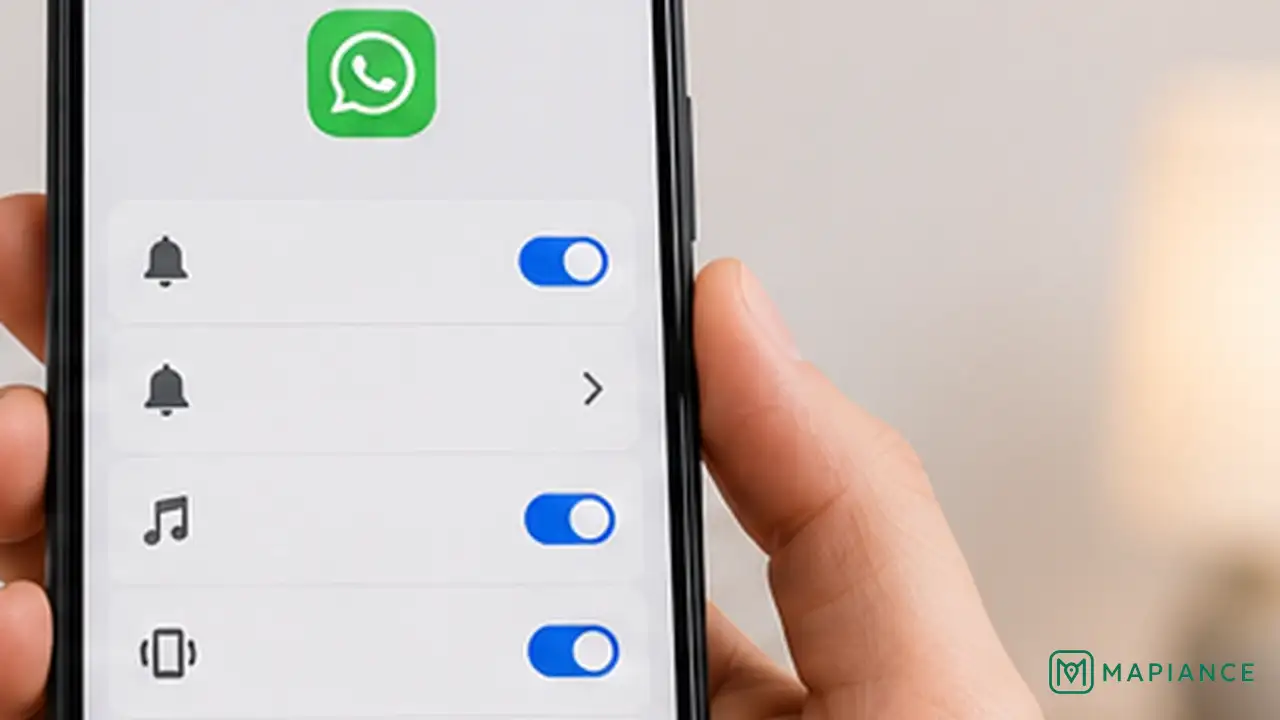
Open Settings > Notifications > App notifications, then select the affected app. Make sure its notifications are turned on. If your phone shows notification categories, check that the specific type of alert you need is enabled. Settings names can differ slightly by manufacturer and Android version.
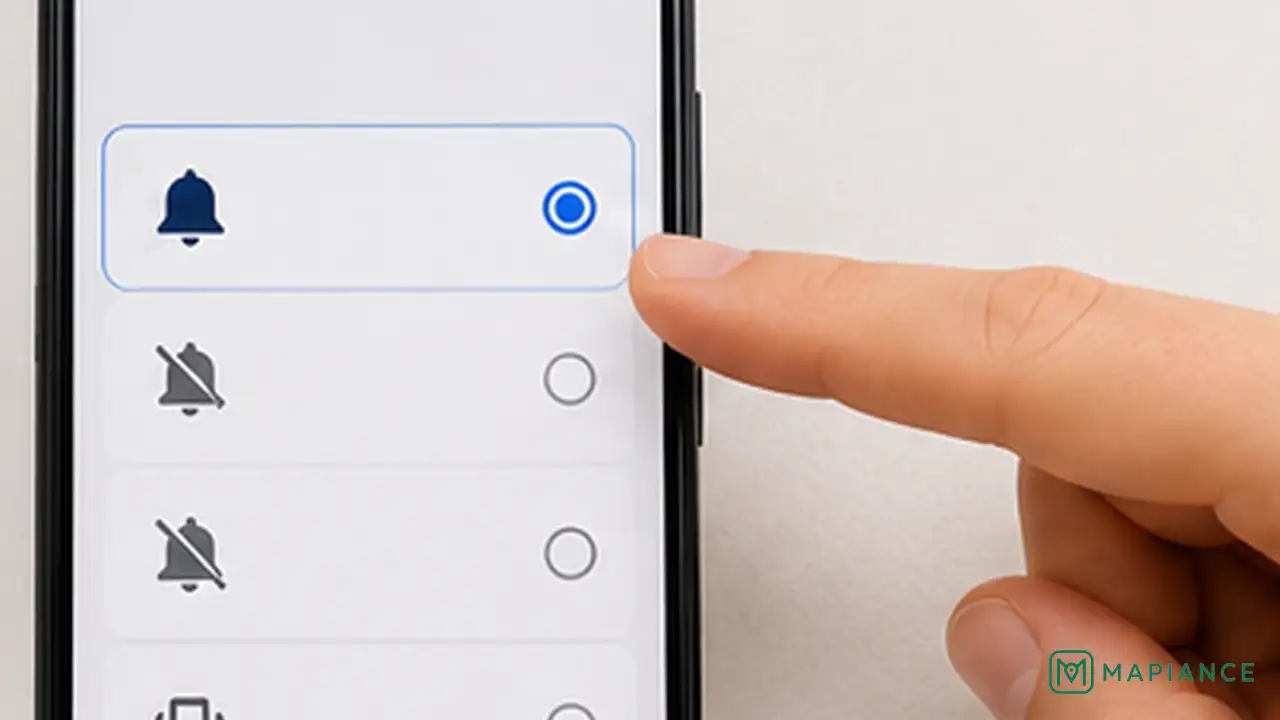
Check notification categories and alert style
Open the app's notification settings and review its categories or notification types if available. Important categories should be enabled. On phones that offer Alerting and Silent choices, set the notification type to Alerting if you want sound, vibration, or a visible interruption. A notification can still exist in the notification shade even when it is set to Silent.
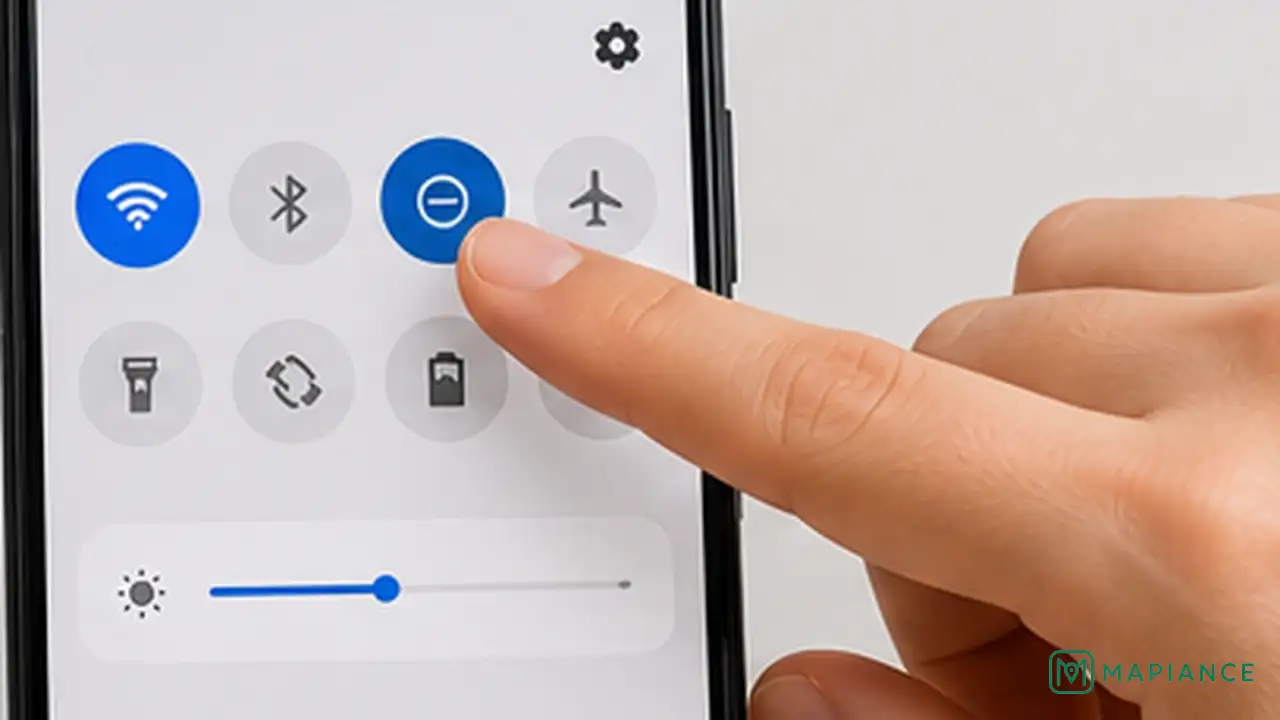
Turn off Modes that may silence alerts
Check Quick Settings and Settings for Do Not Disturb and other Modes such as Bedtime, Driving, or custom Modes. Digital Wellbeing Focus mode can also pause selected apps and stop their notifications while it is active. Turn the active Mode off temporarily, then send yourself a test notification.
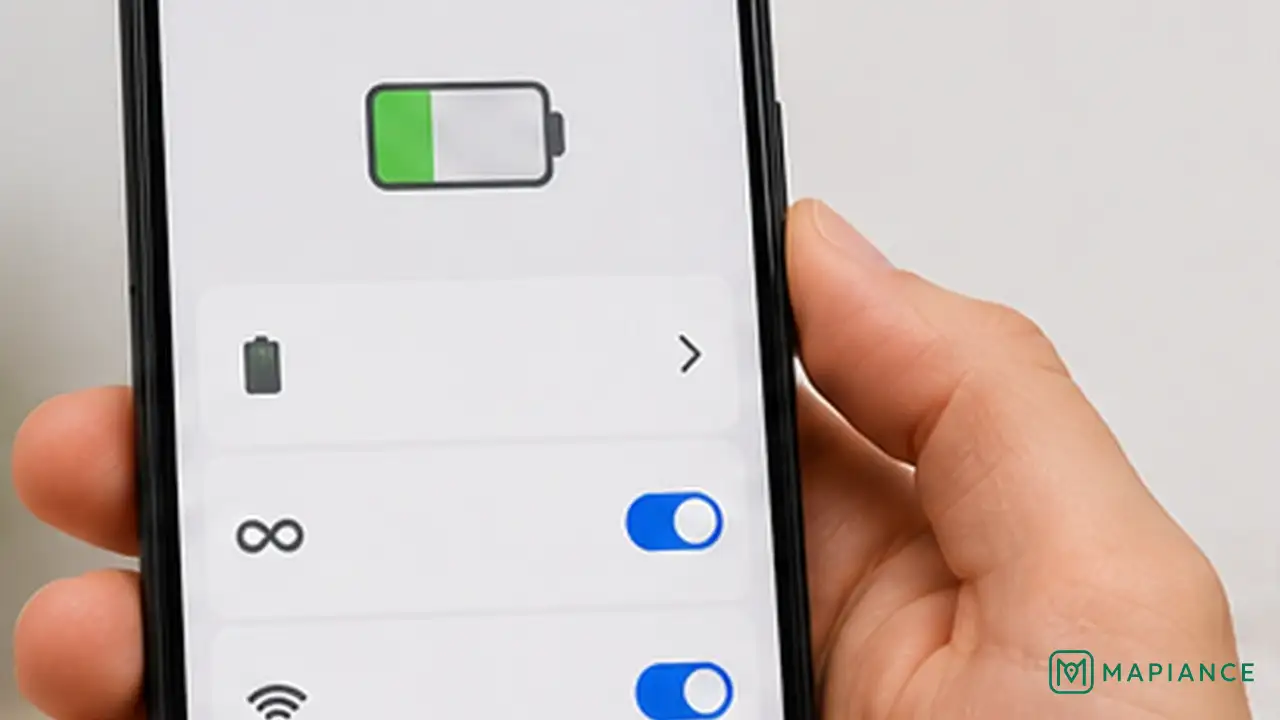
Check battery and background data restrictions
Battery Saver, Adaptive Battery, manufacturer battery controls, and Data Saver can delay some background alerts. Temporarily turn Battery Saver off and check the affected app's battery settings for any strong background restriction. Also confirm that background data is allowed, especially if notifications fail on mobile data. If Data Saver is on, allow unrestricted data for the affected app when your phone provides that option.
Restart and update the phone and app
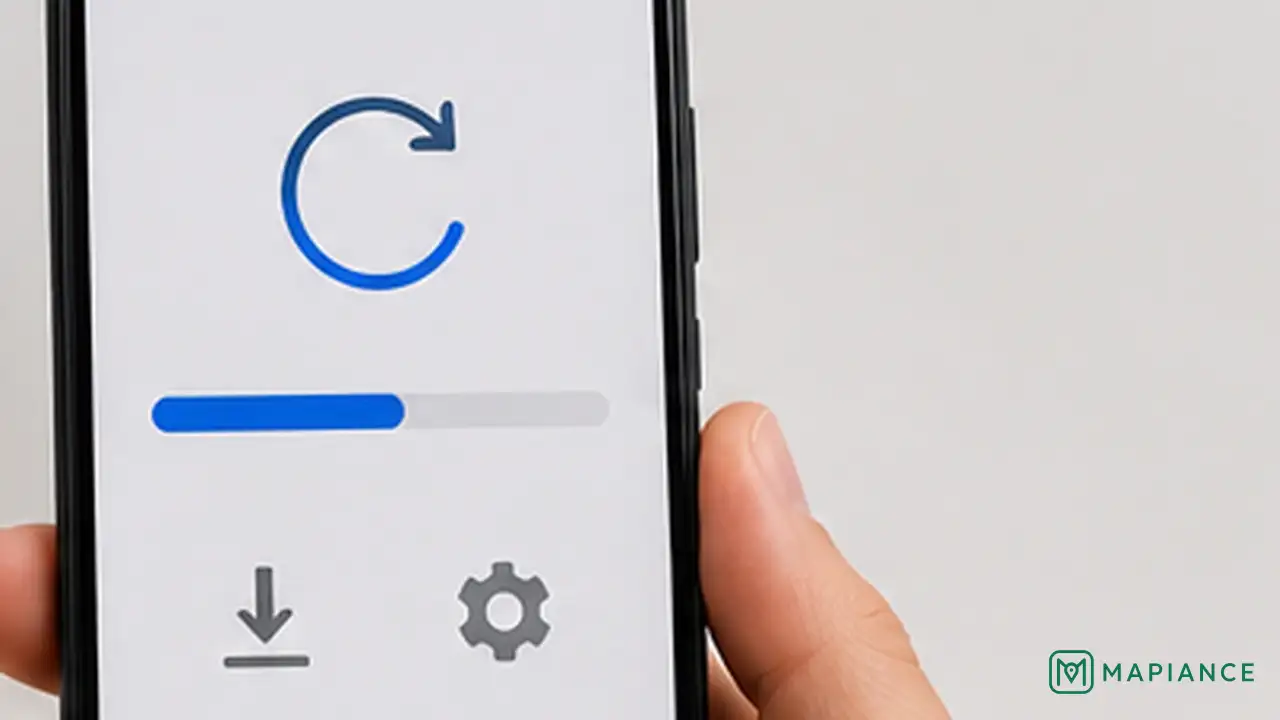
Restart the phone, then test notifications again. Open the Google Play Store and install any available update for the affected app. Also check Settings for an Android system update. App and system updates can fix notification bugs, permission changes, or background-service problems.
Check the app itself and test again
Open the affected app and review its own notification, account, or sync settings because some apps control alerts internally as well as through Android. If only one app is still affected, clear that app's cache if your phone offers the option, then test again. Reinstall the app only as a last step and only after confirming that important app data is synced or backed up. If many apps still cannot notify, contact the phone manufacturer because system settings vary between devices.
Tips & common mistakes
Tips for best results
- Use Notification history if your phone supports it to see whether alerts arrived but were dismissed or shown silently.
- If only one notification type is missing, check that app's notification categories before changing phone-wide settings.
- Test both Wi-Fi and mobile data if notifications fail only on one type of connection.
- Manufacturer battery-saving systems can be stricter than standard Android settings, so look for app-specific background restrictions.
- After changing settings, send a real test message or alert instead of waiting for the next normal notification.
Common mistakes
- Turning on app notifications but ignoring disabled categories: One notification type can remain blocked while others still work.
- Forgetting Do Not Disturb or Focus mode: These features can intentionally silence or pause notifications.
- Using strong battery restrictions on messaging or security apps: Background activity may be delayed.
- Clearing app storage before trying simpler fixes: This can sign you out or remove locally stored data.
- Reinstalling an app before checking sync or backup: Important local information may be lost.
Frequently asked questions
Why am I not getting notifications from one Android app?
The app's main notification permission may be off, one of its notification categories may be disabled, or the app's own notification settings may be turned off.
Can Do Not Disturb stop Android notifications?
Yes. Do Not Disturb and other Android Modes can silence or filter notifications. Focus mode can also pause selected apps and stop their notifications while it is active.
Can Battery Saver delay notifications?
Yes. Battery-saving features can stop or delay some alerts to save power, and manufacturer battery settings may also restrict background activity.
Why do notifications arrive only when I open the app?
The app may be restricted from using background battery or data, or its internal sync settings may be disabled. Check background data, Data Saver, and app battery settings.
Should I reinstall an Android app if notifications do not work?
Only after checking notification permissions, categories, Modes, battery and data restrictions, updates, and the app's own settings. Make sure important data is synced or backed up before reinstalling.
Written by Mapiance Editorial Team
The Mapiance Editorial Team researches, writes, reviews, and maintains practical guides and explainers for MAPIANCE.
Published Aug 28, 2026 · Updated Sep 8, 2026