 MAPI
MAPIHow to Fix Excel Formulas That Aren’t Calculating
When an Excel formula appears but does not calculate, the cause is often a workbook set to Manual calculation, a cell formatted as Text, or Show Formulas being turned on. Other cases come from broken references, incorrect data types, or circular references. Check these common causes in order before rebuilding the formula.
First make sure Excel is using Automatic calculation. Then confirm Show Formulas is turned off and that the problem cells are not formatted as Text. Re-enter a formula after changing its cell format to General, recalculate the workbook, and check for formula errors or circular references if the result is still wrong.
Things you'll need
- Microsoft Excel
- The workbook containing the formulas
- A backup copy of the workbook before making major changes
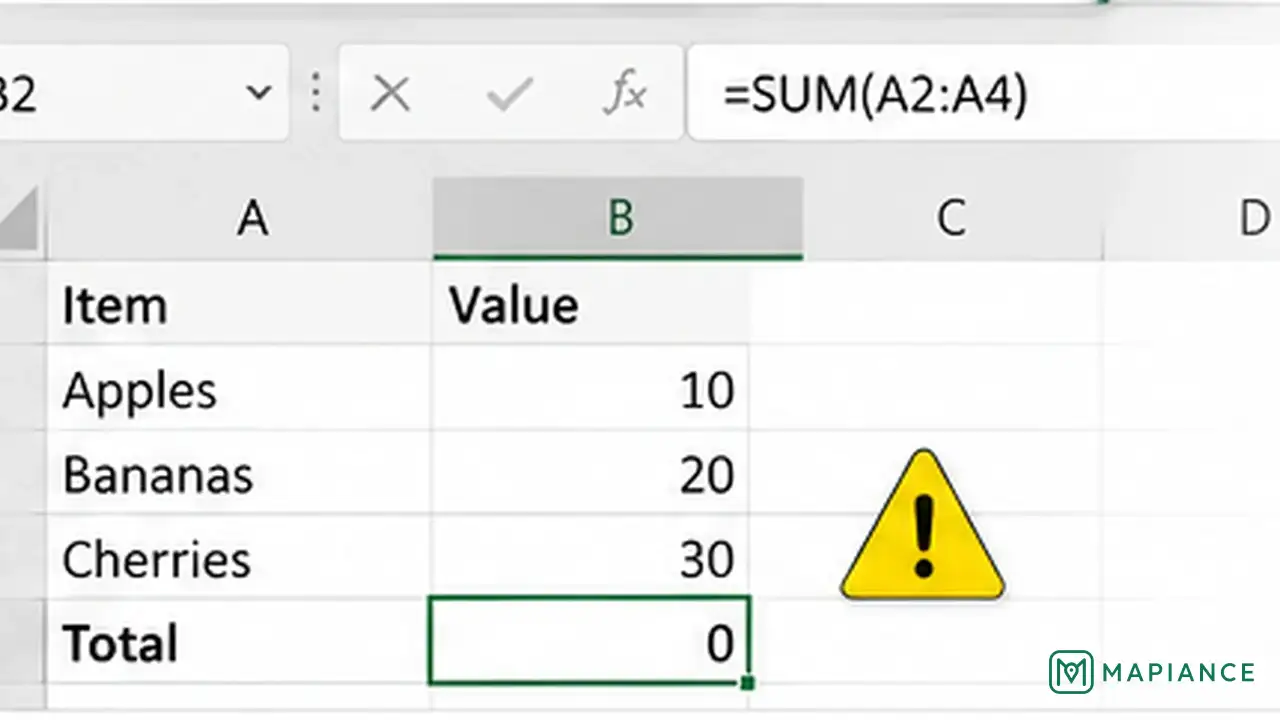
Turn off Show Formulas
If cells display formulas such as =SUM(A1:A5) instead of results, open the Formulas tab and turn off Show Formulas. You can also use Ctrl + ` on supported desktop versions. This changes the worksheet back from formula view to calculated results.
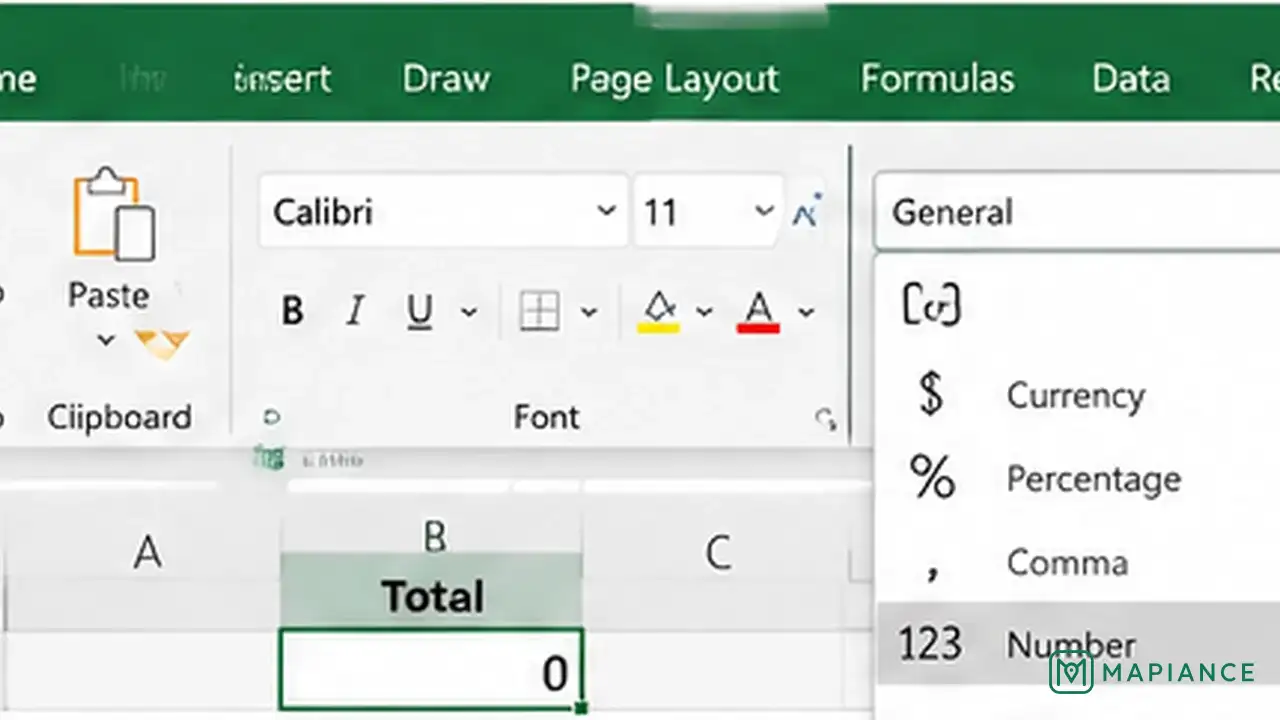
Set calculation to Automatic
Open the calculation settings and make sure workbook calculation is set to Automatic. In current desktop Excel versions, you can check this through the Formulas tab or Excel Options, depending on the platform. When Manual calculation is selected, formulas may keep old results until you force a recalculation.
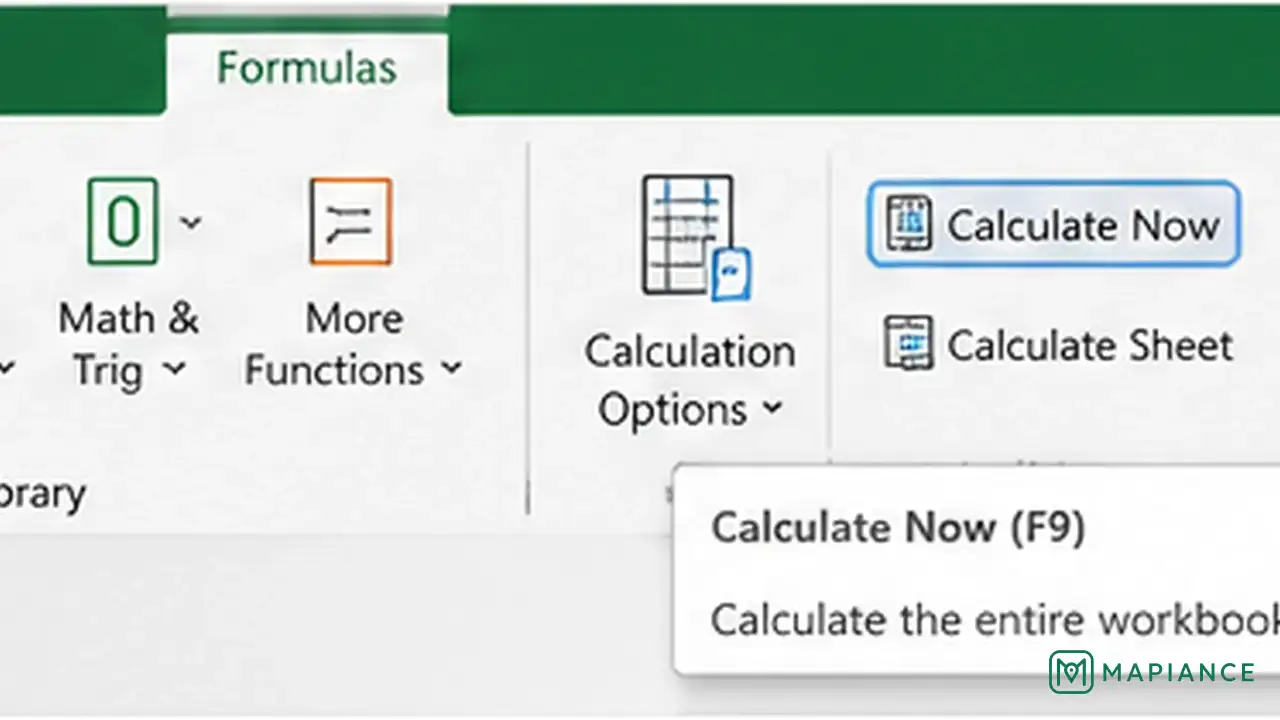
Force a recalculation
After enabling Automatic calculation, recalculate the workbook. Use Calculate Now from the Formulas tab or press F9 on supported desktop versions. If the formulas update correctly after this step, the workbook was probably waiting for recalculation rather than containing a broken formula.
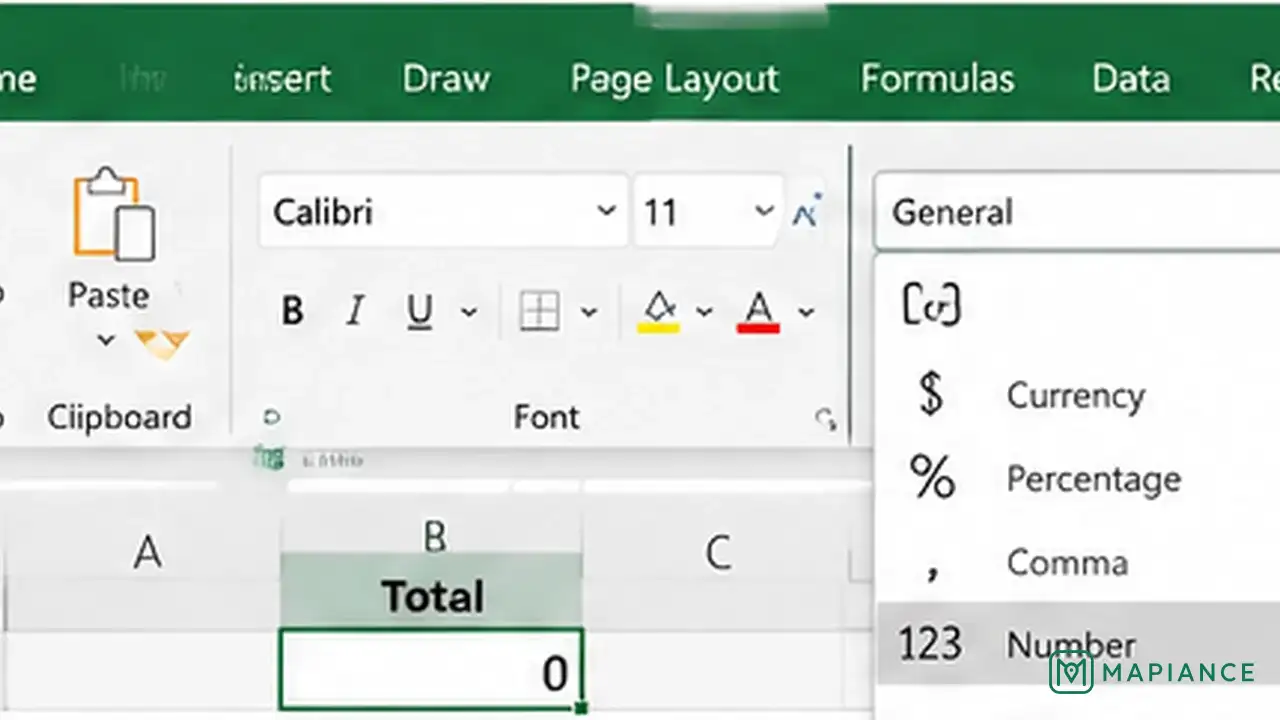
Change formula cells from Text to General
If a formula is displayed as plain text in only one cell or range, select the affected cells and change the number format from Text to General. Then edit each formula and confirm it again, for example by pressing F2 and Enter in desktop Excel. Simply changing the format may not recalculate an already entered text formula until it is re-entered.
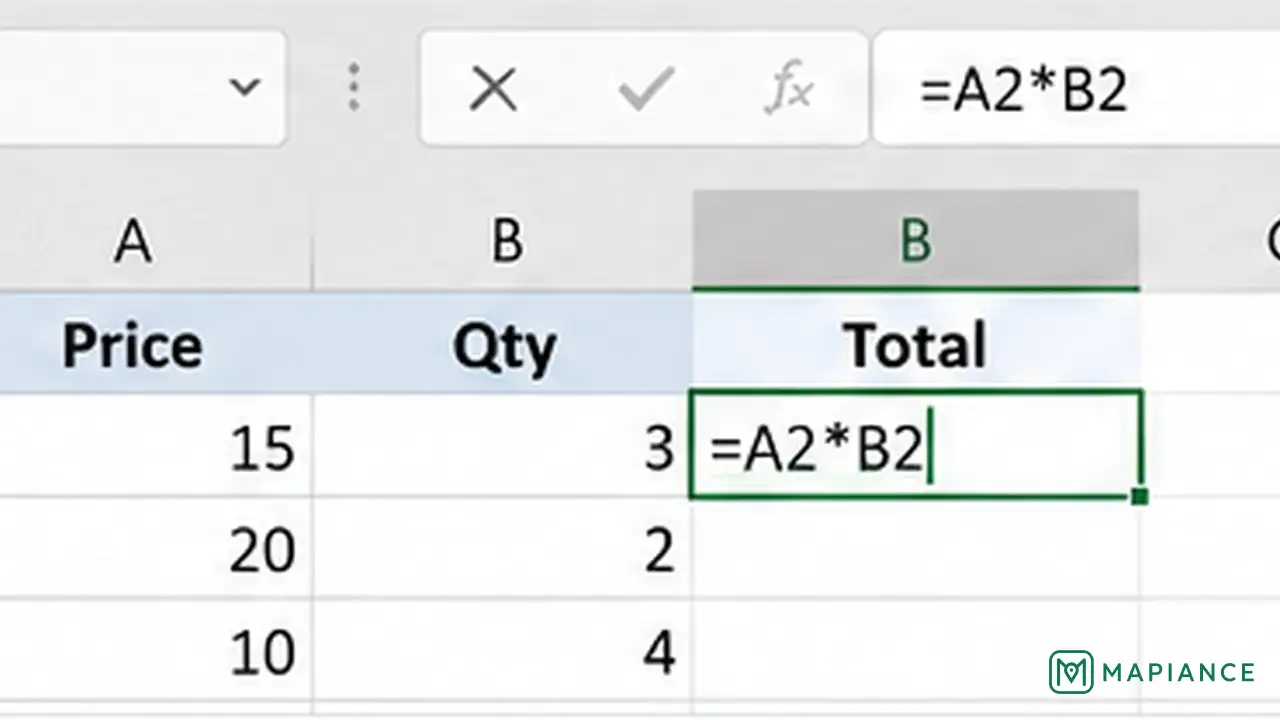
Check the formula and referenced cells
Select a formula that still gives the wrong result and inspect the formula bar. Confirm that it starts with an equals sign, uses the intended cell references, and points to cells containing the expected data type. Numbers stored as text can also produce unexpected results in some formulas, so correct the source cells when necessary.
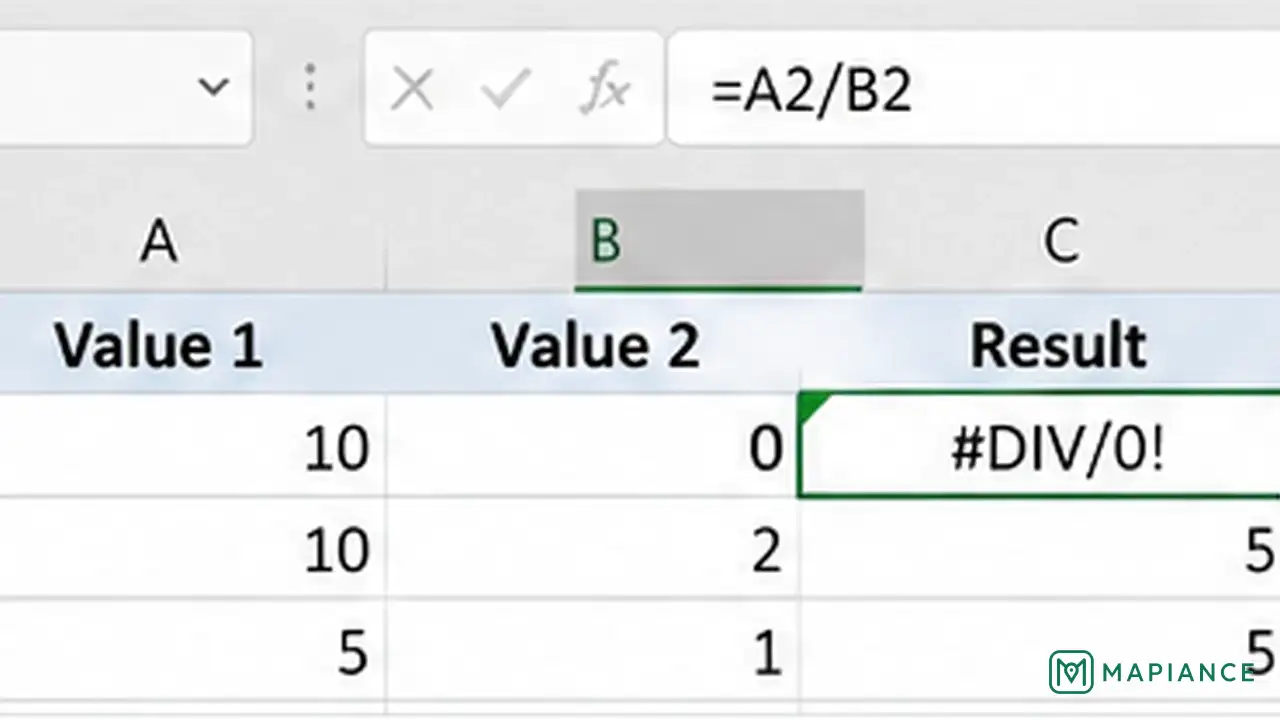
Check for formula errors and circular references
Use Excel's formula auditing tools to inspect cells that still fail. Look for error values, inconsistent formulas, and circular references where a formula depends on its own result directly or indirectly. Correct the reference or formula pattern, then recalculate and save the workbook. If the workbook intentionally uses circular formulas, review the iterative calculation settings instead of enabling them without understanding the model.
Tips & common mistakes
Tips for best results
- Check calculation mode early, especially when formulas suddenly stop updating across an entire workbook.
- If only a few cells show formulas as text, inspect their number format before changing workbook-wide settings.
- Use Show Formulas temporarily when comparing formulas across a row or column, then turn it off when you finish.
- Keep a backup before repairing formulas in a large workbook with linked sheets or complex calculations.
- When a formula returns an error instead of staying unchanged, troubleshoot the specific error value rather than forcing repeated recalculations.
Common mistakes
- Leaving calculation mode on Manual: Formula results can stay outdated even after source cells change.
- Changing a Text-formatted cell to General without re-entering the formula: Existing text may remain text until the formula is confirmed again.
- Confusing Show Formulas with a calculation failure: Formula view displays the formula itself even when the formula is valid.
- Replacing formulas before checking references: A correct formula can still return the wrong result when its source cells contain unexpected data.
- Enabling iterative calculation just to hide a circular-reference warning: This can change workbook results and should only be used when the model intentionally requires iteration.
Frequently asked questions
Why is Excel showing my formula instead of the answer?
Show Formulas may be turned on, or the cell may be formatted as Text. Turn off Show Formulas first. If only certain cells are affected, change them to General and re-enter the formulas.
Why do Excel formulas update only when I press F9?
The workbook may be using Manual calculation. Change the calculation mode to Automatic if you want formulas to update when dependent cells change.
Why does changing a cell from Text to General not fix the formula immediately?
A formula entered while the cell was formatted as Text may already be stored as text. After changing the format to General, edit and confirm the formula again so Excel interprets it as a formula.
Can numbers stored as text affect Excel formulas?
Yes. Some formulas may ignore or handle text values differently from numeric values. Check the source cells and convert numeric text to real numbers when required.
What is a circular reference in Excel?
A circular reference happens when a formula depends on its own result directly or through other cells. Standard Excel calculation cannot resolve this normally unless iterative calculation is intentionally configured.
Written by Mapiance Editorial Team
The Mapiance Editorial Team researches, writes, reviews, and maintains practical guides and explainers for MAPIANCE.
Published Aug 26, 2026 · Updated Sep 17, 2026