 MAPI
MAPIHow to Fix Gmail Not Receiving Emails
Gmail can appear to stop receiving mail even when messages are being moved, filtered, forwarded, or hidden outside the Inbox. A full Google Account can also stop new mail from arriving, and mobile sync problems can make the Gmail app look out of date. Work through the checks below in order so you can tell whether the problem affects one sender, one device, or the whole account.
First search Gmail for the missing message and check Spam and Trash. Then check your Google storage, review filters and forwarding settings, confirm the sender is not blocked, and troubleshoot app sync if messages appear on the Gmail website but not on your phone.
Things you'll need
- Your Gmail account
- A web browser
- Your phone or tablet if the problem affects the Gmail app
- Access to your Google Account storage settings
Search for the Missing Email
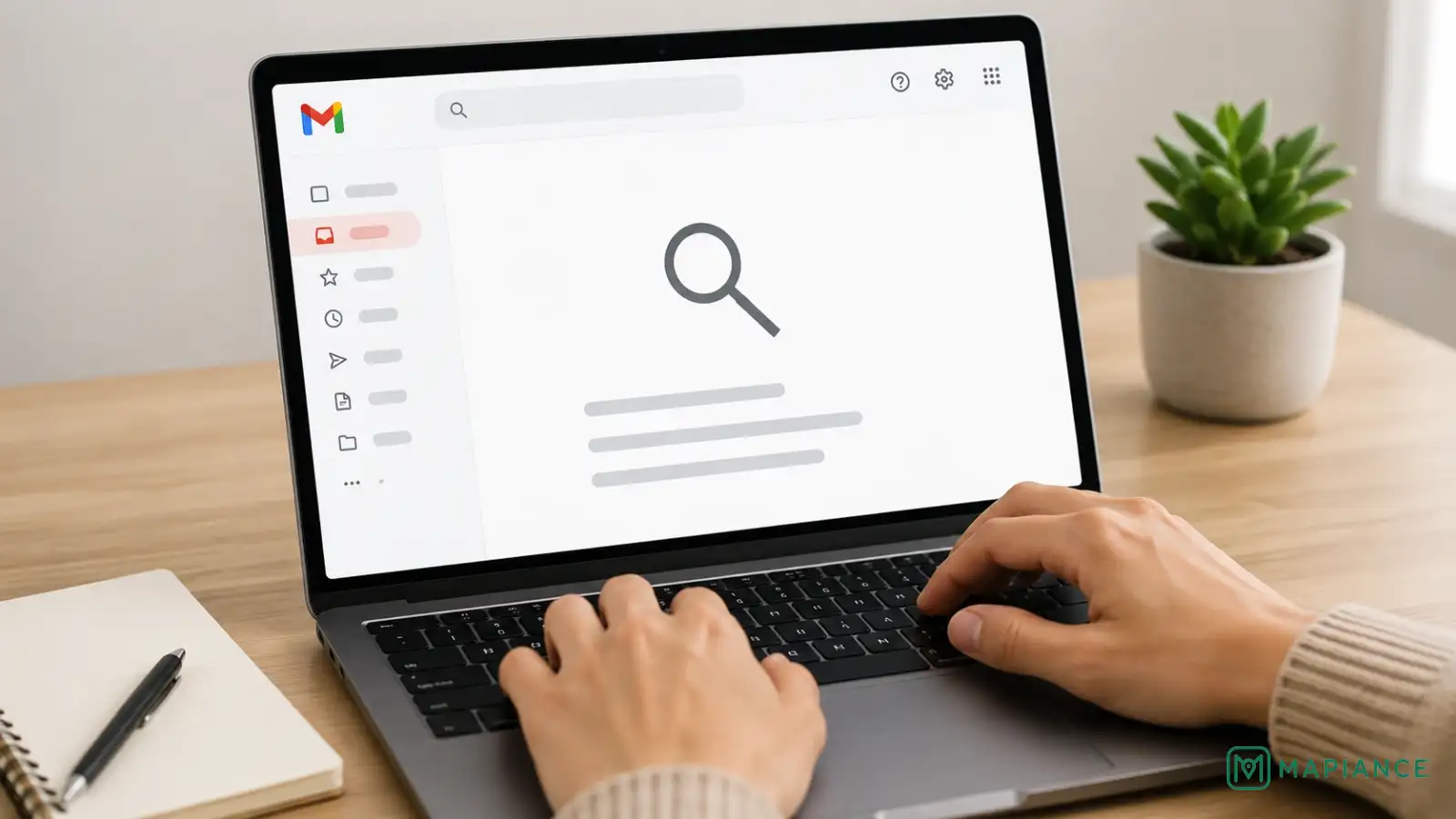
Open Gmail in a web browser and search for the sender, subject, or a unique word from the missing message. Check Spam and Trash as well as the Inbox. If the message is in Spam, mark it as not spam. This first check tells you whether Gmail received the message but placed it somewhere you did not expect.
Check Google Account Storage
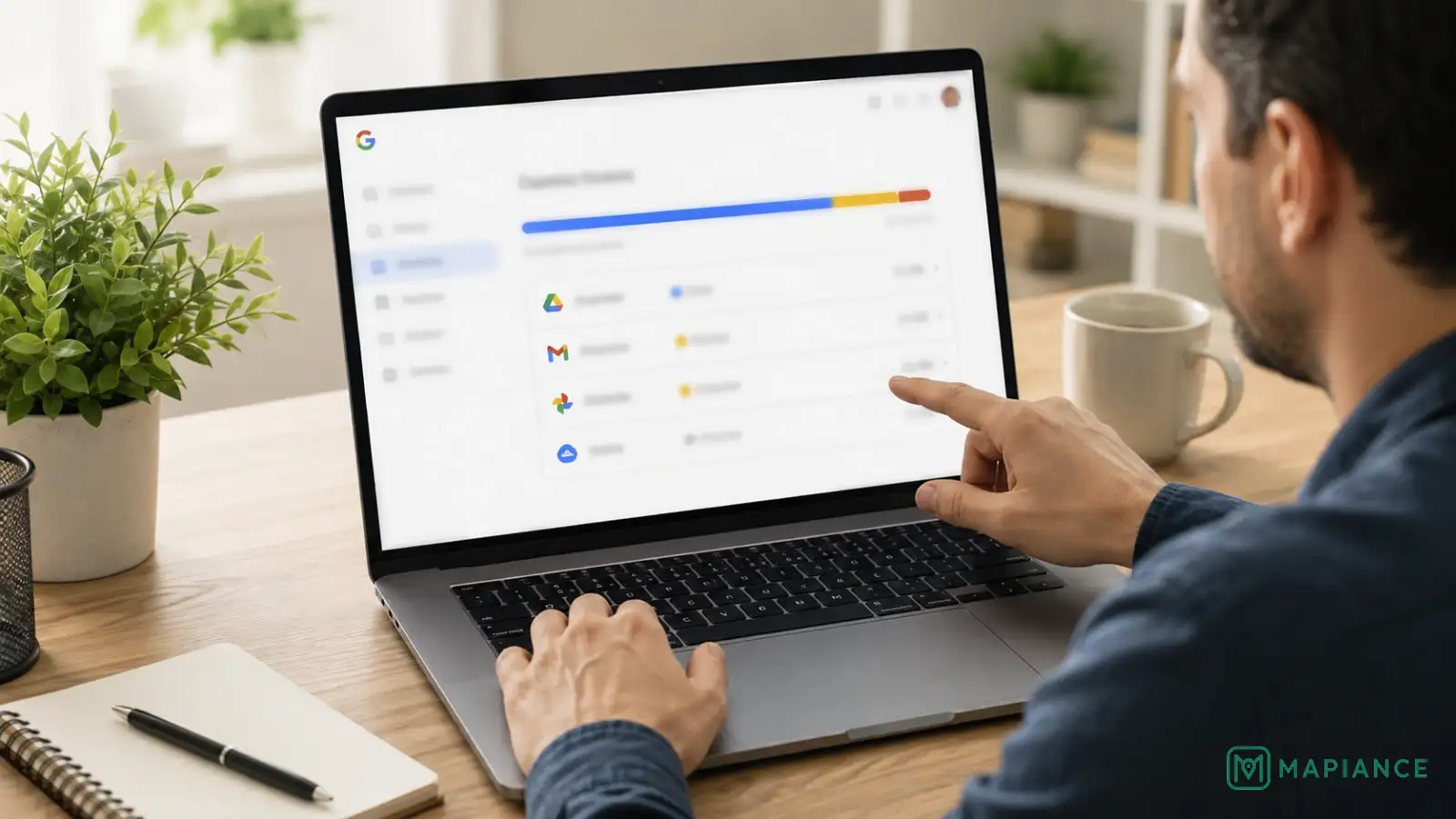
Check how much Google Account storage is available. Gmail shares storage with services such as Google Drive and Google Photos, and Gmail can stop sending and receiving mail when the account reaches its storage limit. If storage is full, delete files or large emails you no longer need and empty Trash and Spam so the space can be reclaimed.
Review Filters and Blocked Senders
In Gmail on a computer, open Settings, choose See all settings, and review Filters and Blocked Addresses. Look for filters that delete messages, skip the Inbox, archive mail, or move it somewhere unexpected. Edit or remove any filter that is affecting wanted mail. Also check the blocked-address list; messages from blocked senders are sent to Spam until you unblock them.
Check Forwarding Settings
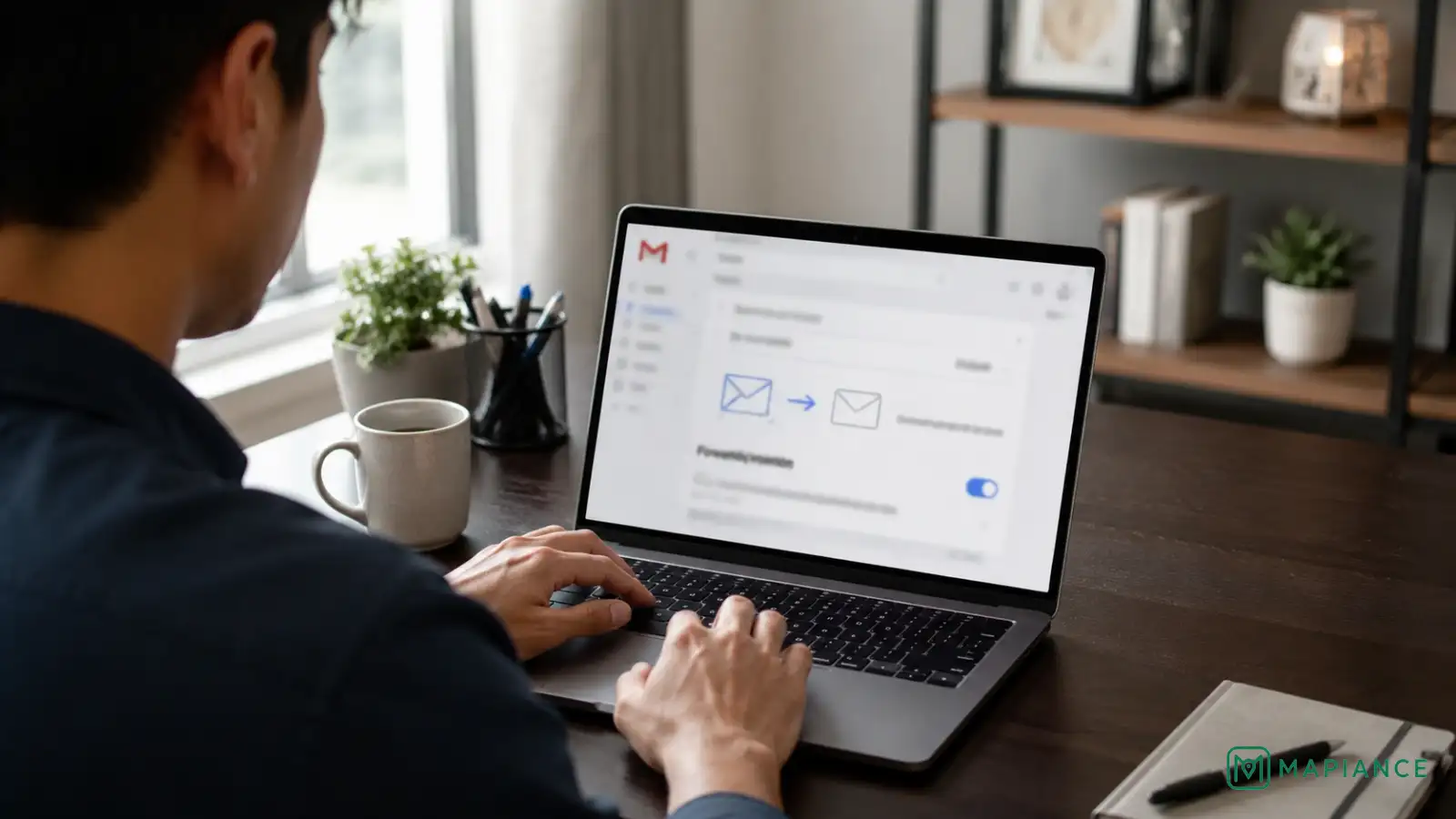
Open Gmail Settings and review the Forwarding and POP/IMAP or Forwarding section. If automatic forwarding is enabled, check where new mail is being sent and what Gmail does with its copy. Turn off forwarding if you no longer need it. If you see forwarding that you did not set up, disable it and change your Google Account password because someone else may have accessed the account.
Test With Another Sender
Ask someone to send you a short test email, or send one from another account you control. Make sure the Gmail address is typed correctly. If mail from most people arrives but one sender's messages do not, ask that sender whether Gmail returned a delivery error. A bounce message can reveal an incorrect address, storage problem, or a sending-side rejection that you cannot fix from your Inbox.
Fix Gmail App Sync
If new messages appear when you open Gmail in a web browser but not in the Gmail app, the account is receiving mail and the problem is local to the device. Refresh the Gmail app, confirm the device has an internet connection, make sure Gmail sync is enabled for the account, and check that the phone has free storage space. Restart the app or device after changing sync settings, then send another test message.
Tips & common mistakes
Tips for best results
- Search for a missing message before changing settings; it may already be in Spam, Trash, or an archived label.
- If only one sender is affected, focus on Spam, blocking, filters, and any delivery error the sender receives.
- If every sender is affected, check storage and account settings before spending time troubleshooting one message.
- Use Gmail in a web browser as a comparison point when the mobile app looks out of date.
- After freeing a large amount of Google storage, allow time for the storage total to update before assuming the fix failed.
Common mistakes
- Checking only the Inbox can make a received message look missing when Gmail placed it in Spam, Trash, or another location.
- Deleting files without emptying Trash or Spam may not immediately free the storage you expect because those items can still count toward the account limit.
- Ignoring filters can leave wanted mail automatically archived or deleted even though Gmail is receiving it correctly.
- Leaving unexpected forwarding enabled can send new mail to another account and may also be a warning sign of unauthorized access.
- Troubleshooting the Gmail app first can waste time if the same messages are also missing on the Gmail website; compare web and app results before changing phone settings.
Frequently asked questions
Can full Google storage stop Gmail from receiving emails?
Yes. When a Google Account reaches its storage limit, Gmail may stop sending and receiving messages, and incoming mail can be returned to the sender.
Why are emails going to Spam instead of my Gmail Inbox?
Gmail may classify the messages as spam, or the sender may be blocked. Mark a valid message as not spam and check the blocked-address list if the problem continues.
Can a Gmail filter make emails disappear?
Yes. A filter can skip the Inbox, archive a message, delete it, apply a label, or forward it. Review Filters and Blocked Addresses in Gmail settings.
Why do emails appear on Gmail.com but not in the Gmail app?
That usually points to a device or sync problem rather than a receiving problem. Refresh the app, check internet access, enable Gmail sync, and make sure the device has available storage.
What should I do if Gmail forwarding was enabled without my permission?
Disable the forwarding setting and change your Google Account password immediately. Unexpected forwarding can indicate that someone else accessed the account.
Written by Mapiance Editorial Team
The Mapiance Editorial Team researches, writes, reviews, and maintains practical guides and explainers for MAPIANCE.
Published Aug 29, 2026 · Updated Sep 21, 2026