 MAPI
MAPIHow to Fix iPhone Apps That Won’t Update
App Store updates can fail even when the apps themselves still open normally. Common causes include a stuck download, an Apple Account billing or verification issue, a temporary device problem, or outdated iOS software. Start with the App Store itself and use the least disruptive fixes first before deleting an app and risking the loss of locally stored app data.
Open the App Store, tap your account button or profile photo, open App Updates, and try Update or Update All. If an update is stuck, touch and hold the app on the Home Screen and choose Prioritize Download. Also check for billing or verification problems, restart the iPhone, and install the latest iOS version available for your device.
Things you'll need
- Your iPhone
- Internet connection
- Apple Account sign-in details if requested
- Valid payment method if your account requires one
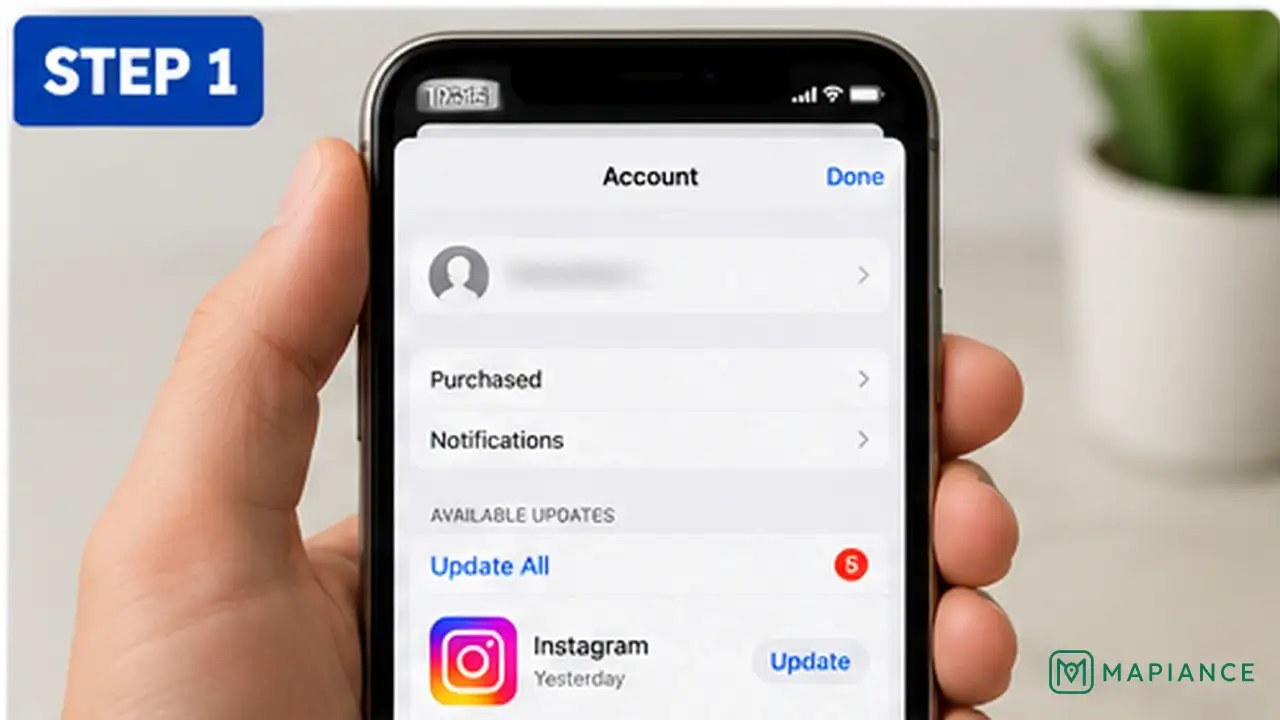
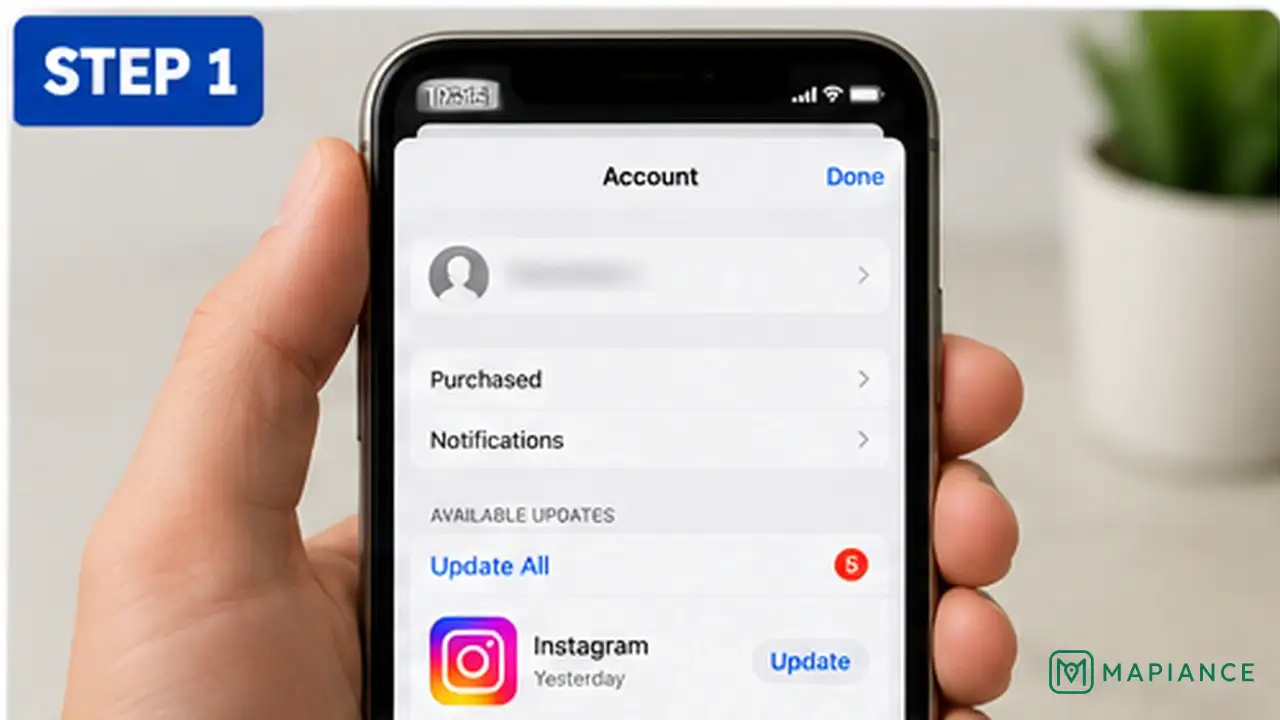
Try the update manually
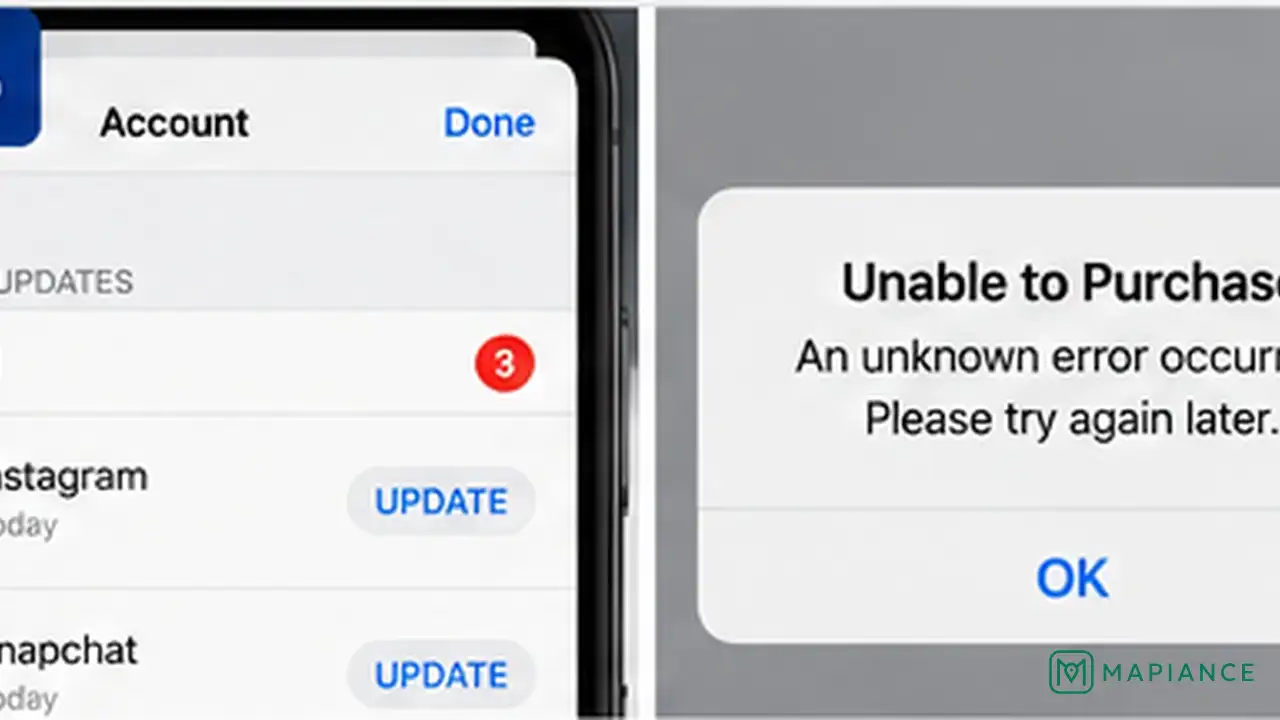
Open the App Store, tap your account button or profile photo at the top of the screen, then open App Updates. Tap Update next to one app or Update All. Apps from the App Store normally update automatically, but a manual update can restart an update that did not begin correctly.
Prioritize a stuck download
If an app icon shows that an update is waiting or stuck, go to the Home Screen and touch and hold the app. Choose Prioritize Download if that option appears. This tells the iPhone to give that app update priority over other pending downloads.
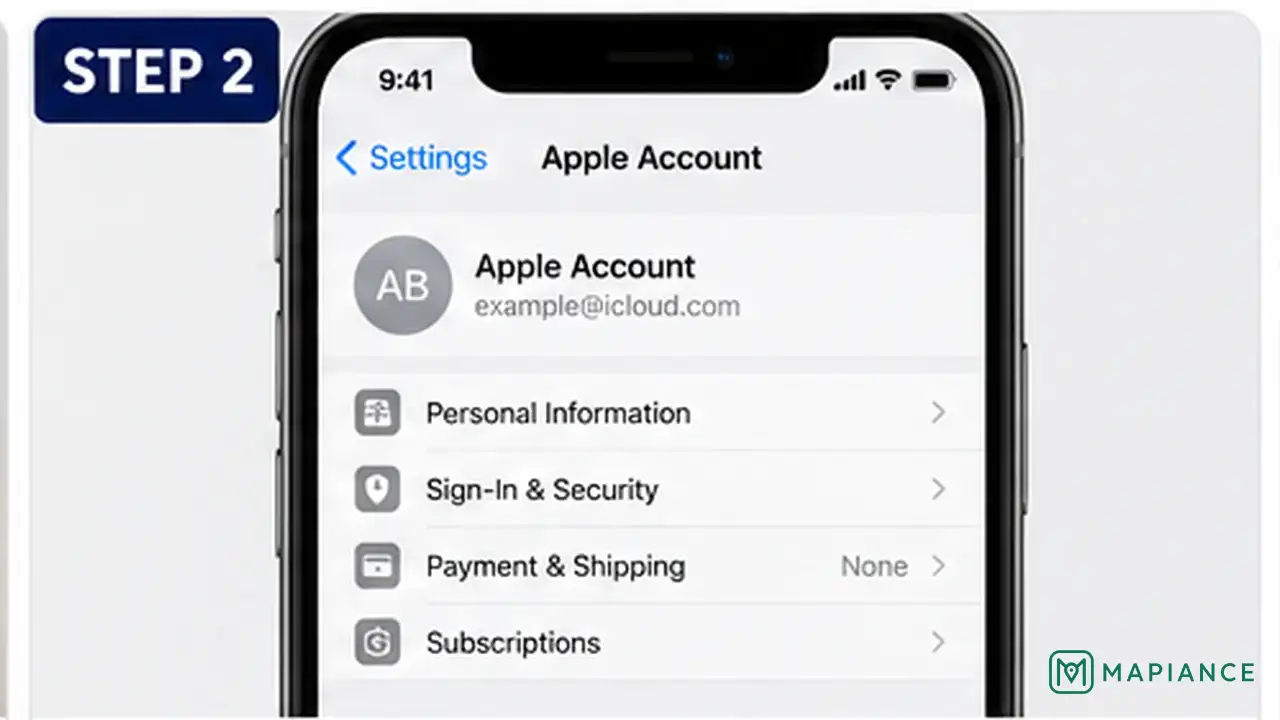
Check for billing or verification problems
If the App Store shows a billing problem, verification required message, or asks you to update payment information, resolve that account issue before trying the update again. Apple notes that a valid payment method may sometimes be required even for free apps. Use only the payment and account settings linked to your Apple Account.
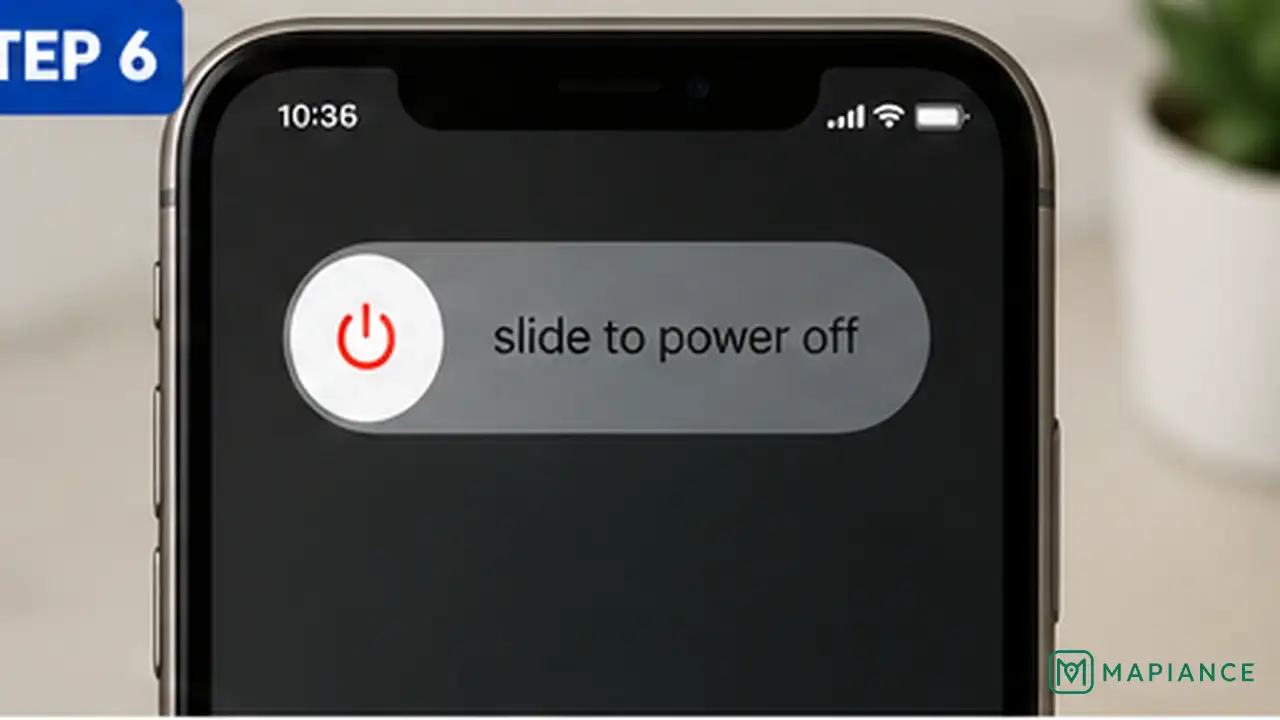
Restart the iPhone
Restart the iPhone, wait for it to return to the Home Screen, then open the App Store and try the update again. A restart can clear a temporary system or download problem without deleting the app or its data.
Update iOS
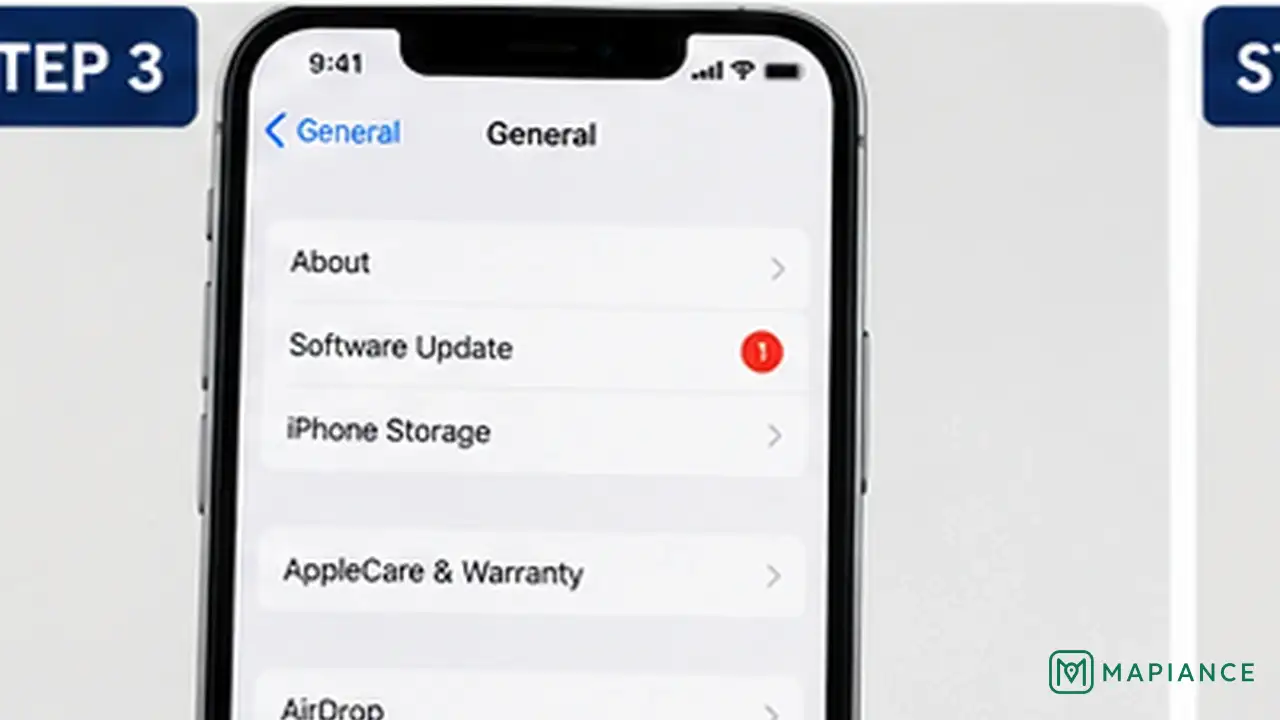
If app updates still fail, open Settings > General > Software Update and install the latest iOS version available for your iPhone. Some apps require a newer version of iOS, and Apple recommends updating the device software when an app cannot be updated or does not work as expected. Make sure the iPhone has enough free storage and power for the software update.
Delete and redownload only as a last step
If one specific app still will not update and other apps update normally, check whether the app contains important local data that is not backed up. If it is safe to remove, delete the app and download it again from the App Store. Apple warns that deleting an app can remove data stored only inside that app, so use this step only when you understand what will be lost.
Tips & common mistakes
Tips for best results
- If only one app will not update, the problem is more likely specific to that app than to the entire App Store.
- Use the App Store account screen to update apps manually instead of repeatedly tapping a stuck Home Screen icon.
- Resolve any Apple Account billing or verification message before trying the same update again.
- Keep enough free storage available for both app updates and iOS updates.
- Before deleting an app, confirm whether its important data is stored in iCloud, on an account, or only on the iPhone.
Common mistakes
- Deleting the app immediately: Local app data may be lost if it is not backed up or synced.
- Ignoring a billing problem because the app is free: Apple may still require a valid payment method on the account.
- Repeatedly starting and stopping a stuck download: Prioritize Download or restart the iPhone instead.
- Assuming automatic updates mean manual updates are unavailable: You can still open App Updates and update an app yourself.
- Trying to install a newer app version on an unsupported iOS version: Update iOS first if a compatible software update is available.
Frequently asked questions
Why are my iPhone apps not updating automatically?
Automatic updates can be delayed, paused, or interrupted. Open the App Store account screen and try the update manually to confirm whether the app can update.
What does Prioritize Download do on iPhone?
It gives a waiting or downloading app higher priority so its download or update can continue ahead of other pending downloads.
Can a payment problem stop free apps from updating?
Yes. Apple says you may need a valid payment method on file even when the app you want to download is free, especially when the account has a billing or verification issue.
Should I restart my iPhone if App Store updates are stuck?
Yes. Apple recommends restarting the device when apps cannot be downloaded or updated, then trying the App Store again.
Will deleting an app remove its data?
It can. Data stored only inside the app may be deleted with the app. Check whether important information is backed up or synced before removing it.
Written by Mapiance Editorial Team
The Mapiance Editorial Team researches, writes, reviews, and maintains practical guides and explainers for MAPIANCE.
Published Aug 27, 2026 · Updated Sep 8, 2026