 MAPI
MAPIHow to Fix iPhone Storage Full Even After Deleting Photos
Deleting photos does not always free space immediately because deleted items normally stay in Recently Deleted for up to 30 days. Your iPhone may also be full because apps, messages, downloads, or other data are using more space than Photos. Check the storage breakdown first, then remove the largest items instead of deleting more photos blindly.
Open Photos > Collections > Recently Deleted and permanently delete the photos and videos you no longer need. Then check Settings > General > iPhone Storage to see what is still using space. If Photos is no longer the main problem, remove downloads, offload unused apps, or use Optimize iPhone Storage with iCloud Photos.
Things you'll need
- Your iPhone
- Wi-Fi connection if you use iCloud Photos or need an iOS update
- Enough iCloud storage if you plan to use Optimize iPhone Storage
- A Mac or Windows PC if the iPhone cannot update because storage is extremely low
Check what is using the storage
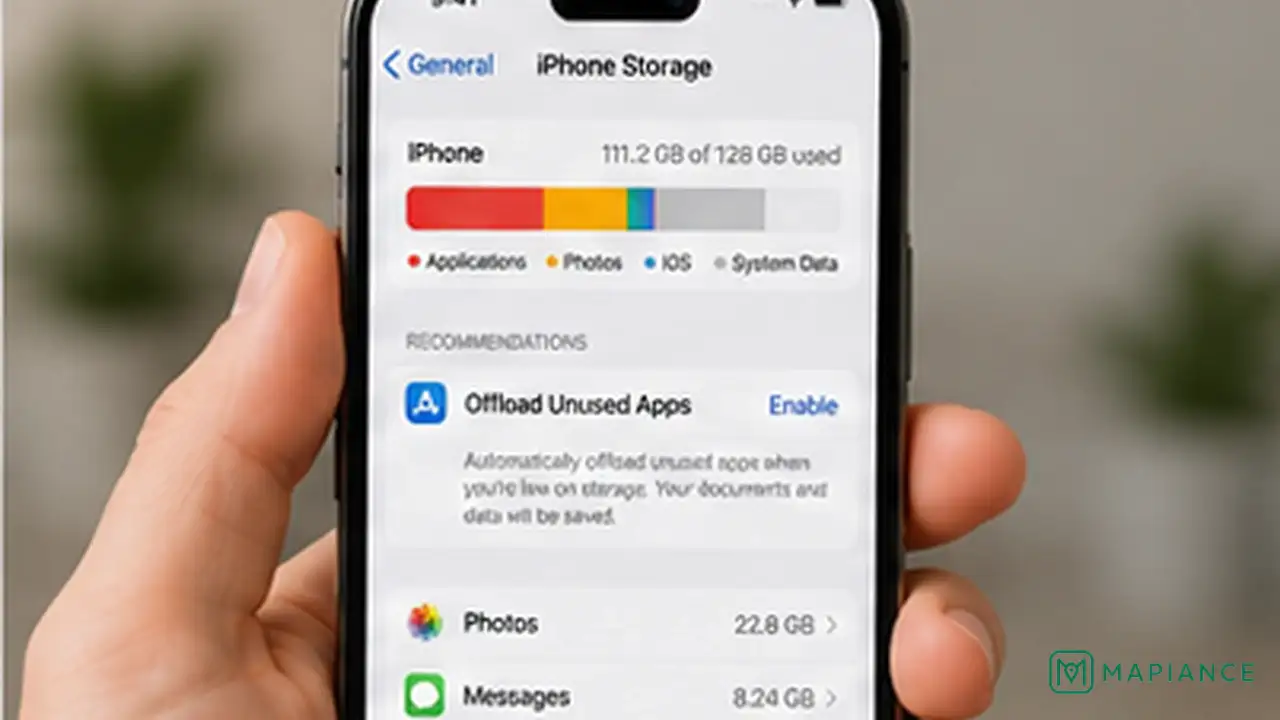
Go to Settings > General > iPhone Storage. Wait for the storage chart and app list to finish loading, then look at how much space Photos is using compared with apps, Messages, media, and other categories. If Photos is no longer one of the largest items, deleting more pictures will not solve the main problem.
Empty Recently Deleted
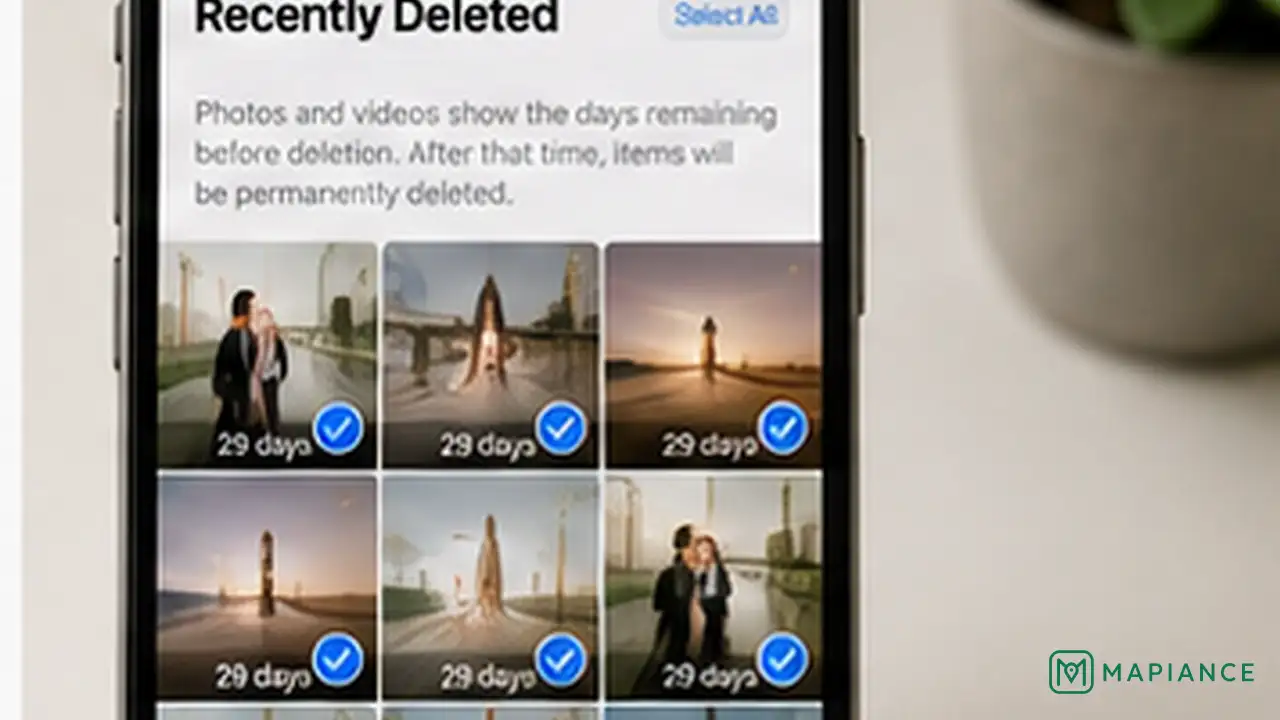
Open Photos, go to Collections, then open Recently Deleted under Utilities or the appropriate collection area. Unlock it if asked, select the photos and videos you are sure you do not need, and delete them permanently. Deleted photos normally remain in Recently Deleted for up to 30 days, so removing them there can free the space sooner. If you use iCloud Photos, permanent deletion also affects the same photos on your other connected Apple devices.

Restart and check storage again
After permanently deleting a large amount of media, restart the iPhone and return to Settings > General > iPhone Storage. Give the storage screen time to recalculate before deciding that nothing changed. If Photos has become smaller but the phone is still nearly full, continue with the categories that now use the most space.
Use Optimize iPhone Storage if you use iCloud Photos
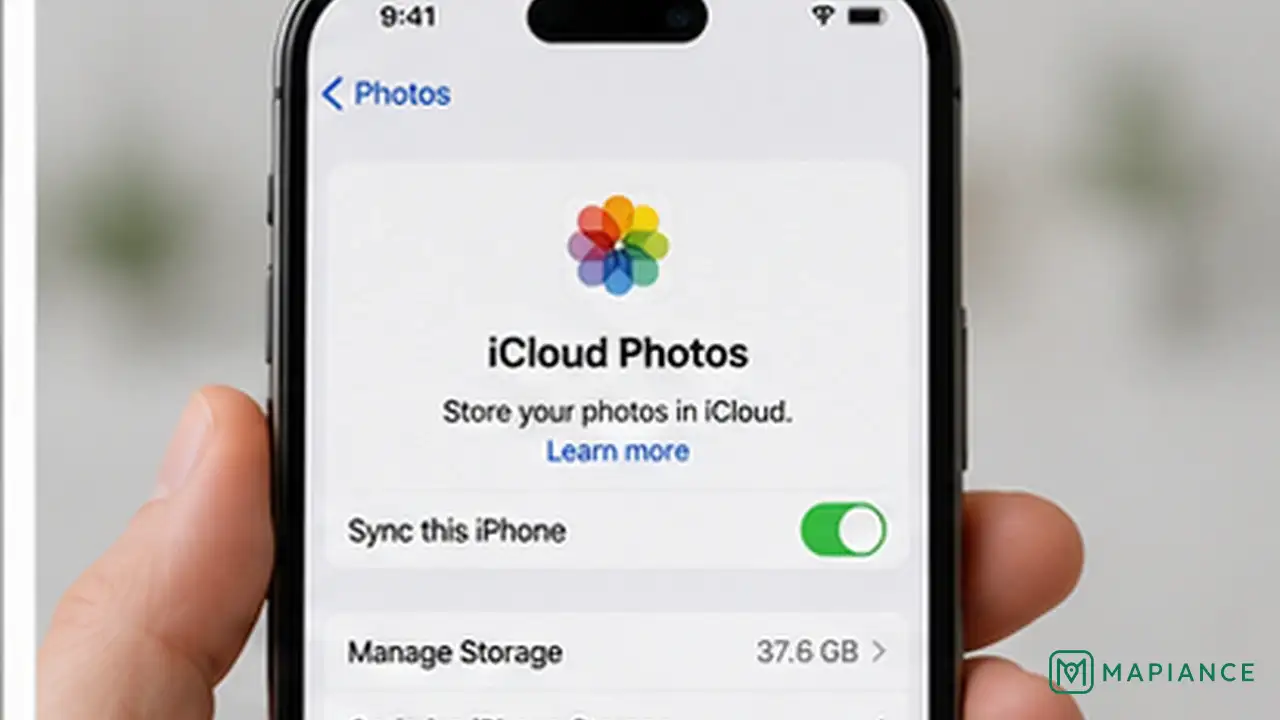
If your photos must stay available but local copies are taking too much space, open Settings > your name > iCloud > Photos and make sure iCloud Photos is enabled. Choose Optimize iPhone Storage. Full-resolution originals stay in iCloud while smaller versions can be kept on the iPhone when space is needed. This option requires enough iCloud storage and may not reduce local storage immediately.
Remove other large apps and downloads
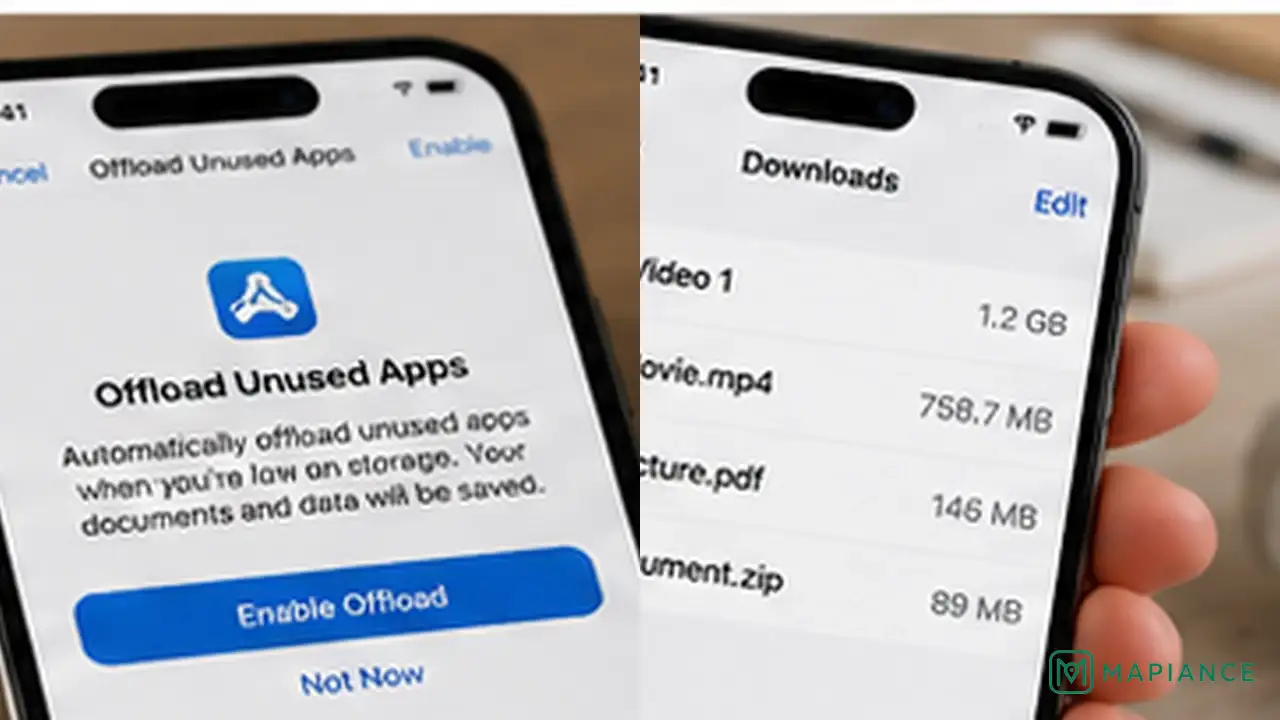
Return to Settings > General > iPhone Storage and review the largest apps. Use Offload App when you want to free the app itself but keep its documents and data, or Delete App when you no longer need the app and its related data. Also check large downloads in streaming apps, Files, podcasts, music, and message attachments. Remove only items you recognize and no longer need.
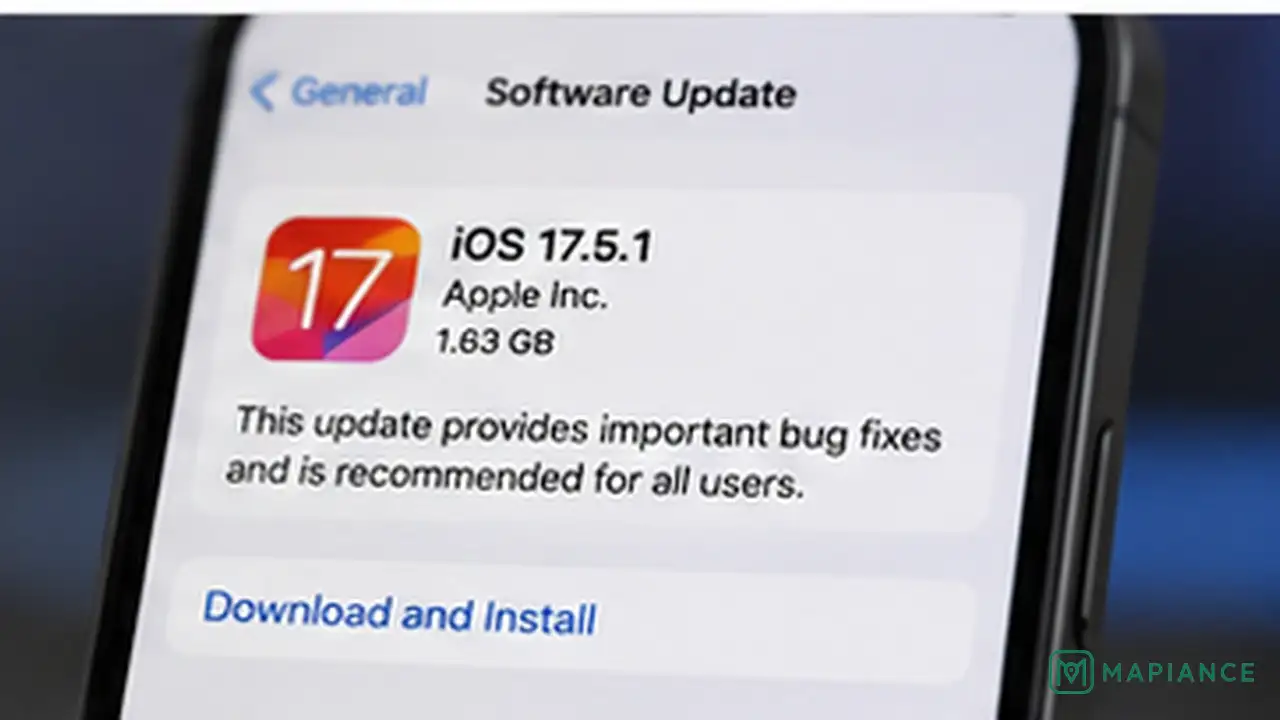
Update iOS if storage still looks wrong
If the storage total still appears incorrect after you have permanently removed files and restarted the iPhone, install the latest available iOS update. Go to Settings > General > Software Update. If the iPhone does not have enough free space to update wirelessly, Apple allows some updates to temporarily remove apps and reinstall them afterward, or you can update the iPhone using a computer. Back up important data before major troubleshooting.
Tips & common mistakes
Tips for best results
- Check the storage chart before deleting anything else so you target the category that is actually using the space.
- Large videos usually free much more space than deleting many small photos.
- Offloading an app keeps its documents and data, while deleting the app removes the app and its related data.
- Keep at least about 1 GB of free space when possible so iOS has room for normal system tasks.
- If you use iCloud Photos, remember that deleting a photo on one connected device also deletes it from iCloud Photos and your other connected devices.
Common mistakes
- Deleting photos but leaving them in Recently Deleted: They can remain there for up to 30 days and may continue using device storage.
- Assuming Photos is still the main problem: Apps, Messages, downloads, and other data may now be using more space.
- Turning on Optimize iPhone Storage without enough iCloud space: Full-resolution originals need enough available iCloud storage.
- Deleting an app when you only wanted to offload it: Delete App can remove the app and its related data.
- Using third-party cleaner apps that promise to clear iOS system storage automatically: iOS controls much of its system storage itself, so review Apple storage recommendations and your own files instead.
Frequently asked questions
Why is my iPhone storage still full after deleting photos?
Deleted photos and videos usually stay in Recently Deleted for up to 30 days unless you permanently remove them. Other apps, downloads, messages, or media may also be using most of the storage.
Does Recently Deleted use iPhone storage?
Yes. Items in Recently Deleted have not yet been permanently removed, so clearing that collection can free space sooner.
What does Optimize iPhone Storage do?
With iCloud Photos enabled, it keeps full-resolution originals in iCloud while allowing smaller device-sized versions to remain on the iPhone when local storage is needed.
Is Offload App the same as Delete App?
No. Offload App frees the storage used by the app but keeps its documents and data. Delete App removes the app and its related data.
Why does iPhone Storage take time to change after deleting files?
The storage screen can take time to calculate and refresh after large deletions or system changes. Restart the iPhone, reopen iPhone Storage, and allow the calculation to finish before checking the result.
Written by Mapiance Editorial Team
The Mapiance Editorial Team researches, writes, reviews, and maintains practical guides and explainers for MAPIANCE.
Published Aug 26, 2026 · Updated Sep 28, 2026