 MAPI
MAPIHow to Recover an Unsaved Excel File
Excel has several recovery methods, and the right one depends on what happened. A crash may trigger Document Recovery automatically, a workbook that was never saved may appear in Recover Unsaved Workbooks, and a file stored in OneDrive or SharePoint may have older versions available through Version History. Recovery is not guaranteed, so save any recovered copy with a new name before making more changes.
Reopen Excel first and check the Document Recovery pane. If the workbook was never saved, go to File > Info > Manage Workbook > Recover Unsaved Workbooks. If the file was stored in OneDrive or SharePoint, also check Version History for an earlier saved version.
Things you'll need
- Microsoft Excel desktop app
- The computer where the workbook was being edited
- Access to the same Microsoft account if the file was stored in OneDrive or SharePoint
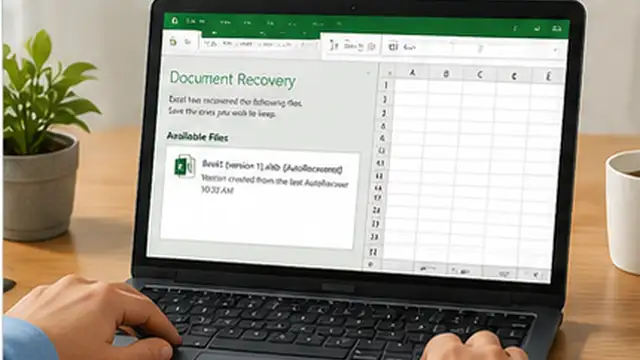
Reopen Excel and check Document Recovery
If Excel or your computer closed unexpectedly, reopen Excel before creating a new workbook. The Document Recovery pane may appear automatically and list recovered versions of files that were open. Open the version with the most useful date and time, check the contents, and save it immediately with a clear file name.
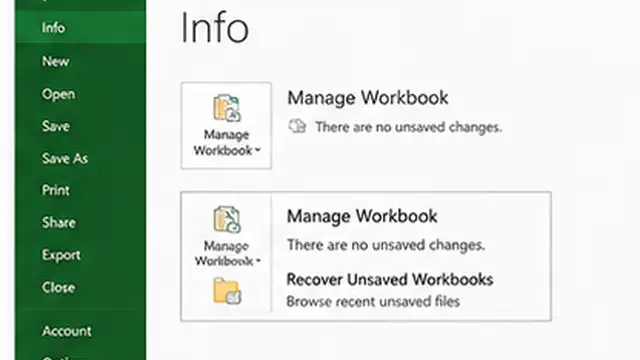
Open Recover Unsaved Workbooks
If the workbook was never saved, open Excel and go to File > Info > Manage Workbook > Recover Unsaved Workbooks. Excel will open a folder containing unsaved recovery files if any are available. Select the file that matches your work, open it, and inspect the sheets before saving it.
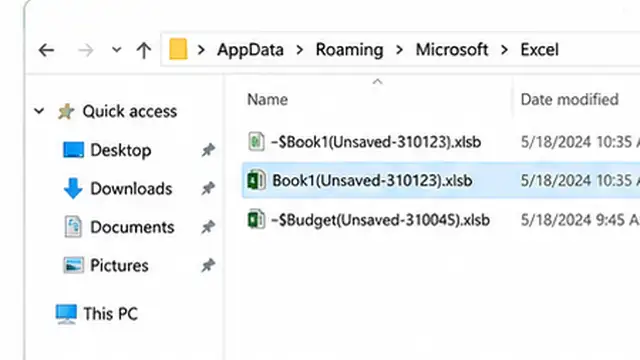
Look for a version closed without saving
If the workbook had been saved before but your latest changes were not, open the original file and go to File > Info. Under Manage Workbook, look for a version marked as one that was closed without saving. Open that version and compare it with the current file before choosing Restore or saving a separate copy.
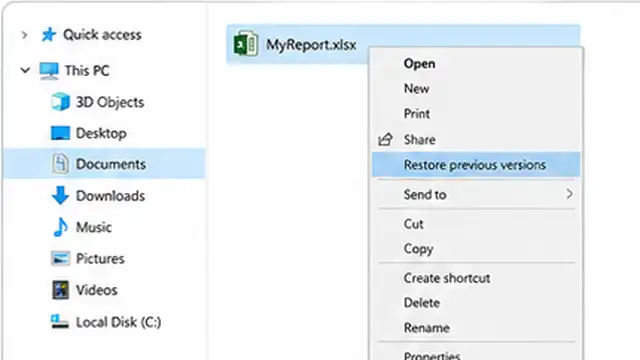
Check Version History for cloud files
If the workbook is stored in OneDrive or SharePoint, open it and check Version History. Review the available dates and times, open an earlier version, and confirm that it contains the missing work. Restore that version only when you are sure it is the one you want, because it will become the current version.
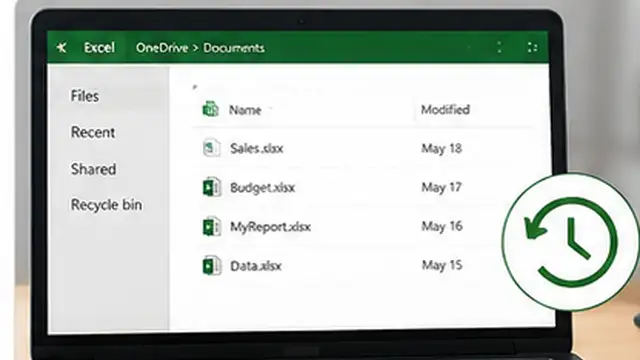
Save the recovered workbook as a new file
Once you find the correct recovered version, use Save As and give it a new file name before continuing to edit. Saving a separate copy protects the recovered data while you compare it with any older version you already have. Open the new file once after saving to make sure the sheets and formulas are still present.
Turn on safer saving for future work
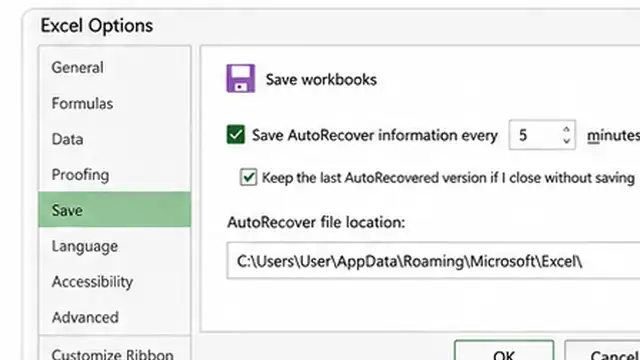
For future work, save important Excel files to OneDrive or SharePoint when that fits your workflow. Microsoft 365 can use AutoSave for supported cloud files, while AutoRecover can still help after an unexpected app or system failure. Also save manually at important points so you are not relying on recovery as your only backup.
Tips & common mistakes
Tips for best results
- Check the date and time of each recovered version before restoring it; the newest file is not always the one with the work you need.
- Save a recovered workbook under a new name before comparing versions so you do not overwrite a useful copy.
- If Document Recovery appears after a crash, review its files before closing the pane.
- Cloud storage such as OneDrive or SharePoint adds Version History and can make recovery easier for Microsoft 365 files.
- Recovery files are temporary, so do not leave an important recovered workbook open without saving it.
Common mistakes
- Creating a new workbook immediately after a crash and ignoring Document Recovery: You may miss the easiest recovery option.
- Restoring a cloud version without checking it first: The restored version becomes the current version and may replace newer changes.
- Saving over the original file too quickly: A separate recovered copy makes comparison safer.
- Assuming AutoSave and AutoRecover are the same feature: AutoSave continuously saves supported cloud files, while AutoRecover helps recover work after an unexpected closure.
- Expecting every unsaved workbook to be recoverable: Excel can only recover data that was captured by its recovery features before the file was lost.
Frequently asked questions
Where is Recover Unsaved Workbooks in Excel?
In the Windows desktop version of Excel, go to File > Info > Manage Workbook > Recover Unsaved Workbooks. If recovery files are available, Excel will show them in a folder.
Can I recover changes after clicking Don't Save?
Sometimes. If the workbook had been saved before and AutoRecover captured a later version, File > Info > Manage Workbook may show a version marked as closed without saving. Recovery is not guaranteed.
What should I do if Excel crashed?
Reopen Excel and check the Document Recovery pane first. It may contain versions saved by AutoRecover or AutoSave before the crash.
Can OneDrive recover an older Excel file?
Yes. Files stored in OneDrive or SharePoint can use Version History, which lets you open and restore earlier versions when they are available.
What is the difference between AutoSave and AutoRecover?
AutoSave continuously saves supported Microsoft 365 files stored in OneDrive or SharePoint. AutoRecover periodically stores recovery information that can help after Excel or the computer closes unexpectedly.
Written by Mapiance Editorial Team
The Mapiance Editorial Team researches, writes, reviews, and maintains practical guides and explainers for MAPIANCE.
Published Aug 24, 2026 · Updated Oct 2, 2026