 MAPI
MAPIHow to Reduce PowerPoint File Size
PowerPoint files often become large because of high-resolution pictures, cropped image data, embedded video or audio, and embedded fonts. The biggest savings usually come from pictures and media. Use the desktop app when possible because some compression options are not available in PowerPoint for the web, and media compression is available in PowerPoint for Windows but not on Mac or the web.
Start by compressing all pictures and deleting cropped image areas. Then compress any audio or video, reduce stored image-editing data, and limit embedded fonts. Save a new copy and compare the file size before deleting the original.
Things you'll need
- Microsoft PowerPoint desktop app
- A copy of the presentation before compression
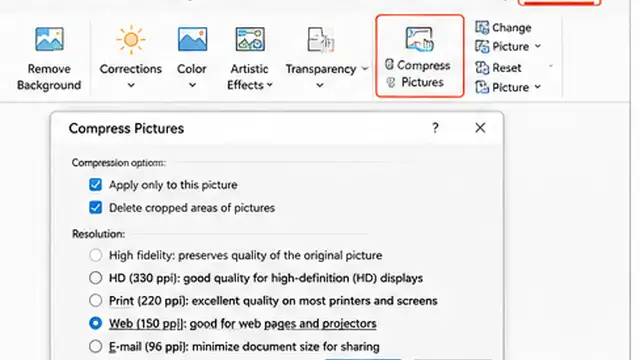
Compress all pictures
Select a picture, open Picture Format, and choose Compress Pictures. Clear Apply only to this picture if you want the setting to affect every picture in the presentation. Choose a suitable resolution and select Delete cropped areas of pictures if you no longer need to restore the cropped parts. Save a copy before doing this because deleted crop data cannot be recovered after the file is saved.
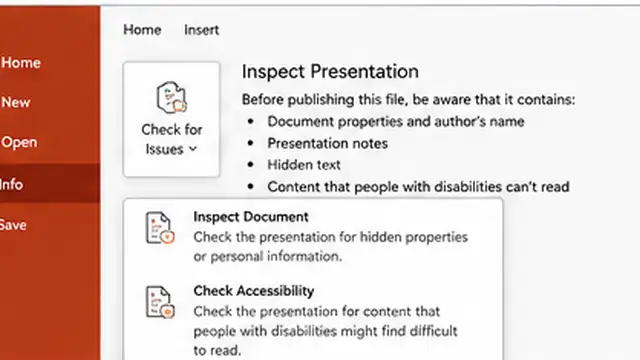
Remove hidden image-editing data
In PowerPoint for Windows, go to File > Options > Advanced and find Image Size and Quality. Select Discard editing data, make sure Do not compress images in file is not selected, and choose a lower default resolution such as 150 ppi or lower when that quality is enough for your use. Discarding editing data means you cannot restore earlier picture edits later.
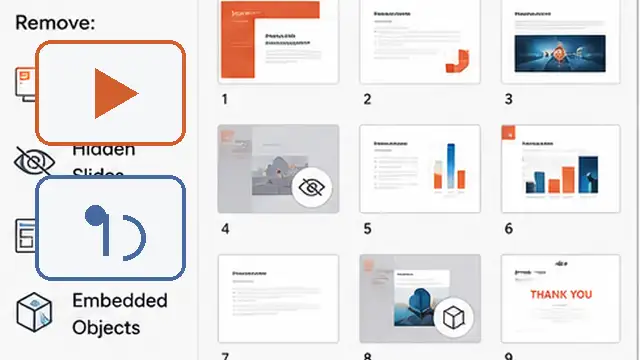
Compress audio and video
If the presentation contains embedded audio or video and you use PowerPoint for Windows, open File > Info and choose Compress Media. Select a quality level that fits how the presentation will be viewed. Lower quality can save more space. PowerPoint warns that media compression can remove embedded subtitles and alternate audio tracks, so check the presentation afterward. This feature is not available in PowerPoint for Mac or PowerPoint for the web.
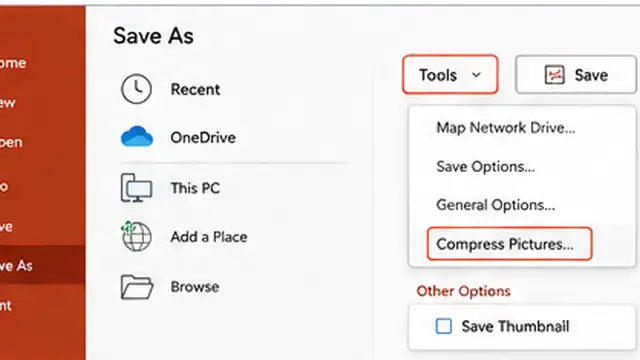
Reduce embedded font data
Embedded fonts can make a presentation larger. In PowerPoint for Windows, go to File > Options > Save and review the font embedding setting. If you need embedded fonts, choose Embed only the characters used in the presentation to reduce the added data. If the recipients already have the fonts and embedding is not needed, turning font embedding off can reduce the file further. Keep full font embedding when other people need to edit the presentation with the same custom fonts.
Remove unnecessary large content
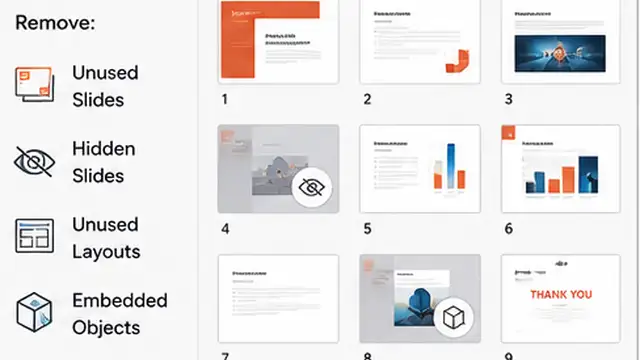
Review the presentation for videos, duplicate high-resolution pictures, unused slides, and other large objects that are no longer needed. Delete only content that is truly unnecessary. If one picture is much larger than its displayed size, replace it with a smaller copy that still looks sharp on the slide. This avoids carrying extra image data that the audience will never see.
Save a new copy and compare
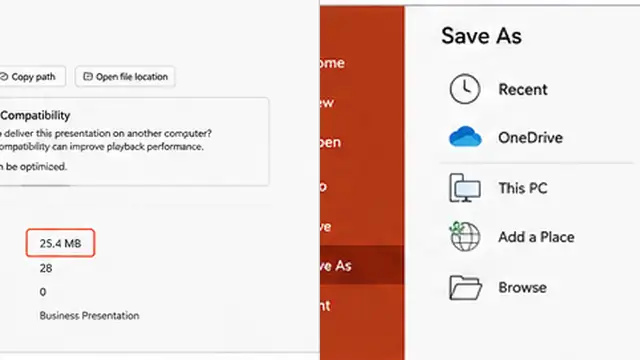
Use Save As to create a new copy after making the changes, then compare its file size with the original. Open the smaller copy and quickly check picture quality, video playback, fonts, animations, and slide layout before sharing it. Keep the original file until you are sure the compressed version still works as expected.
Tips & common mistakes
Tips for best results
- Compress pictures before removing slides randomly; images are often one of the largest parts of a presentation.
- Use the lowest picture resolution that still looks sharp on the screen or projector where the presentation will be shown.
- Keep a backup before deleting cropped areas or image-editing data because those changes reduce your ability to restore earlier edits.
- If a presentation contains many videos, reducing media quality can save much more space than changing fonts or small graphics.
- For PowerPoint for the web, open the file in the desktop app when you need picture compression options that the web version does not provide.
Common mistakes
- Compressing only one picture by accident: If Apply only to this picture stays selected, the rest of the images remain unchanged.
- Deleting cropped areas before the layout is final: You will not be able to restore those cropped portions after saving the file.
- Using very low resolution without checking the slides: Pictures can look soft or pixelated on a large display.
- Compressing media without reviewing captions and audio: PowerPoint can remove embedded subtitles and alternate audio tracks during media compression.
- Turning off full font embedding when collaborators need to edit with custom fonts: Their system may substitute another font and change the slide layout.
Frequently asked questions
What usually makes a PowerPoint file so large?
High-resolution pictures, retained crop and editing data, embedded video or audio, and embedded fonts are common causes.
Does cropping a picture reduce PowerPoint file size?
Not by itself. PowerPoint normally keeps the cropped picture data. Use Compress Pictures and select Delete cropped areas of pictures to remove it.
Can I compress every picture at once?
Yes. In the Compress Pictures dialog, make sure Apply only to this picture is not selected so the compression settings apply to all pictures.
Can PowerPoint compress videos?
Yes in PowerPoint for Windows. Use File > Info > Compress Media. Microsoft says this feature is not available in PowerPoint for Mac or PowerPoint for the web.
Will reducing PowerPoint file size lower quality?
It can. Lower image resolution and stronger media compression trade some quality for a smaller file, so check the finished presentation on the type of screen where it will be shown.
Written by Mapiance Editorial Team
The Mapiance Editorial Team researches, writes, reviews, and maintains practical guides and explainers for MAPIANCE.
Published Aug 25, 2026 · Updated Sep 8, 2026