 MAPI
MAPIHow to Repair a Corrupted Word Document
A corrupted Word document may refuse to open, show an error, display missing content, or crash Word. The safest repair process starts by preserving the original file and then using Word's built-in recovery options before trying more destructive methods. Some repair commands differ between Windows and Mac, so use the option available in your version of Word and save every successful recovery as a new file.
Make a copy of the damaged file first. In desktop Word on Windows, try File > Open > Browse, select the document, open the arrow beside Open, and choose Open and Repair. If that fails, try inserting the document into a new blank file, recovering text, or restoring an earlier AutoRecover, OneDrive, SharePoint, or backup version. Save any recovered content as a new .docx file.
Things you'll need
- Microsoft Word desktop app
- A copy of the damaged Word file
- Enough free storage to save recovered versions
- OneDrive, SharePoint, AutoRecover, or another backup if available
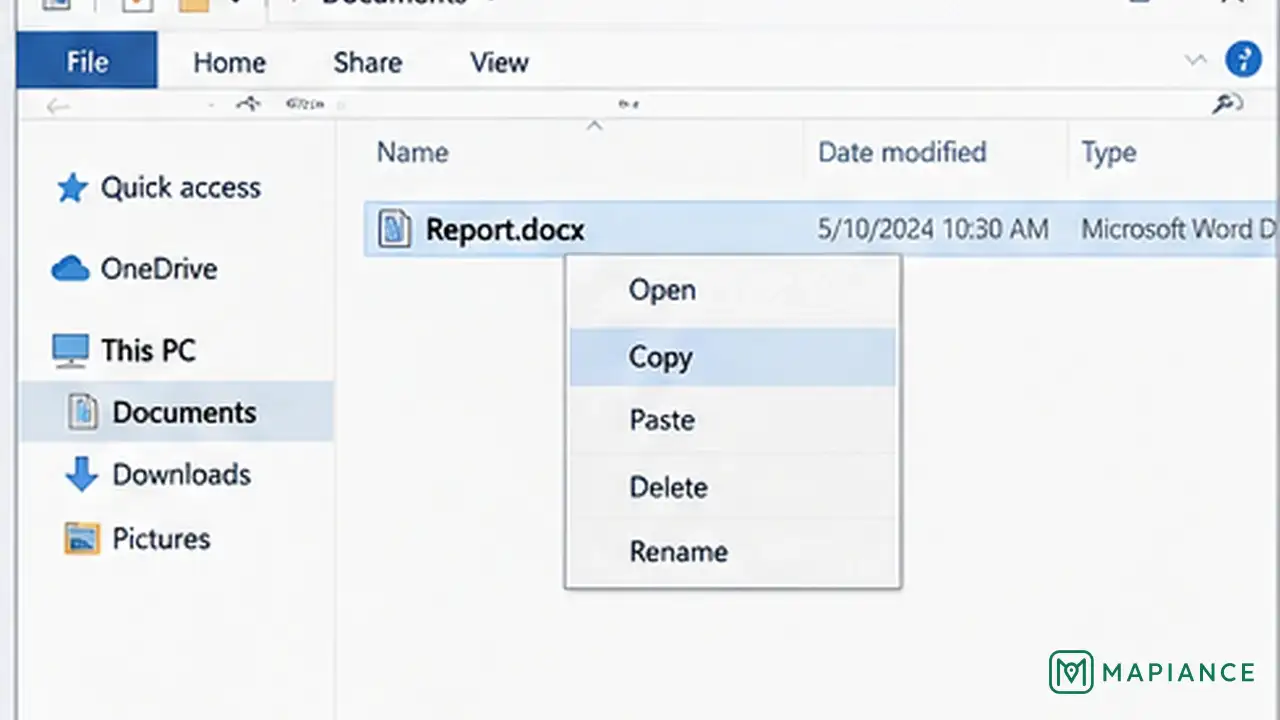
Make a copy of the damaged file
Before attempting any repair, duplicate the Word document in File Explorer, Finder, or another file manager. Work only on the copy so the original remains unchanged. If the file is on a USB drive, external disk, network location, or cloud folder, copy it to the computer's local storage first and confirm that the copied file has a normal size instead of zero bytes.
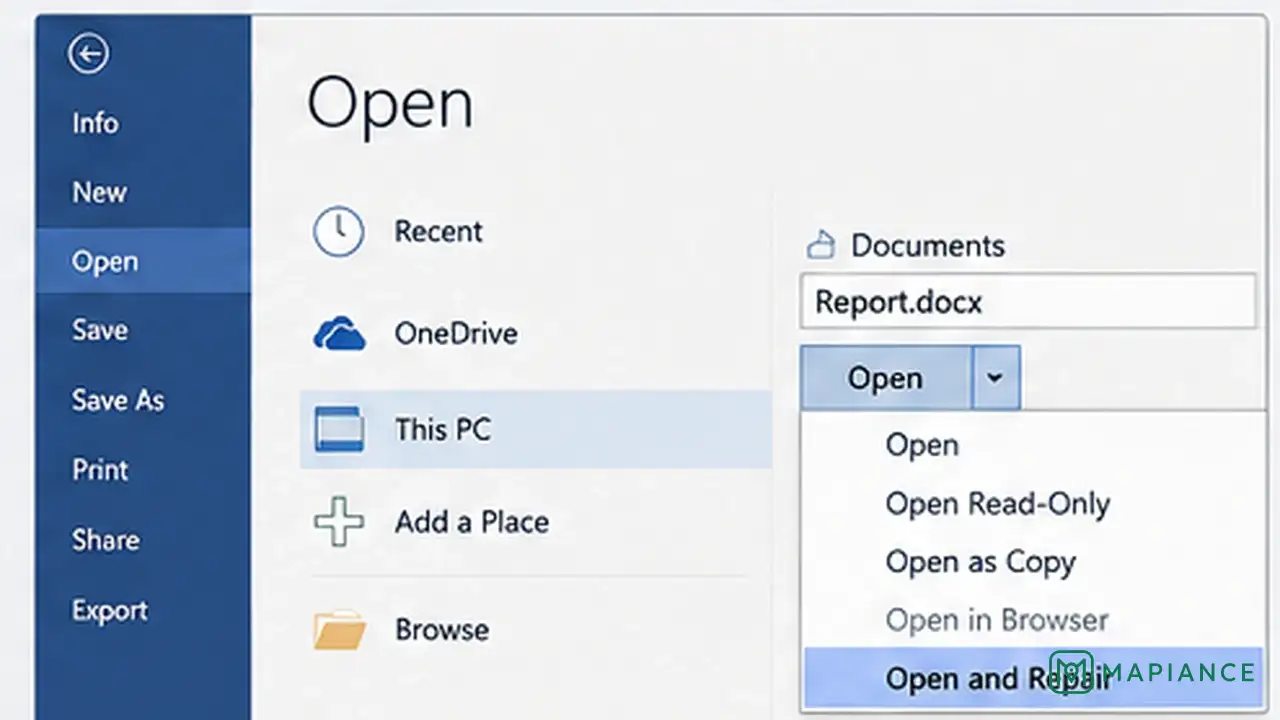
Try Open and Repair
In desktop Word on Windows, go to File > Open > Browse and navigate to the document instead of opening it from Recent. Select the file, click the arrow next to Open, and choose Open and Repair. If Word recovers the document, immediately use Save As and create a new .docx file with a different name.
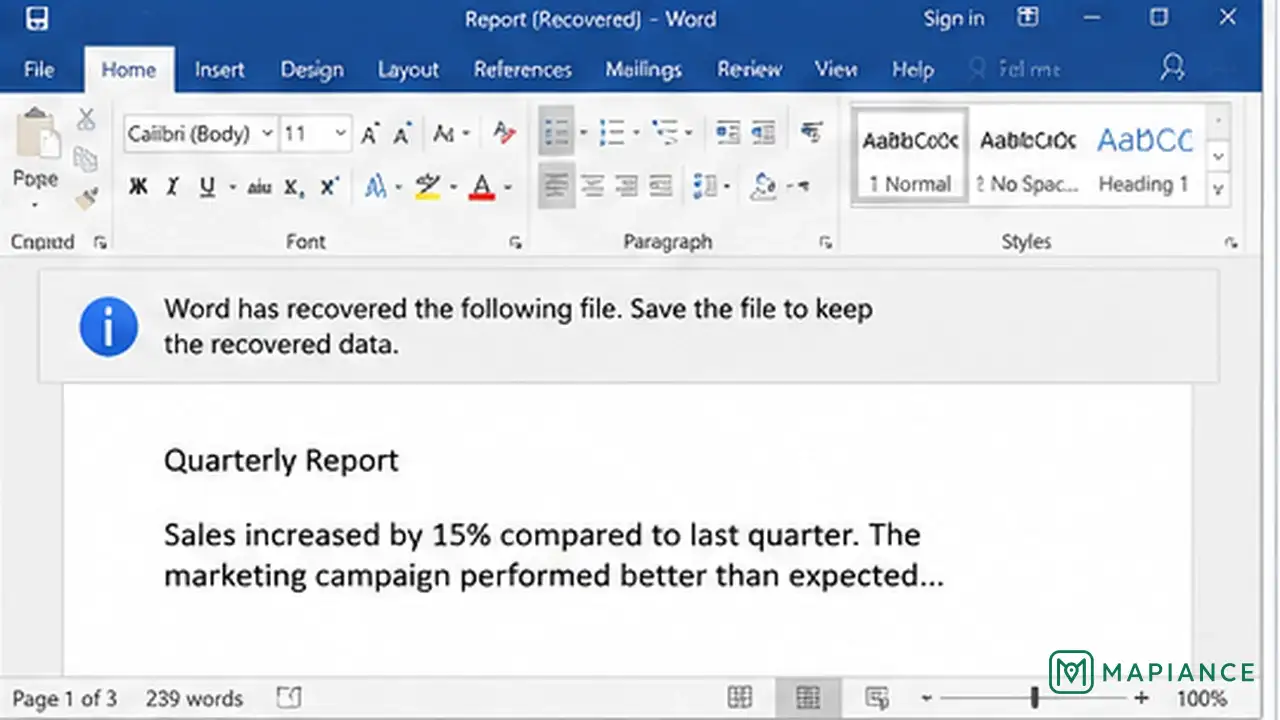
Insert the document into a blank file
If the damaged file will not open normally, create a new blank Word document. In desktop Word, use Insert > Object > Text from File, choose the damaged document, and insert it. This can recover usable text and other content while leaving some damaged document structure behind. Save the result as a new file if the content appears correctly.
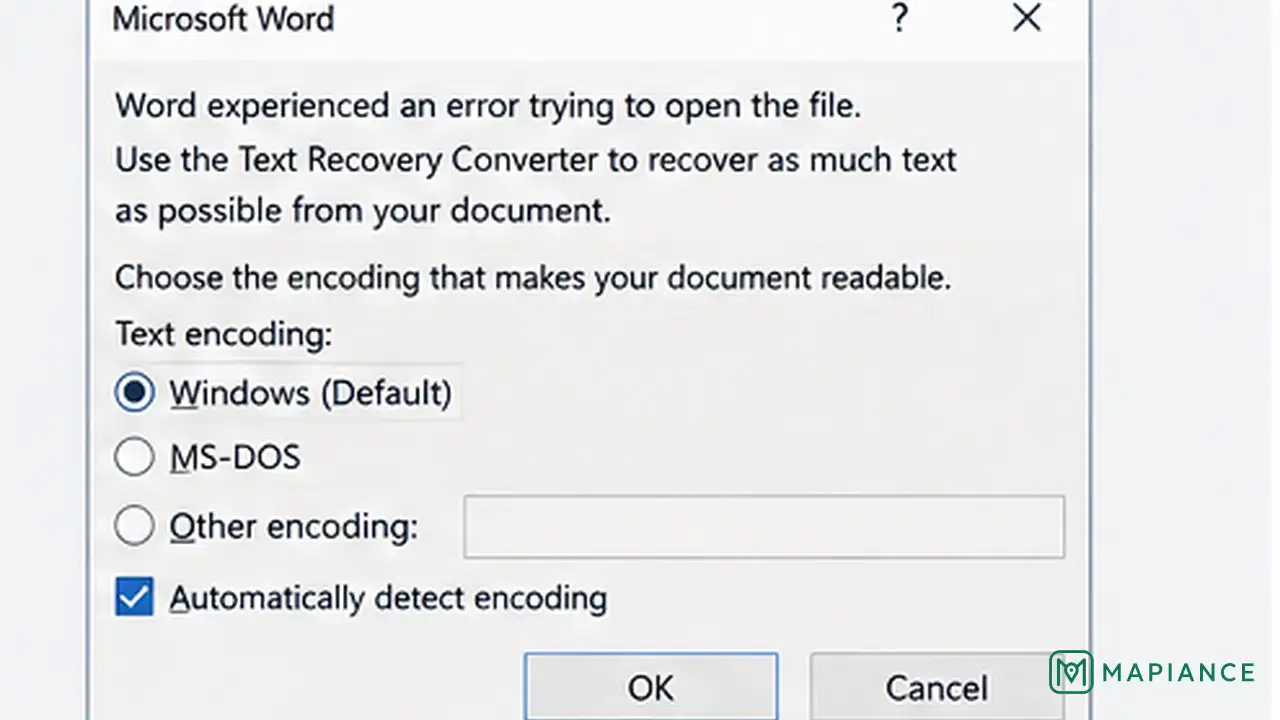
Use Recover Text if formatting is not important
If normal repair methods fail and the main goal is to rescue the words, use Word's Recover Text option when your version provides it. On Word for Mac, Microsoft documents this through Word > Preferences > General, enabling file format conversion confirmation, then File > Open and choosing Recover Text. Text recovery can remove or change formatting, images, tables, and other document features, so save the recovered text in a new document.
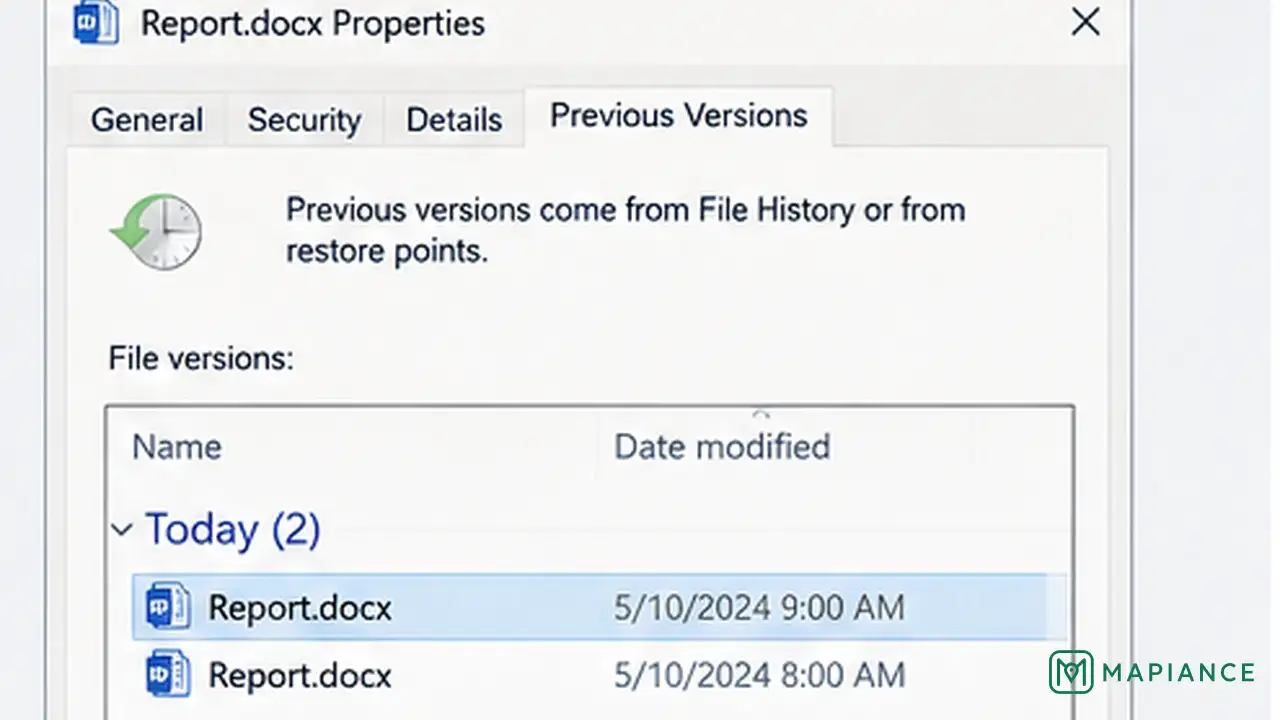
Restore an earlier or AutoRecovered version
If the document became corrupted after a crash, power loss, sync problem, or recent edit, look for an earlier copy instead of repairing the damaged one. In Word, check Document Recovery or File > Info > Manage Document for recoverable versions when available. If the file is stored in OneDrive or SharePoint, check its version history. Open the newest healthy version and save a separate copy before continuing.
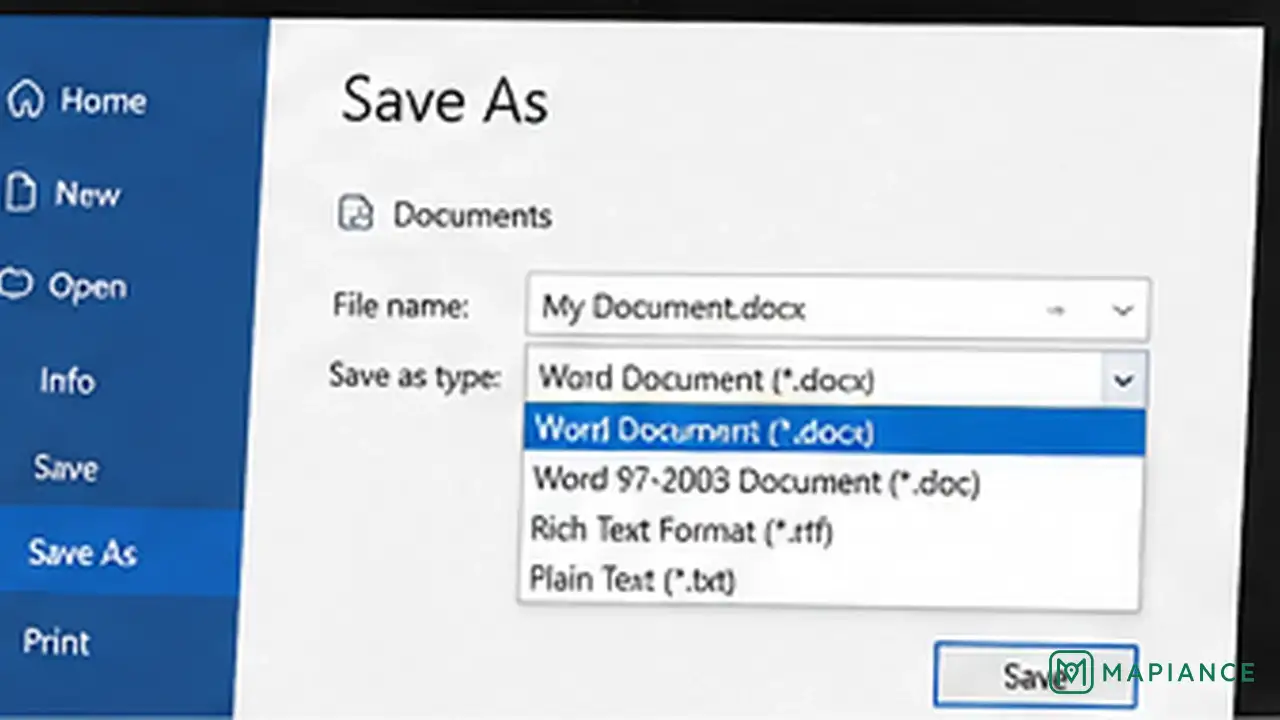
Save the recovered content as a new document
Once any method successfully opens or recovers the content, do not overwrite the original damaged file immediately. Use Save As and create a new .docx document. Close Word, reopen the new file, and check several pages, tables, images, headers, footnotes, and other important sections. If the new document opens normally, keep the damaged original only until you are sure nothing else needs to be recovered.
Tips & common mistakes
Tips for best results
- Always preserve the original corrupted file until you have checked the recovered version carefully.
- Open the file through File > Open > Browse when using Open and Repair rather than opening it from the Recent list.
- If only the text matters, Recover Text can be useful even when complex formatting cannot be saved.
- For Microsoft 365 files stored in OneDrive or SharePoint, version history may recover a clean copy faster than document repair.
- Use AutoSave and cloud versioning for important documents to reduce the impact of future file corruption.
Common mistakes
- Working directly on the only copy of the damaged file: A failed repair attempt can make later recovery more difficult.
- Overwriting the corrupted document as soon as it opens: Save the recovered result under a new name first.
- Expecting Recover Text to preserve the full layout: It is mainly for rescuing readable text and can lose formatting or objects.
- Ignoring earlier versions: A healthy AutoRecover, OneDrive, SharePoint, or backup copy can be better than repairing a badly damaged file.
- Using random online repair tools with confidential documents: Uploading private files to an unknown service can create a privacy or security risk.
Frequently asked questions
Where is Open and Repair in Microsoft Word?
In desktop Word on Windows, go to File > Open > Browse, select the document, click the arrow beside Open, and choose Open and Repair.
Can Word recover text from a corrupted document?
Yes. Word includes text-recovery options in some versions. These can recover readable text even when the full document structure or formatting cannot be preserved.
Will Open and Repair keep all formatting?
Not always. It may recover most of the document, but badly damaged formatting, images, tables, or other elements can still be lost or changed.
Can OneDrive help recover a corrupted Word file?
Yes. If the file was stored in OneDrive or SharePoint, version history may contain an earlier healthy version that you can restore or download.
What should I do if none of the Word repair methods work?
Keep the original file unchanged and check backups, AutoRecover files, OneDrive or SharePoint version history, and other saved copies. For an important business, legal, or research document, consider a trusted professional recovery service instead of repeatedly modifying the only copy.
Written by Mapiance Editorial Team
The Mapiance Editorial Team researches, writes, reviews, and maintains practical guides and explainers for MAPIANCE.
Published Aug 27, 2026 · Updated Oct 1, 2026