 MAPI
MAPIHow to Use ChatGPT Voice With Files and Projects
ChatGPT Voice can now work with files and Projects. A Project keeps related chats, uploaded files, sources, and project instructions together, while Voice lets you talk with ChatGPT naturally inside that context. This is useful when you want to discuss a report, review notes, compare documents, or continue a long-running project without typing every question. Feature availability can still depend on your plan, workspace settings, region, app version, and the Voice experience available on your account.
Open a ChatGPT Project, add the files and instructions you want to use, then start Voice inside a project chat. You can ask spoken questions about project sources and, when available for your account, manually attach a supported file during the Voice conversation.
Things you'll need
- A ChatGPT account with Voice available
- Microphone permission in your browser or app
- A Project with files or sources, or a supported file to attach
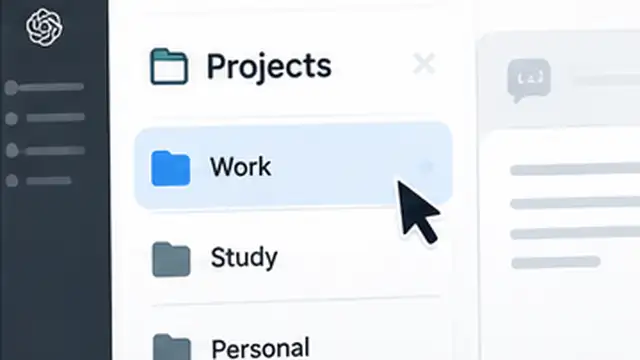
Create or open a Project
Open ChatGPT and create a new Project, or enter one you already use. A Project keeps related chats, files, sources, and project instructions in one place, so Voice can work inside the same long-running context instead of starting from an empty conversation.
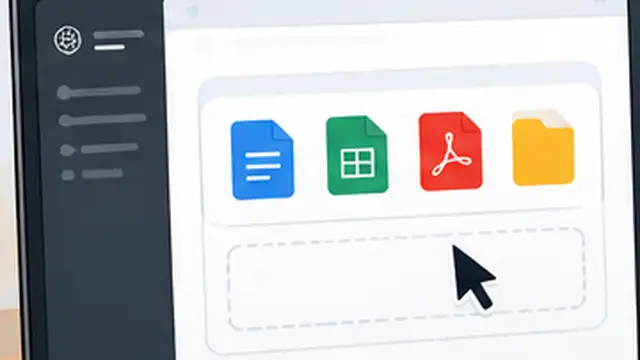
Add the files and project instructions
Add the documents, spreadsheets, PDFs, images, or other supported sources you want ChatGPT to use. If the Project needs a specific tone, goal, or workflow, add project instructions as well. Keeping the useful material inside the Project makes it easier to ask Voice questions that depend on the same sources later.
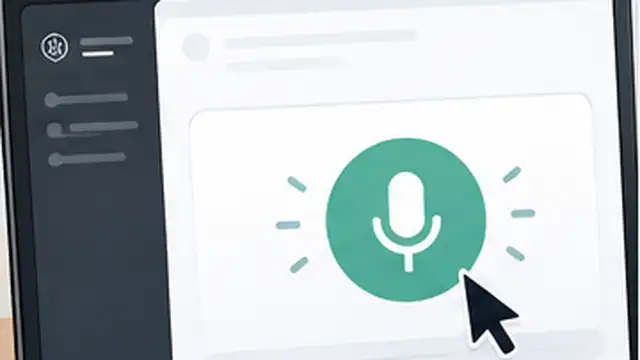
Start Voice inside the project chat
Open a chat inside the Project and select the Voice control in the message area. Allow microphone access if ChatGPT asks for it, then begin speaking. Voice works within the chat, so you can talk, listen to the answer, type when needed, and continue using the same conversation.
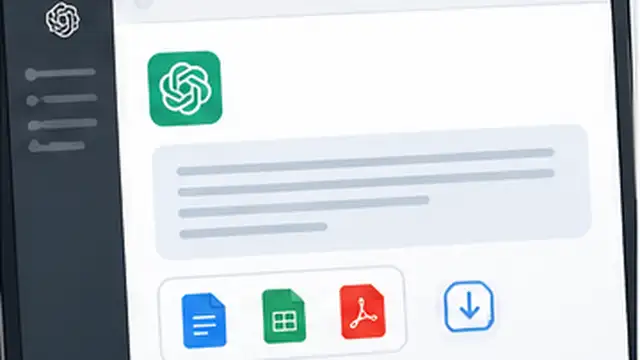
Ask questions about the project sources
Speak naturally and refer to the material already stored in the Project. For example, ask ChatGPT to summarize a report, compare two project files, explain a section in simpler language, or continue an idea from a recent project chat. Voice in Projects can use recent project chats, project sources, and project instructions as context.
Attach a file during Voice when available
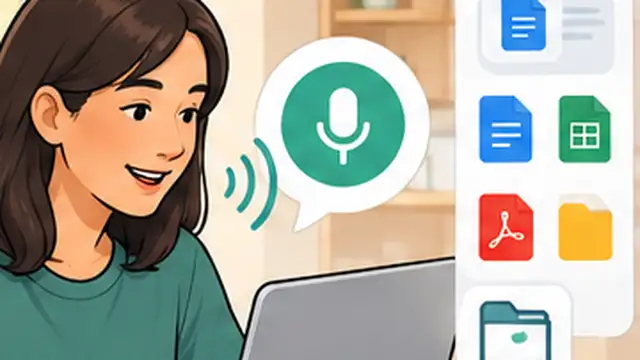
If you need to discuss a file that is not already in the Project, use the add or attachment control during the Voice chat when file attachment is available for your account. Select a supported file and then ask Voice to analyze, summarize, compare, or answer questions about it. If the attachment option is not available in your current Voice session, add the file to the chat or Project first and then continue with Voice.

Keep working in the same Project
Continue the conversation in the same Project when you want ChatGPT to keep using the project's files, instructions, and recent work. You can leave Voice and return to text without starting a new chat. One current limitation is that Live cannot directly find or add files from your ChatGPT Library, so attach a supported file manually or add it to the Project when needed.
Tips & common mistakes
Tips for best results
- Give important files clear names before adding them to a Project so spoken references are easier to understand.
- Add short project instructions when you want Voice to follow a consistent tone, role, format, or goal.
- Ask one specific question at a time when several project files contain similar information.
- If Voice seems to use the wrong context, name the file or source you want it to focus on.
- Keep the ChatGPT app or browser updated because Voice features can vary by app version and account.
Common mistakes
- Starting Voice outside the Project and expecting full project context: Open the conversation inside the Project when you want its sources and instructions available.
- Assuming Voice can always pull a saved file directly from Library: Live currently cannot directly find or add files from ChatGPT Library, so attach the file manually when needed.
- Uploading a file but giving no clear task: Tell Voice whether you want a summary, comparison, explanation, extraction, or another specific result.
- Assuming every account has the same attachment controls: File and Voice availability can depend on plan, workspace settings, region, and app version.
- Using a new unrelated Project for every follow-up: Keeping related work together gives ChatGPT more useful project context.
Frequently asked questions
Can ChatGPT Voice use files inside a Project?
Yes. Current ChatGPT Voice supports Projects and can use project sources, recent project chats, and project instructions as context.
Can I upload a file while I am already using Voice?
File uploads can be available during a Voice conversation. Use the attachment control when it appears for your account, then ask Voice about the file.
Can Voice open a file from my ChatGPT Library?
Live cannot currently find or add files directly from ChatGPT Library. You can manually attach a supported file to the chat or add it to the Project.
Can I switch from Voice to typing without losing the conversation?
Yes. Voice works inside the same chat, so you can speak, type, review earlier messages, and continue without starting over.
Why do I not see the same Voice or file options shown elsewhere?
Available Voice modes and file features can vary by plan, workspace settings, region, app version, and account.
Written by Mapiance Editorial Team
The Mapiance Editorial Team researches, writes, reviews, and maintains practical guides and explainers for MAPIANCE.
Published Aug 23, 2026 · Updated Oct 2, 2026