 MAPI
MAPIHow to Fix a Monitor That Says “No Signal”
A “No Signal” message usually means the monitor itself has power but is not receiving a usable video signal from the computer or other source. The problem is often a wrong input setting, loose or faulty cable, incorrect video port, dock or adapter issue, or a computer that is not sending video. Start with the physical connection before changing drivers or display settings.
Make sure the monitor is powered on and set to the input that matches the connected cable, such as HDMI or DisplayPort. Reseat or replace the video cable, try another video port, and test the monitor with another device to find out whether the problem is the monitor, cable, or computer.
Things you'll need
- The monitor and computer or source device
- A known-good HDMI, DisplayPort, USB-C, DVI, or other compatible video cable
- Another monitor, TV, or source device for testing if available
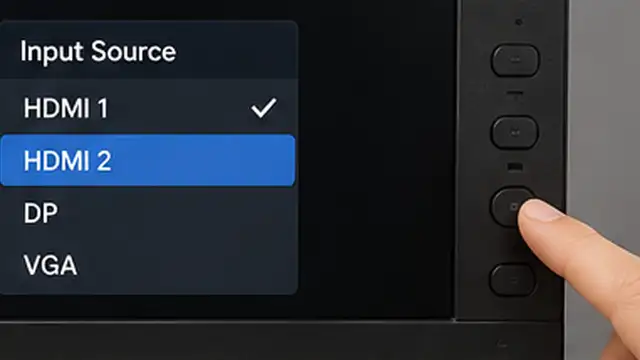
Check the monitor power and input
Confirm that the monitor is turned on and that its on-screen menu works. Open the monitor input or source menu and select the port that matches the connected cable, such as HDMI 1, HDMI 2, DisplayPort, or USB-C. If the monitor still shows “No Signal,” leave the correct input selected and continue.
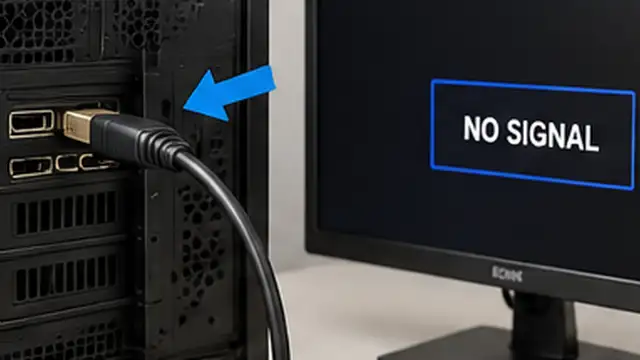
Reseat the video cable
Turn off the computer and monitor, then unplug the video cable from both ends. Check the connectors for bent pins, dirt, or obvious damage, then reconnect the cable firmly to the monitor and computer. If you use a dock, hub, adapter, or converter, bypass it temporarily and connect the monitor directly to the computer when possible.
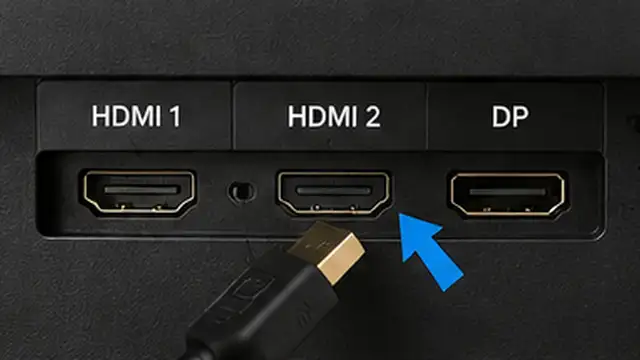
Try another cable and video port
Replace the current cable with a known-good compatible cable. If the computer or monitor has another matching video port, test that port too. This is especially useful with HDMI and DisplayPort because a damaged cable or single failed port can cause a complete “No Signal” message even when both devices have power.
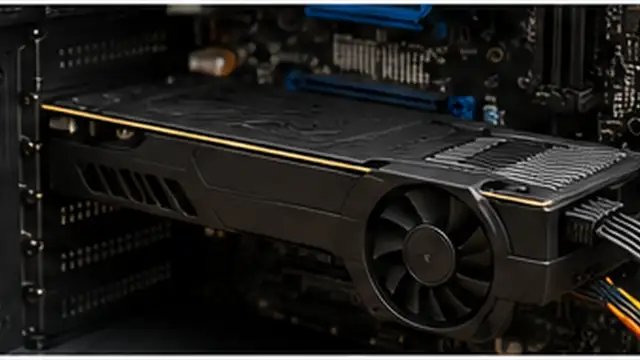
Use the correct video output on the computer
On a desktop PC with a separate graphics card, connect the monitor to a video port on the graphics card rather than a motherboard video port unless your system is designed to use the motherboard output. On a laptop, confirm that the USB-C port supports video if you are using a USB-C display cable or adapter. Then restart the computer with the monitor connected.
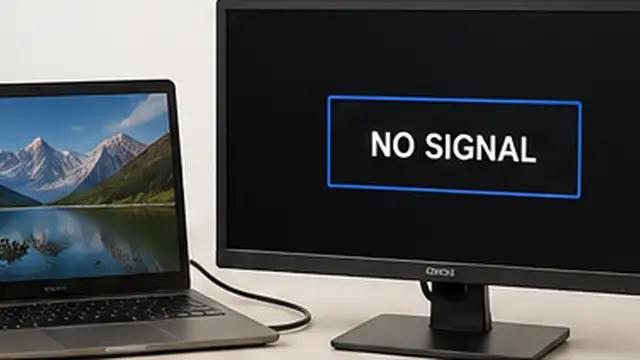
Test the monitor and computer separately
Connect the monitor to another computer, laptop, game console, or other compatible video source. If it works, the original computer or its video output is the likely problem. If possible, also connect the original computer to another monitor or TV. These two tests quickly show whether the fault follows the monitor or the computer.
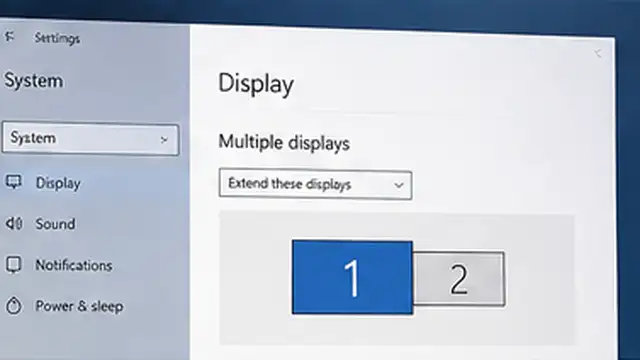
Check display output and graphics settings
If the monitor and cable work with other devices, check the computer's display output. In Windows, press Windows + P and choose Duplicate, Extend, or Second screen only, then open Settings > System > Display > Multiple displays > Detect if needed. You can also press Windows + Ctrl + Shift + B to restart the graphics driver. If there is still no picture before Windows even starts, the problem is more likely hardware or firmware than a normal display setting.
Tips & common mistakes
Tips for best results
- Use one direct cable during troubleshooting; docks, hubs, KVM switches, and adapters add extra points where the signal can fail.
- Match the monitor input to the exact physical port in use. A monitor on HDMI 2 will not normally show a device connected to HDMI 1.
- If the problem began after moving the desk or computer, inspect the cable and connectors before changing software settings.
- With a desktop graphics card, test more than one output on the card if another compatible port is available.
- If the monitor briefly shows the manufacturer's logo or its own menu normally, its panel has power even though it may not be receiving video.
Common mistakes
- Changing drivers before checking the cable and input: A wrong source or loose cable cannot be fixed with software.
- Connecting a desktop monitor to the wrong video ports: A motherboard output may not provide video when the system is using a separate graphics card.
- Assuming every USB-C port carries video: Some USB-C ports support data or charging without DisplayPort video output.
- Testing through the same dock or adapter every time: A faulty adapter can make both the computer and monitor appear broken.
- Buying a new monitor before doing a cross-test: Testing the monitor with another source can show whether the display is actually faulty.
Frequently asked questions
What does “No Signal” mean on a monitor?
It usually means the monitor has power but is not receiving a valid video signal from the connected device on the selected input.
Why does my monitor say No Signal with HDMI connected?
Common causes are the wrong HDMI input, a loose or damaged cable, a bad HDMI port, an adapter problem, or a computer that is not sending video.
Should my monitor be connected to the motherboard or graphics card?
If your desktop has a separate graphics card and uses it for display output, connect the monitor to the graphics card. Motherboard video ports may not work in that configuration.
Can a bad DisplayPort or HDMI cable cause No Signal?
Yes. A cable can fail even when it looks normal, so testing a known-good cable is an important troubleshooting step.
How do I know if the monitor itself is broken?
Test it with another known-working video source. If the monitor still shows No Signal with the correct input and a known-good cable, the monitor or its input port becomes more likely to be faulty.
Written by Mapiance Editorial Team
The Mapiance Editorial Team researches, writes, reviews, and maintains practical guides and explainers for MAPIANCE.
Published Aug 25, 2026 · Updated Sep 22, 2026