 MAPI
MAPIHow to Fix a Printer That Keeps Going Offline
A printer can keep going offline because of a weak network connection, a stuck print queue, a changed IP address, a paused printer setting, or outdated printer software. Start with the simple connection checks first, then work through the computer's printer settings. The exact menu names vary by Windows, macOS, printer brand, and network setup, but the same basic troubleshooting order usually applies.
Make sure the printer is powered on and connected to the same Wi-Fi or network as your computer, then restart both devices. Clear any stuck print jobs, disable any offline or paused printing mode, and remove and re-add the printer if the problem continues.
Things you'll need
- Printer power cable
- Computer or mobile device connected to the printer
- Access to the Wi-Fi router if using a wireless printer
- Printer model name or setup information
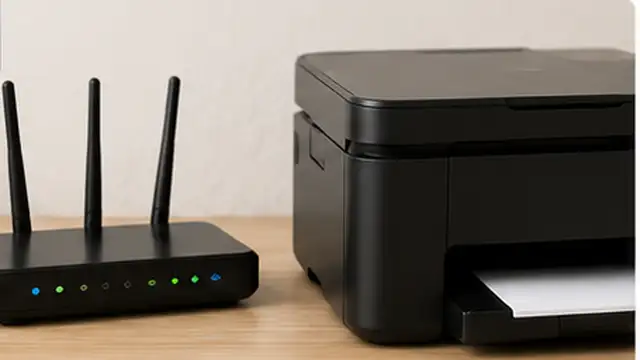
Check the printer power and connection
Make sure the printer is turned on, has no warning lights, and is not showing a paper, ink, toner, or cover error. For a Wi-Fi printer, confirm that it is connected to the same network as the computer or phone. For USB or Ethernet printers, check that the cable is firmly connected at both ends.
Restart the printer and computer
Turn the printer off, wait about 30 seconds, then turn it back on. Restart the computer, phone, or tablet that is sending the print job. If the printer connects through Wi-Fi and other network devices are also having problems, restart the router as well.

Clear stuck print jobs
Open the printer queue on your computer and cancel jobs that are stuck, paused, or showing errors. Wait until the queue is empty, then send one small test page. A blocked print queue can make a working printer appear unavailable or offline.
Turn off offline or paused printing
Open the printer settings on your computer and check whether the printer is paused or set to work offline. Turn those options off if they are enabled. Also make sure the correct printer is selected as the device you want to use, especially if several printers or old copies of the same printer appear in the list.

Remove and add the printer again
If the printer still keeps going offline, remove it from the computer's printer list and add it again using the normal printer setup process. For a network printer, allow the computer to rediscover it on the current network. This can refresh an outdated connection or old printer address.
Update the printer software and network setup
Install the current printer driver, firmware, or setup software recommended by the printer manufacturer for your model. If the printer repeatedly disappears from Wi-Fi, reconnect it to the network and consider giving it a stable network address through your router if you are comfortable managing network settings. Print a test page after the update.
Tips & common mistakes
Tips for best results
- Keep the printer close enough to the Wi-Fi router to maintain a reliable signal.
- Avoid keeping multiple old copies of the same printer installed on one computer.
- Print a small test page after each change so you know which step fixed the problem.
- If the printer sleeps for long periods, allow a short time for it to reconnect before sending repeated jobs.
- Use the printer manufacturer's official setup utility when the operating system cannot rediscover the printer normally.
Common mistakes
- Repeatedly sending the same print job: This can fill the queue and make troubleshooting harder.
- Ignoring printer error lights or messages: A paper, ink, toner, or cover error can make the printer look offline even when the network is working.
- Connecting the computer and printer to different Wi-Fi networks: Guest networks and separate router networks can prevent devices from seeing each other.
- Reinstalling software before checking simple connections: Power, Wi-Fi, and stuck queues are faster to rule out first.
- Using outdated printer entries: An old saved printer connection may point to an address the printer no longer uses.
Frequently asked questions
Why does my wireless printer keep going offline?
Common causes include weak Wi-Fi, a changed network address, sleep or reconnect problems, stuck print jobs, or an outdated printer setup on the computer.
Why does restarting the printer fix it only temporarily?
A restart can restore the connection, but the underlying issue may still be a weak network signal, changing printer address, outdated driver, or router configuration.
Should I remove and reinstall the printer?
Yes if basic connection checks, restarts, and clearing the queue do not help. Removing and adding the printer again can refresh an outdated or broken connection.
Can a printer show offline even when it is connected to Wi-Fi?
Yes. The printer may be connected to the network while the computer is using an old printer entry, incorrect address, paused queue, or offline setting.
When should I contact the printer manufacturer or network administrator?
Get additional help if the printer repeatedly drops from the network after being reconfigured, cannot connect to Wi-Fi at all, shows hardware errors, or is managed by a workplace or school network.
Written by Mapiance Editorial Team
The Mapiance Editorial Team researches, writes, reviews, and maintains practical guides and explainers for MAPIANCE.
Published Aug 22, 2026 · Updated Sep 9, 2026