 MAPI
MAPIHow to Fix a Printer That Prints Blank Pages
A printer can feed paper normally but still produce a completely blank sheet when ink or toner is not reaching the page, a cartridge is installed incorrectly, an inkjet printhead is clogged, or the computer is sending a bad print job. The fastest way to narrow it down is to test the printer without using your usual document. Then fix either the printer side or the computer side based on the result.
Print a built-in printer test page first. If that page is blank, check ink or toner levels, remove any protective seals, reseat the cartridges, and run the printer’s cleaning cycle if it is an inkjet. If the internal test page prints normally, the problem is more likely the document, print settings, or printer driver.
Things you'll need
- Printer paper
- Installed ink or toner cartridges
- Computer or phone connected to the printer
- Printer cleaning utility for an inkjet, if available
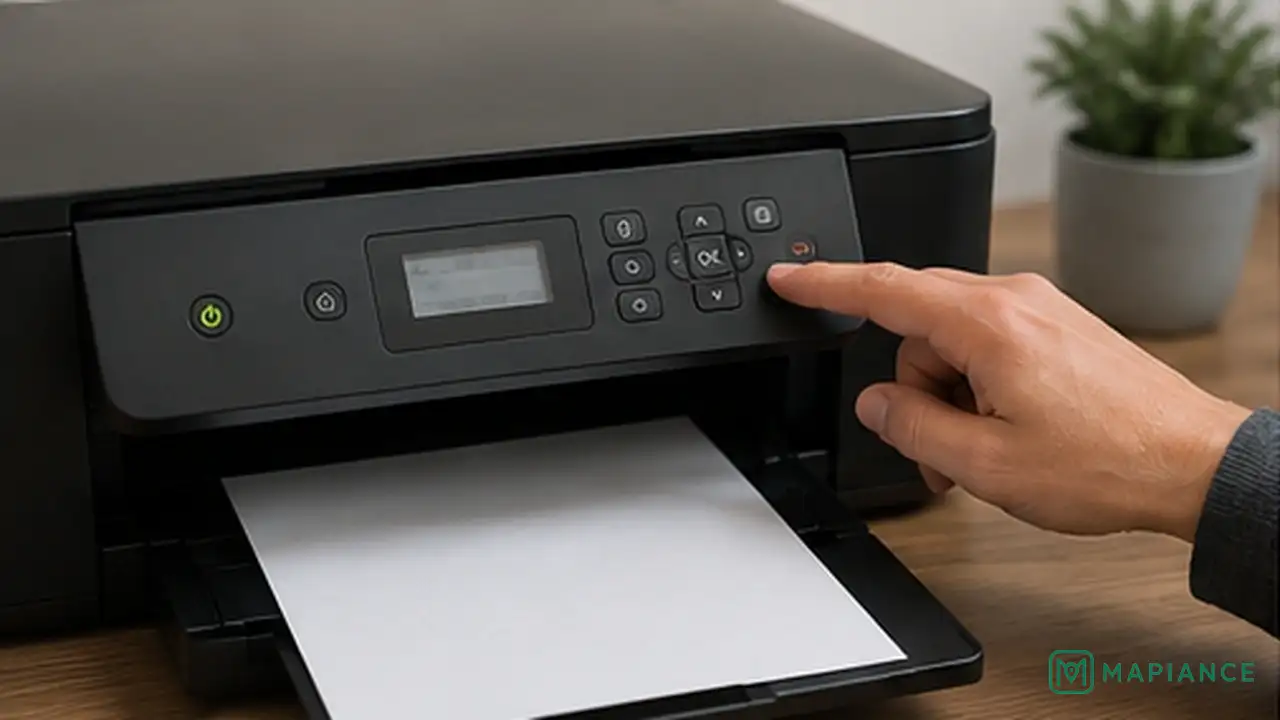
Print an Internal Test Page
Use the printer’s control panel or built-in maintenance menu to print a test, status, or nozzle-check page without opening your usual document. If this internal page is also blank, the problem is inside the printer or its consumables. If the internal page prints normally, skip ahead to the document and driver checks because the printer itself can put ink or toner on paper.
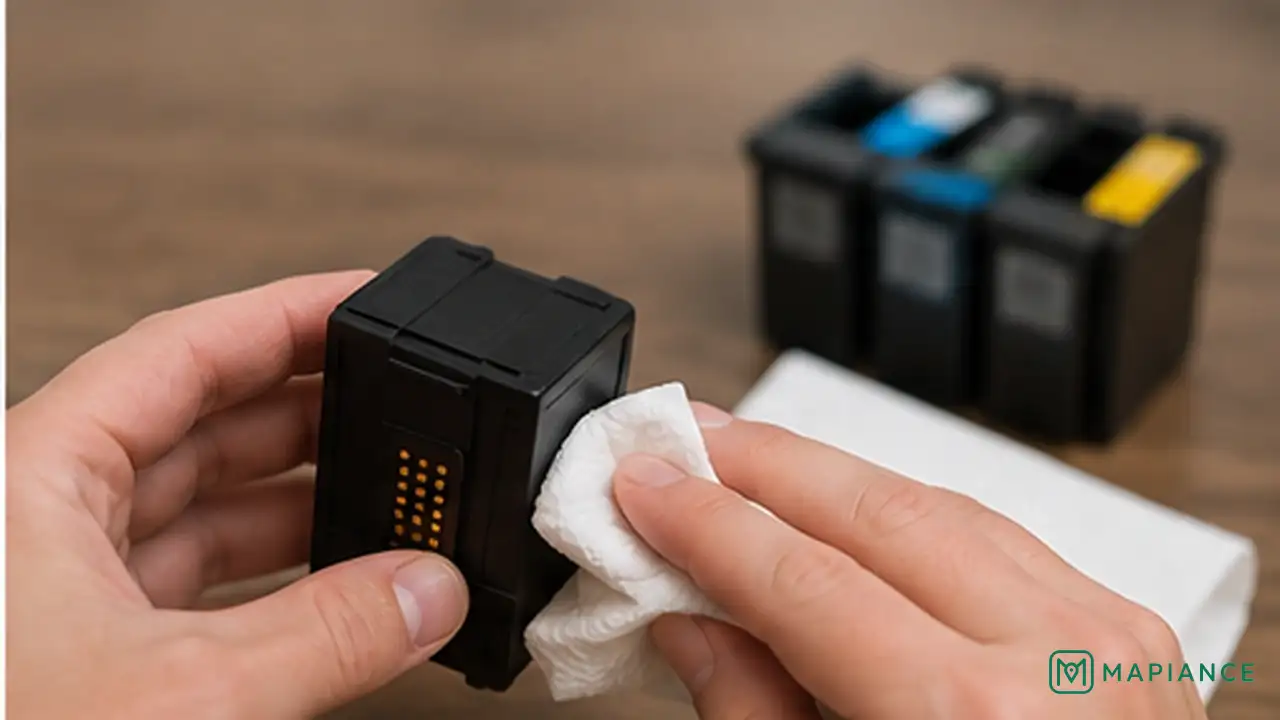
Check Ink or Toner
Check the printer’s supply levels and inspect the installed cartridges. Replace a cartridge that is empty or clearly exhausted. If you recently installed a new cartridge, make sure every protective tape, plastic seal, or shipping clip has been removed and that any required air vent is not blocked. Use cartridges that are designed for the exact printer model.
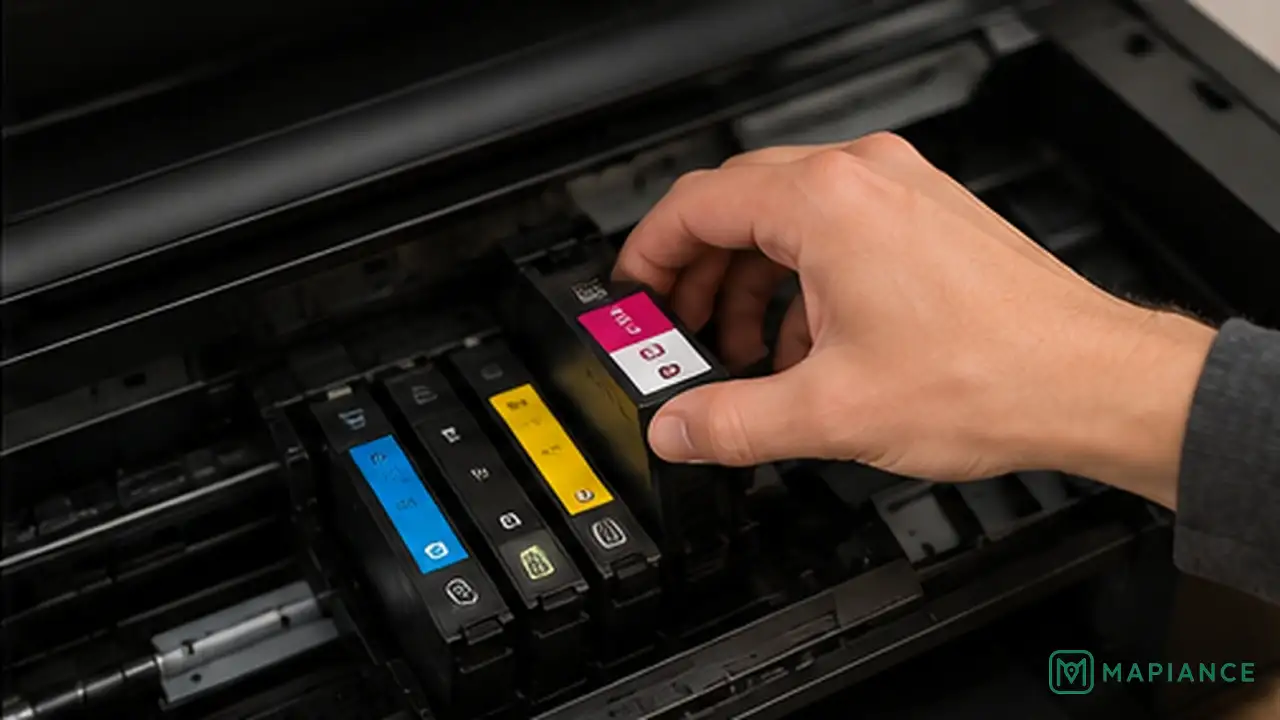
Reseat the Cartridges
Turn the printer off if the manual requires it before cartridge handling, then open the cartridge access area. Remove each cartridge carefully and reinstall it until it is fully seated or clicks into place. Do not touch exposed electrical contacts, ink nozzles, imaging drums, or other sensitive surfaces. Close the printer, turn it back on, and print another internal test page.
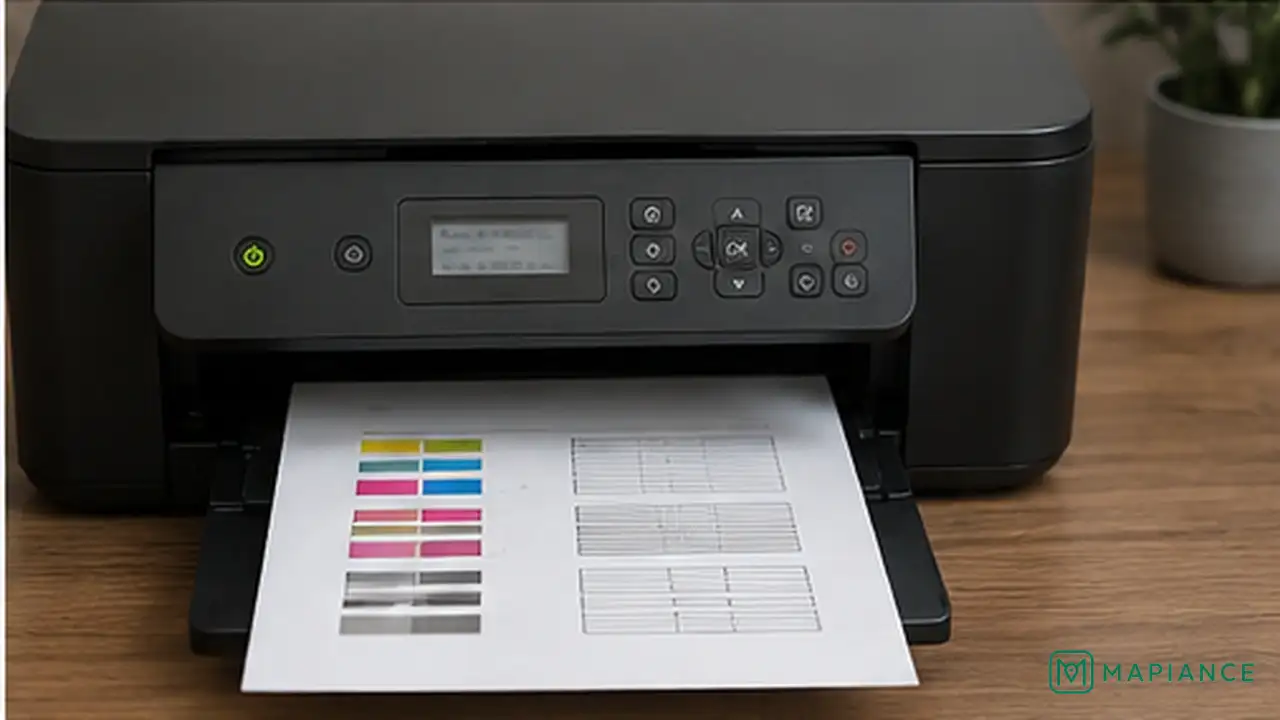
Run Printhead Cleaning on an Inkjet
If an inkjet printer still produces a blank or nearly blank internal page, run its nozzle check and printhead cleaning function from the printer menu or manufacturer utility. Print another nozzle check after one cleaning cycle. Repeat only as recommended by the printer because repeated deep cleaning can use a large amount of ink. If your printer uses a removable printhead, follow its manual rather than cleaning it with random solvents or sharp tools.

Test a Different Document
If the printer’s own test page looks normal, print a simple one-page document from another app or device. Check the print preview first and make sure the page is not actually empty, the text colour is not white, and the correct printer is selected. Confirm that the paper size and orientation match what is loaded. If another document prints correctly, the original file or app is the likely cause.
Restart and Reinstall the Printer
Turn the printer off, disconnect its power for about a minute if the manufacturer allows it, then reconnect and restart it. Restart the computer or phone as well. If blank pages happen only when printing from that device, remove the printer from the operating system and add it again, or install the latest driver or printing software from the printer manufacturer. If the printer’s own internal test page remains blank after cartridge and cleaning checks, the printer may need service.
Tips & common mistakes
Tips for best results
- Keep a recent internal test page as a reference because it quickly shows whether a future problem is inside the printer or on the computer.
- Print at least occasionally with an inkjet that sits unused for long periods, because dried ink can contribute to clogged nozzles.
- Store unopened cartridges in the position and temperature range recommended by the manufacturer.
- If only one colour is missing, focus on that cartridge or nozzle channel rather than treating the whole printer as completely blank.
- For office or managed printers, check whether another user can print normally before changing drivers or network settings.
Common mistakes
- Running many deep-cleaning cycles in a row can waste a large amount of ink without fixing a cartridge that is empty, sealed, or installed incorrectly.
- Touching cartridge contacts, ink nozzles, or a laser printer imaging drum can cause print defects or damage sensitive parts.
- Assuming the printer is faulty before printing an internal test page can lead to unnecessary cartridge changes when the real problem is the document or driver.
- Using a cartridge that physically fits but is not approved for the printer model can cause detection or ink-delivery problems.
- Opening or reaching deep inside a laser printer immediately after use can expose you to hot internal parts; let it cool and follow the printer manual.
Frequently asked questions
Why does my printer print blank pages even though it has ink?
The cartridge may be installed incorrectly, still have a protective seal, have a blocked vent, or the inkjet printhead may be clogged. Print an internal test page to confirm whether the problem is inside the printer.
Can a clogged printhead cause completely blank pages?
Yes, especially on an inkjet that has not been used for a while. Run the printer’s nozzle check and approved printhead cleaning cycle before trying manual cleaning.
Why does the printer test page work but my document is blank?
That usually points to the document, app, print settings, or driver. Try a simple document from another app and check print preview, text colour, printer selection, and paper settings.
Should I clean printer cartridges with alcohol?
Do not use solvents unless the printer manufacturer specifically instructs you to. Cartridge contacts, nozzles, coatings, and printheads can be damaged by the wrong cleaning method.
Why is only one colour missing instead of the whole page being blank?
One colour cartridge may be empty, blocked, incorrectly seated, or have clogged nozzles. A nozzle-check page can show which colour channel is failing.
When should I have the printer serviced?
Consider service if the printer’s own internal test page stays blank after confirmed good cartridges, correct installation, approved cleaning, and a restart. That can indicate a printhead, imaging, electrical, or other internal fault.
Written by Mapiance Editorial Team
The Mapiance Editorial Team researches, writes, reviews, and maintains practical guides and explainers for MAPIANCE.
Published Aug 29, 2026 · Updated Sep 8, 2026